161
Defining your capture settings
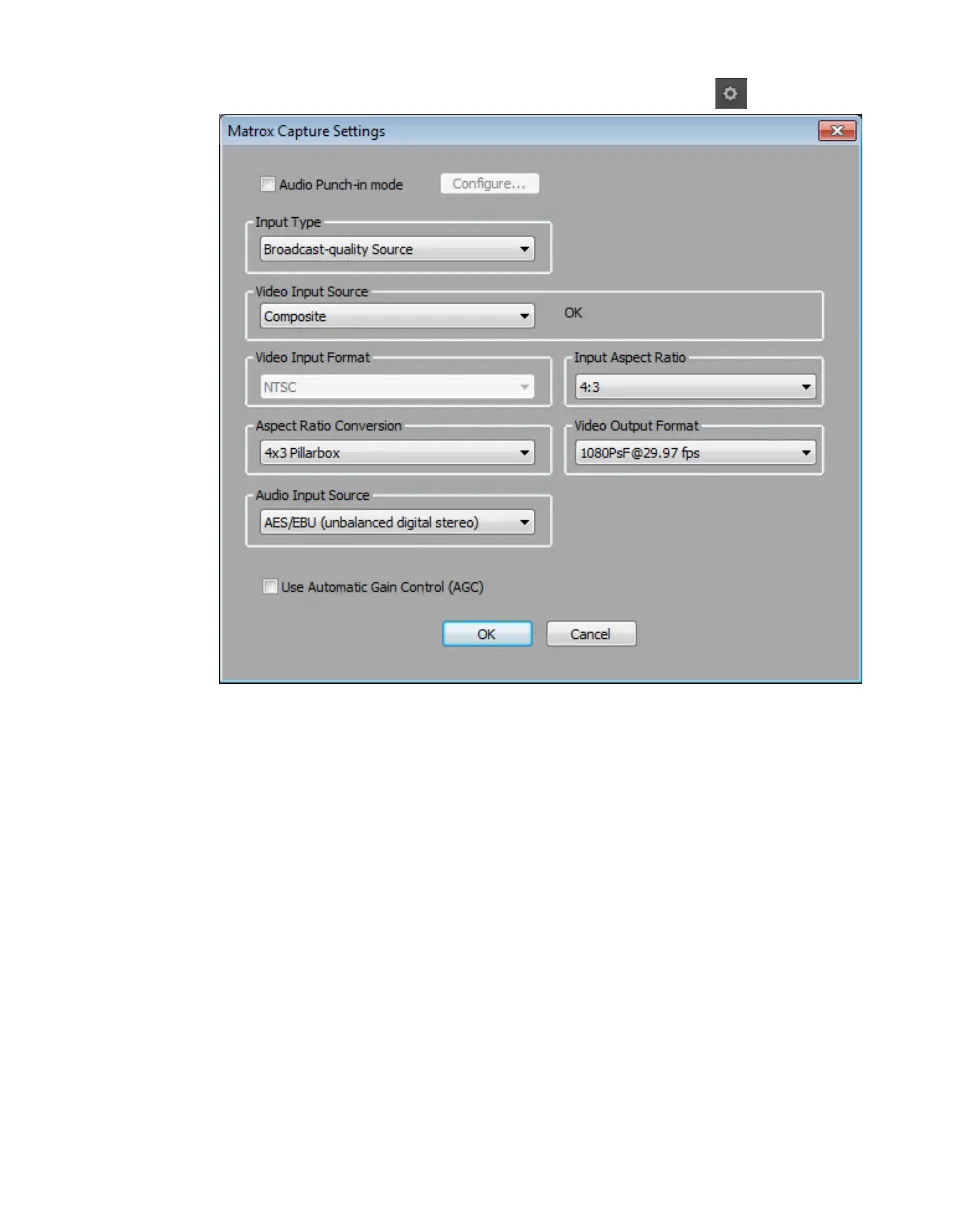
$ In the Capture tool, click the Hardware Setup button ( ).
¡ Important In order to perform a capture, make sure that Audio Punch-in
mode
is not selected. This mode is used only for recording a voice-over as
explained in “Adding a voice-over to your sequence” on page 164.
2 Under Input Type, select the type of equipment you’re using for capture:
$ Broadcast-quality Source Select this if your source device is
broadcast-quality. This setting provides the best capture results for most
devices.
$ Consumer-quality Source Select this if you’re having problems
capturing video because your source device doesn’t meet
broadcast-quality standards. For example, the capture may be interrupted
when you try to capture from certain composite and S-Video devices,
especially from low-quality VCRs. If this happens, selecting
Consumer-quality Source will allow the video to be captured, but you
may experience dropped frames during the capture.
¦NoteFor any change to the input type to take effect, you must restart your
Avid editing application and open your project again.



 To Next Page