252
Chapter 20, Using the Matrox MAX H.264 Codec with Adobe Software
4 Select Export Video and Export Audio if you want to export both video
and audio.
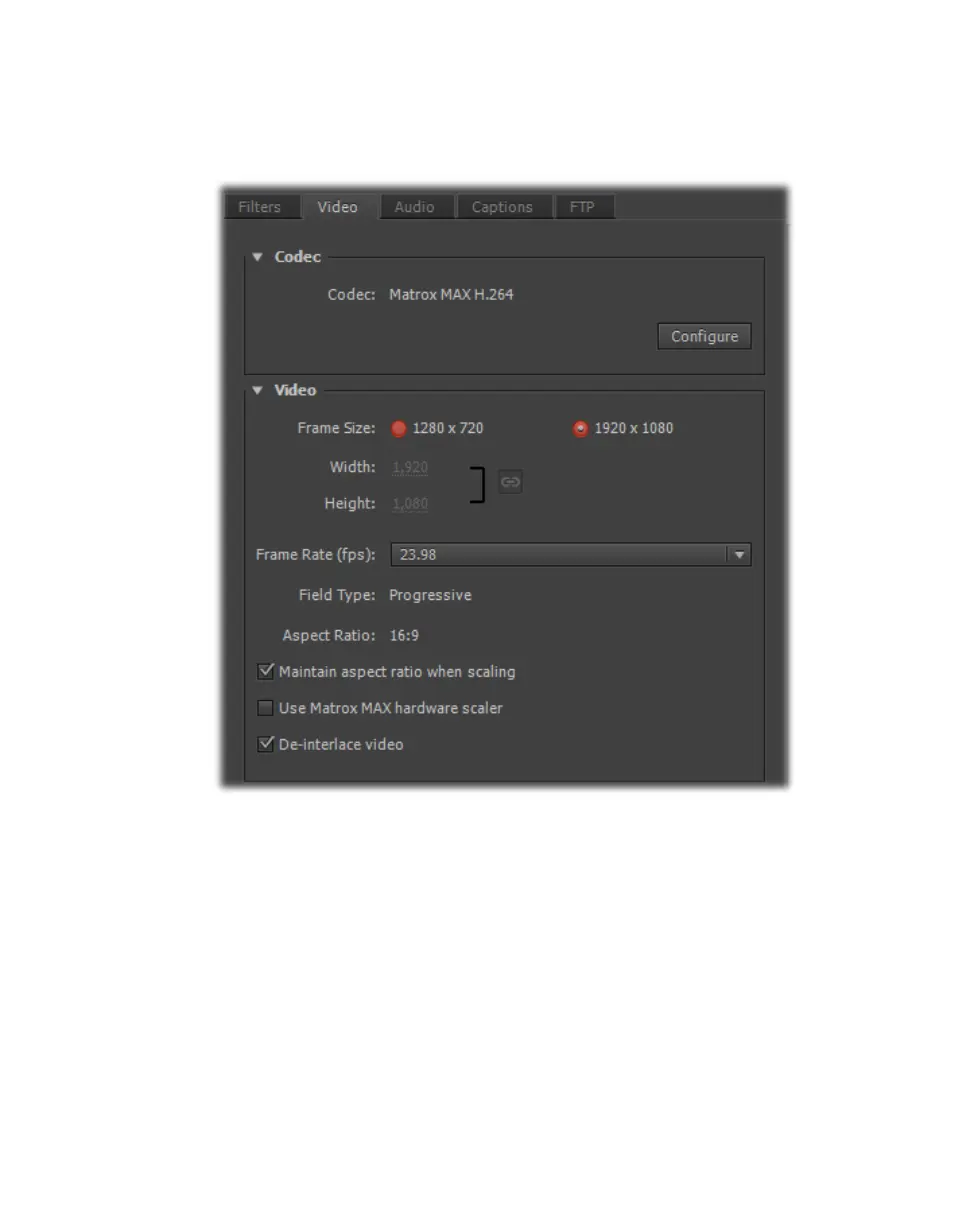
5 Click the Video tab to display the settings for your exported video.
6 Under Codec, click Configure to customize your Matrox MAX H.264
codec settings as explained in “Specifying your Matrox MAX H.264
settings” on page 260.
¥Tip You can check the Estimated File Size at the bottom of the dialog
box to determine the approximate file size of your exported material based
on your currently selected settings. If needed, you can change your Matrox
MAX H.264 settings to better meet your file size requirements, such as by
selecting a different encoding type and lower data rate.
7 Under Video, you can customize the settings that you want for your
exported video:
$ Frame Size Sets the width and height for your exported video. When
exporting to a Matrox .264 file, the available frame sizes are
1920 x 1080
and
1280 x 720. When exporting to a Matrox .mp4 file, you can select a



 To Next Page