4
Operator's Manual English 51
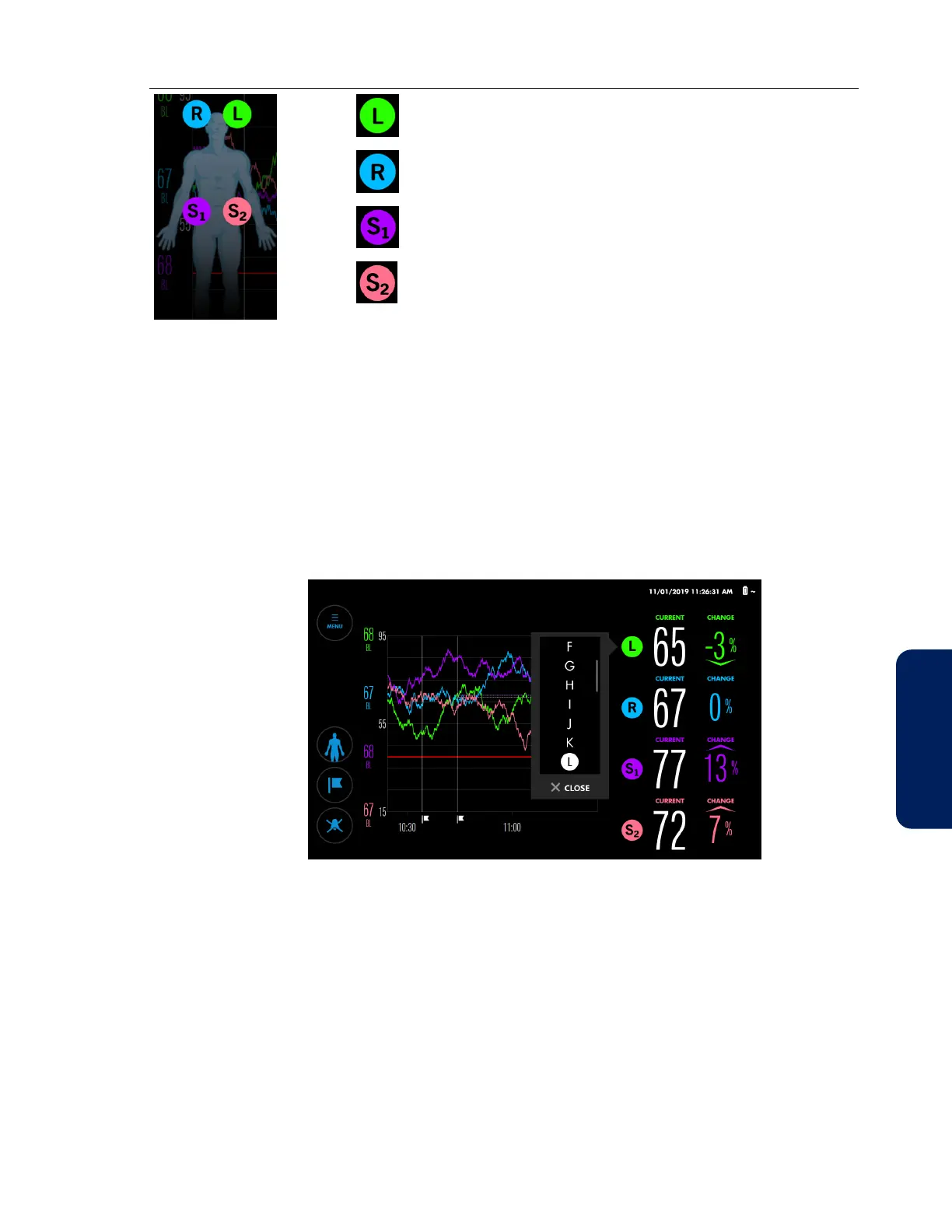
Left cerebral sensor
Right cerebral sensor
Right somatic sensor
Left somatic sensor
You can change the sensor labels to any alphabetic value (A - Z) or S
1
- S
4
.
Note: You can verify the location of a sensor by briefly pressing the sensor label next to the
CURRENT value on the monitoring screen. The blue LEDs on the RSC light to indicate the
corresponding sensor.
To change a sensor label:
1. After monitoring begins, press and hold the sensor label you want to change. A
sensor label menu appears.
Figure 34. Sensor Label Menu
2. Scroll through the choices by pressing anywhere within the list and dragging up or
down. When you see the choice you want, press it to highlight it. Note that
duplicate labels are not permitted.
3. Press CLOSE.
4. Verify that the sensor label has changed.
4.8.5. Changing the Screen Brightness
By default, the screen brightness is set to 7 with a range of 1 to 10.
To change the screen brightness:
1. Press MENU.



 To Next Page
 Loading...