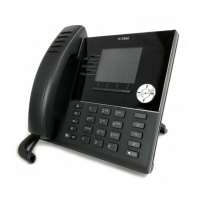
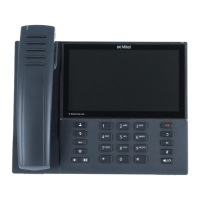
MITEL 6900, 6970, 6800, AND 6700 SIP TERMINALS FOR MIVOICE MX-ONE
41 26/1531-ANF 901 14 Uen S 2019-10-18
Note: If you want a different function keys layout on some special extensions even if
they are using the same telephone model as the default extension, you can do
this by:
1. Define a different model configuration file, e.g. 6731i.cfg, in Configuration
File task in MX-ONE Service Node Manager, see chapter 6, and store it in
another folder (Domain or Subnet) or on a different IP Phone Server.
2. Edit the special extensions in the Extension task, click the “Advanced”
button and select the IP Phone Server and/or Domain Folder previously
defined in the dropdown lists.
11.13.4 ASSIGNING PHONE NUMBERS TO SPEED DIAL KEYS
Shortcut keys that are not assigned to functions or monitored extensions can be
assigned to phone numbers as speed dial keys (also called TNS keys). The user can
initiate phone numbers to shortcut keys from the web UI.
When programming softkeys as speed dial keys from the web UI do not use key
number 1-8 for bottom softkeys and 1-4 for top softkeys.
The user may program a speed dial key with number and label. If HOTDESKLOGIN
key is used, only offered for 6900/6800, for logon, the speeddial key is stored in
MX-ONE as a TNS key and will follow the user when he/she logs on with another tele-
phone. If MX-ONE XML logon is used the speeddial key is stored locally on the phone
and will not be cleared at logoff.
TNS keys initiated via MX-ONE will appear as speeddial keys on the phone and follows
the user.
To program speed dial to a programmable key (hardkey) that is empty from the phone
UI:
1. Press the key for a couple of seconds until the input field appears in the display.
2. Enter the name and the number (or procedure with * and #).
Note: In 6867,6869, 6735/55 and 6737/57 the recommendation is to not use the phone
UI for the programming of softkeys as speed dial keys because it will interfere
with the keys used by the system. In 6739i it is ok when using the Options key
> Softkeys to program the softkey with higher key number than 8.
To program a speed dial key (hardkeys and softkeys) from the web UI:
1. Click on: Operation > Softkeys and XML or
Operation > Programmable keys or
Operation > Expansion Module
2. Enter the name and the number (or procedure with * and #).
Note: Do not program softkey 1-8 because these can interfere with keys used by the
system.
To edit an existing speed dial key from the phone UI:
Options > Preferences > Speed Dial Edit.
11.13.5 ASSIGNING MNS KEYS
The shortcut keys can be configured as monitoring keys (that is, assigned to monitor
other extensions). The LED of the shortcut key is used for indicating the status of the
monitored extension. By pressing the shortcut keys, calls to monitored extensions can
be answered. Secretary functions is one example of this.



 To Next Page