EasyManua.ls Logo

Motorola MC9500-K - User Manual

Motorola MC9500-K
284 pages
Print Icon
To Next Page IconTo Next Page
Loading...
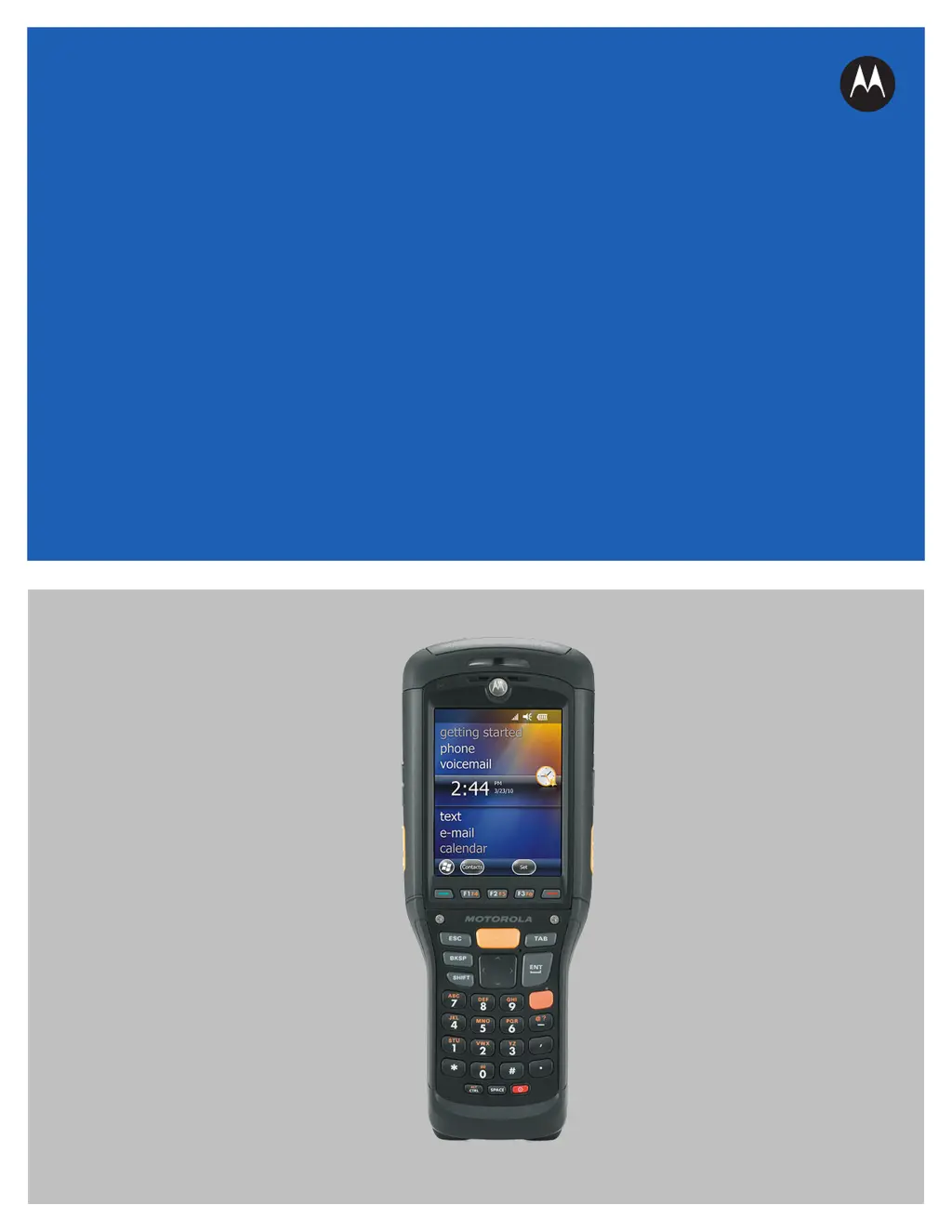
MC9500-K
MOBILE COMPUTER
USER GUIDE

Table of Contents

Other manuals for Motorola MC9500-K

Questions and Answers

  • P
    patrick32Nov 22, 2025
    What to do if Motorola MC9500-K battery did not charge?
    • S
      Susan OsborneNov 23, 2025
      If your Motorola Handhelds battery isn't charging, there are several possible reasons: * The battery might have failed: Try replacing it. If the device still doesn't work, perform a warm boot, then a cold boot. * There might be no power to the cradle or cable: Make sure the cradle or cable is properly connected to a power source. The Battery Status LED should flash amber while charging. * The device may have been removed from the cradle while charging: Ensure the device remains in the cradle to charge fully (approximately six hours for a 4800 mAh battery). * The battery temperature might be extreme: Charging is ineffective if the ambient temperature is below 0°C (32°F) or above 40°C (104°F). * The MC9500-K might not be functioning: Perform a warm boot, and if that doesn't work, ...
  • J
    Jodi OconnorAug 25, 2025
    What to do if my Motorola Handhelds MC9500-K does not turn on?
    • Y
      yvette34Aug 26, 2025
      If your MC9500-K device doesn't power up, there might be a few reasons. First, ensure the battery is adequately charged or replace it if necessary. Also, verify that the battery is correctly installed. If the issue persists, try performing a warm boot. Should that fail, proceed with a cold boot to reset the system.
  • M
    Michael JacksonAug 27, 2025
    Why does my Motorola Handhelds MC9500-K shut off by itself?
    • J
      Jennifer ScottAug 27, 2025
      Your Motorola MC9500-K might be shutting off due to inactivity. To adjust the inactivity timeout, go to Start > Settings > System tab, tap the Power icon, select the Advanced tab, and modify the automatic shutoff delay. Another reason might be a depleted battery, in which case you should replace it. Finally, ensure the battery is correctly inserted.
  • A
    Ashley Jones DVMAug 27, 2025
    What to do if my Motorola MC9500-K Handhelds battery did not charge?
    • B
      Billy PaulAug 27, 2025
      If your Motorola Handhelds MC9500-K battery isn't charging, first, check if the battery has failed and replace it if needed. Also, ensure the cradle or cable is receiving power; the Battery Status LED should flash amber while charging. Make sure the device remains in the cradle for charging; a 4800 mAh battery fully charges in under six hours. Note that extreme temperatures can prevent charging, specifically below 0°C (32°F) or above 40°C (104°F). If the device is not functioning, try a warm boot, and if that doesn't work, try a cold boot.
  • C
    cberryAug 28, 2025
    What to do if tapping icons doesn't work on Motorola Handhelds?
    • D
      Deanna RogersAug 29, 2025
      If tapping icons or buttons on your Motorola Handhelds MC9500-K isn't working, the screen might not be calibrated correctly. To recalibrate, tap Start > Settings > System tab > Screen icon > Align Screen button. If the device is unresponsive, try a warm boot.
  • C
    Chad DukeSep 18, 2025
    What to do if during data communication no data transmitted or transmitted data was incomplete on Motorola MC9500-K?
    • L
      laurareyesSep 18, 2025
      If, during data communication, no data is transmitted or the transmitted data is incomplete on your Motorola Handhelds, it could be due to the following reasons: * The device was removed from the cradle or disconnected from the host computer during communication: Replace the device onto the cradle, or reattach the communication cable and re-transmit. * Incorrect cable configuration: Consult the system administrator. * Communication software was incorrectly installed or configured: Perform setup, referring to the MC9500-K Mobile Computer Integrator Guide for details.
  • K
    Kenneth MontgomerySep 14, 2025
    What to do if Motorola MC9500-K Handhelds shows message that memory is full?
    • J
      John VasquezSep 15, 2025
      If a message appears stating that the Motorola Handhelds memory is full, it could be due to: * Too many files stored on the device: Delete unused memos and records. If needed, save these records on the host computer or use a microSD card for additional memory. * Too many applications installed: Remove user-installed applications to recover memory by going to Start > Settings > System tab and tapping the Remove Programs icon. Select the unused program and tap Remove.
  • E
    Eric JonesSep 16, 2025
    What to do if there is no sound on Motorola Handhelds?
    • D
      Donald MaloneSep 16, 2025
      If there is no sound on your Motorola Handhelds, check if the volume setting is low or turned off. If so, adjust the volume.
  • A
    Alexandria RileySep 7, 2025
    Why does my Motorola Handhelds MC9500-K keep shutting off?
    • E
      Evan JeffersonSep 7, 2025
      Your Motorola Handhelds MC9500-K might be shutting off because: * The MC9500-K is inactive: The MC9500-K turns off after a period of inactivity. If the MC9500-K is running on battery power, set this period from 1 to 5 minutes, in one-minute intervals. If the MC9500-K is running on external power, set this period to 1, 2, 5, 10, 15, or 30 minutes. Check the Power window by selecting Start > Settings > System tab and tapping the Power icon. Select the Advanced tab and change the setting for a longer delay before the automatic shutoff feature activates. * The battery is depleted: Replace the battery. * The battery is not inserted properly: Insert the battery properly.
  • F
    Frederick RodriguezSep 4, 2025
    How to fix no sound on Motorola Handhelds?
    • T
      tbutlerSep 4, 2025
      If there is no sound on your Motorola Handhelds MC9500-K, check the volume settings. The volume may be set too low or turned off. Adjust the volume accordingly.

Summary

Chapter 1: Getting Started

Installing a microSD Card

Instructions for installing a microSD card into the MC9500-K, covering two versions of card holders.

Installing the Battery

Step-by-step guide on how to install the 4800 mAh Lithium-ion battery into the MC9500-K device.

Chapter 2: Battery Management

Battery Health

Explanation of how battery health is indicated and when a battery is considered unhealthy.

Power Saving Techniques

Tips and procedures for conserving battery power on the MC9500-K.

Chapter 3: Using the MC9500-K

Locking the MC9500-K

Methods for locking the device, including keypad locking and password protection.

Today Screen

Overview of the Today screen, its components, and how to customize it.

Chapter 4: Data Capture

Laser Scanning

Features and considerations for using the integrated linear laser scanner for bar code data capture.

Imaging

Features of the integrated imager, including operational modes and scanning capabilities.

Chapter 5: Using the Phone

Making a Call

Instructions on how to make calls using the phone keypad, contacts, and call history.

Text Messaging

Guide on sending and receiving text messages on the MC9500-K.

Chapter 7: Using Bluetooth

Bluetooth Configuration

Overview of Bluetooth stack options and supported services on the MC9500-K.

Discovering Bluetooth Device(s)

Steps for finding and discovering Bluetooth devices in the vicinity of the MC9500-K.

Chapter 9: Maintenance & Troubleshooting

Cleaning

Instructions and materials required for cleaning the MC9500-K device.

Troubleshooting MC9500-K

Common problems and their solutions for the MC9500-K mobile computer.

Motorola MC9500-K Specifications

General IconGeneral
Operating SystemWindows Mobile 6.5
Storage1 GB Flash
Scanner1D/2D Imager
GPSIntegrated GPS
Display3.7 inches, 640 x 480 pixels
ProcessorMarvell PXA320
Camera3.2 MP
Battery3600 mAh
ConnectivityBluetooth v2.1
RAM256 MB

Related product manuals