EasyManua.ls Logo

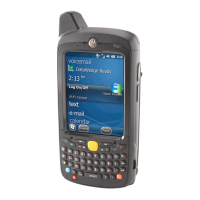
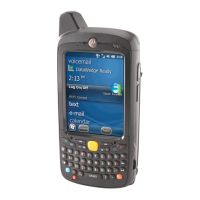
Motorola MC40 - User Manual

Motorola MC40
166 pages
Print Icon
To Next Page IconTo Next Page
Loading...
MC40
INTEGRATOR GUIDE

Table of Contents

Other manuals for Motorola MC40

Questions and Answers

  • B
    blackburnrandyAug 1, 2025
    What to do if Motorola Handhelds MC40 does not turn on but the Decode LED blinks red?
    • D
      Diane HillAug 1, 2025
      If your Motorola Handhelds MC40 doesn't turn on when you press the power button, but the decode LED blinks red, it could be due to a very low battery charge. Try recharging or replacing the battery. It's also possible the battery didn't charge properly, in which case replacing it might help. Also, ensure the device wasn't removed from the cradle during charging; a full charge takes about four hours. Lastly, extreme temperatures can prevent charging, so ensure the ambient temperature is between 0°C (32°F) and 40°C (104°F).
  • M
    Matthew AyersAug 6, 2025
    Why does my Motorola Handhelds MC40 turn off by itself?
    • M
      Melinda VaughnAug 6, 2025
      If your Motorola Handhelds MC40 turns off unexpectedly, it might be due to inactivity, causing the display to turn off. You can adjust the inactivity timeout period to 15 seconds, 30 seconds, 1, 2, 10, or 30 minutes. Alternatively, the battery might be depleted, so try recharging or replacing it.
  • D
    Deborah GarciaAug 12, 2025
    How to fix Motorola Handhelds MC40 that does not turn on?
    • S
      sarah35Aug 12, 2025
      If your Motorola Handhelds MC40 doesn't turn on when you press the power button, it could be due to several reasons. First, the battery might be completely discharged, so try recharging or replacing it. Second, ensure the battery is installed properly. Third, make sure you're holding the power button down long enough until the right LED flashes. Finally, if the device is unresponsive, try performing a hard reset.
  • M
    Monica LawsonAug 19, 2025
    What to do if Motorola MC40 Handhelds data transmission is incomplete?
    • C
      Christine BrownAug 19, 2025
      If you're experiencing incomplete or no data transmission during data communication with your Motorola Handhelds MC40, first ensure that the device hasn't been disconnected from the host computer. Reattach the Micro USB cable and try re-transmitting the data. If the issue persists, the cable configuration may be incorrect.
  • R
    Ryan DixonAug 25, 2025
    What to do if I cannot see characters on Motorola MC40 display?
    • R
      Ryan PhillipsAug 26, 2025
      If you can't see characters on the display of your Motorola Handhelds MC40, make sure the device is powered on by pressing the Power button.

Summary

Getting Started with MC40

Installing and Charging the Battery

Detailed steps for installing the main battery and charging procedures.

Resetting the MC40 Device

Overview of the four reset functions: Soft, Hard, Enterprise, and Factory Resets.

Factory Reset Procedure

Steps to restore the MC40 to its original factory settings.

USB Communication with Host Computer

DataWedge Configuration and Usage

Basic Scanning Operations

Overview of scanning methods using the imager or camera.

Configuring DataWedge Profiles

Explanation of DataWedge profiles, plug-ins, and their configuration.

Barcode Input Settings

Configuration options for the barcode scanner input plug-in.

Managing DataWedge Settings

Accessing general settings like import, export, and restore configurations.

WLAN Configuration and Connectivity

Administrator Utilities Overview

Multi-user and AppLock Configuration

Using Enterprise Admin to set up user accounts, groups, and application security.

Application Deployment and Management

Installing and Uninstalling Applications

Methods for installing and removing applications on the MC40.

MC40 Maintenance and Troubleshooting

Troubleshooting Common MC40 Issues

Solutions for common problems related to the MC40 and its accessories.

Technical Specifications

Motorola MC40 Specifications

General IconGeneral
BrandMotorola
ModelMC40
CategoryHandhelds
LanguageEnglish

Related product manuals