SUPREMATouch
62
Operation of the System
MSA
US
Test of the display
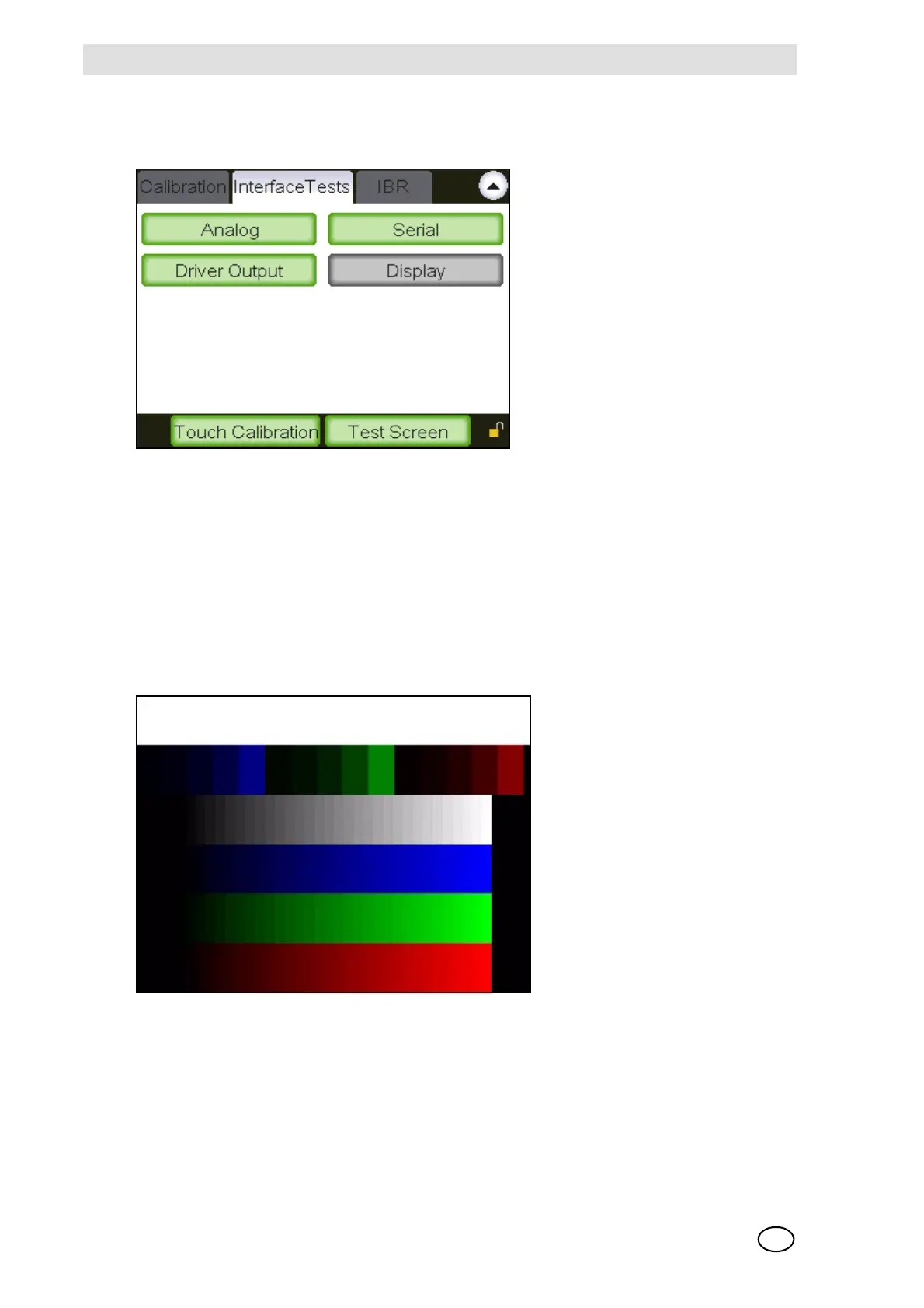
Within this window 2 possibilities for the touchscreen interface are available.
Fig. 34 Display test and calibration
By tapping the “Touch Calibration” button the touchscreen calibration procedure is started. During
this procedure several points on the screen have to be touched.
NOTE: A faulty touchscreen calibration may make it impossible to operate the GUI using the touch
screen. In this case a new touch calibration process has to be started using a PC.
By tapping the “Test Screen” button a series of 3 test screens will be displayed and all front panel
LEDs will be activated serially. To jump to the next test screen, tap anywhere on the screen. The
test mode will be left after the 3rd test screen. The first test screen must look like Fig. 35, the 2nd
test screen must be completely black and the 3rd test screen must be completely white.
Fig. 35 Test screen
IBR [bridge current] window
This window makes it possible to automatically set the sensor bridge current [I
BR
].
NOTE: A setting that has been started or carried out cannot be cancelled or discarded!



 To Next Page