MP7505 Series User Manual
(4) Host computer communication port setting: Open the Waveform Editor
software, click “Communications” in the menu bar, select “Ports-Settings”, in
the setting dialog box, select the communication port as “USB”. After the
connection is successful, the connection status prompt in the lower right
corner of the software interface turns green.
Using LAN Port
Connect Directly
(1) Connection. Plug one end of the network cable into the LAN connector on the
rear panel of the signal generator; the other end is plugged into the LAN
interface of the computer.
(2) Set the network parameters of the computer. Since the signal generator does
not support automatic IP address acquisition, you need to specify the IP yourself.
Here we set the IP address to 192.168.1.71.
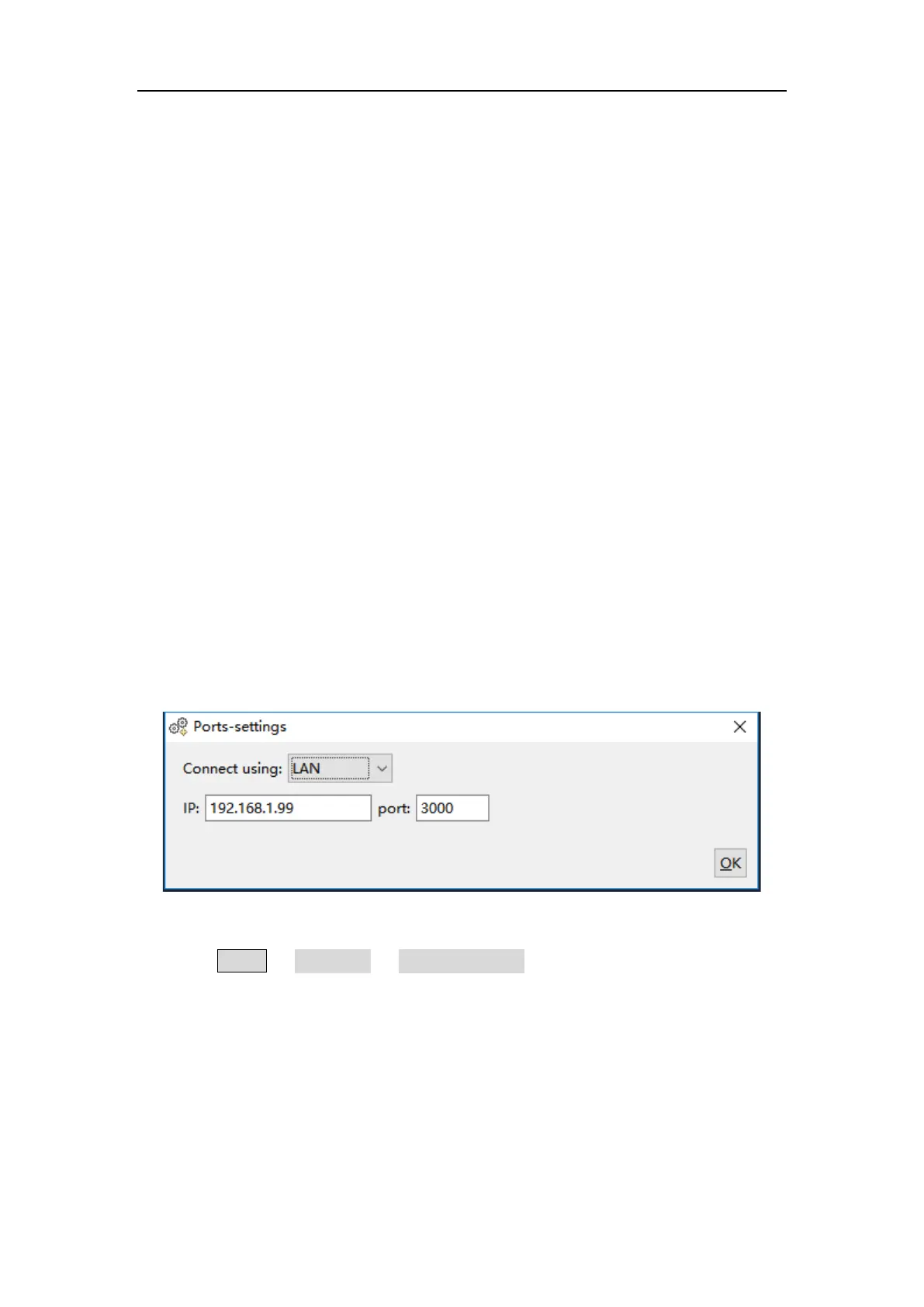
(3) Set the network parameters of the host computer. Run Waveform Editor
software on the computer. In the "Communications" menu, under
"Ports-Settings", select the communication port as "LAN", the IP is set to be the
same as the first three fields of the computer's network IP in step (2), and the
last field has a different IP address. It is "192.168.1.99"; the port can be set to
any value from 0 to 4000. However, since ports below 2000 are often occupied, it
is recommended to set it to 2000 or higher. Here, it is set to "3000".
Figure 5-1: Setting the network parameters of the host computer
(4) Set the network parameters of the signal generator. In the signal generator,
press Utility → I/O Setup → Network setting to enter the submenu. Set the IP
address and port to the IP and port in the PC software port settings in step (3).
After the shutdown and restart, if the data can be obtained normally in the PC
software, the connection is successful.
Connect through a Router
(1) Connection. Connect the LAN interface on the rear panel of the signal generator
to the router with a network cable. The computer is also connected to the
route r.


 To Next Page