4.4 LCD screen elements
Narda IDA-3106 49
4.4.3 The navigator bar
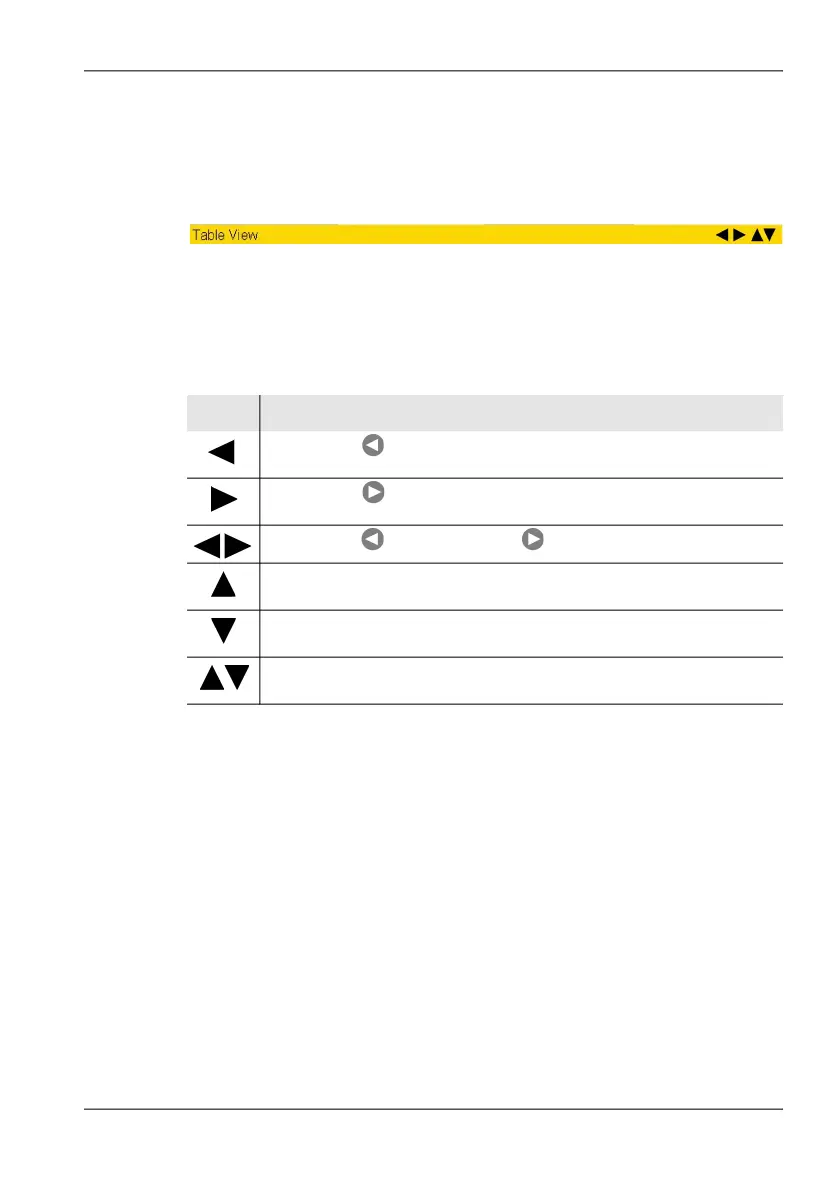
When tables are displayed, the navigator bar shows various elements that
make navigation easier and which give you information about the current
position in the menu and the selected function.
Figure 11: Navigator bar
• The currently selected display is shown at the left hand edge.
• Arrow symbols at the right hand edge of the bar indicate further
information which can be displayed by pressing the arrow keys or by
turning the rotary control knob:
4.4.4 Activating / deactivating status and info bars
The upper status bar, help bar and lower status bar can be individually
activated or deactivated. If you do not need the information that is displayed
in these bars, you can deactivate all of them to maximize the area of the
screen that is available to display the measurement values.
You can hide the upper and lower status bars separately from the general
screen arrangement when the Magnifier function is active in Spectrum,
Time Domain (Scope) and I⁄Q Analyzer modes. The extra item Hide at
Magnifier is provided for this purpose. For more information about this, see
Automatically hiding the status bars on page 117.
Symbol Meaning
Pressing the key displays further information
(e.g. in a column of the table).
Pressing the key displays further information
(e.g. in a column of the table).
Pressing the key as well as the key displays further information.
Paging up by turning the rotary control knob displays further information
(e.g. lines in the table).
Paging down by turning the rotary control knob displays further
information (e.g. lines in the table).
Paging up or down by turning the rotary control knob displays further
information (e.g. lines in the table).



 To Next Page