19Getting Started
IMPORTANT: Bypassing/disabling the blocks doesn’t
decrease the CPU consumption.
CPU Monitor
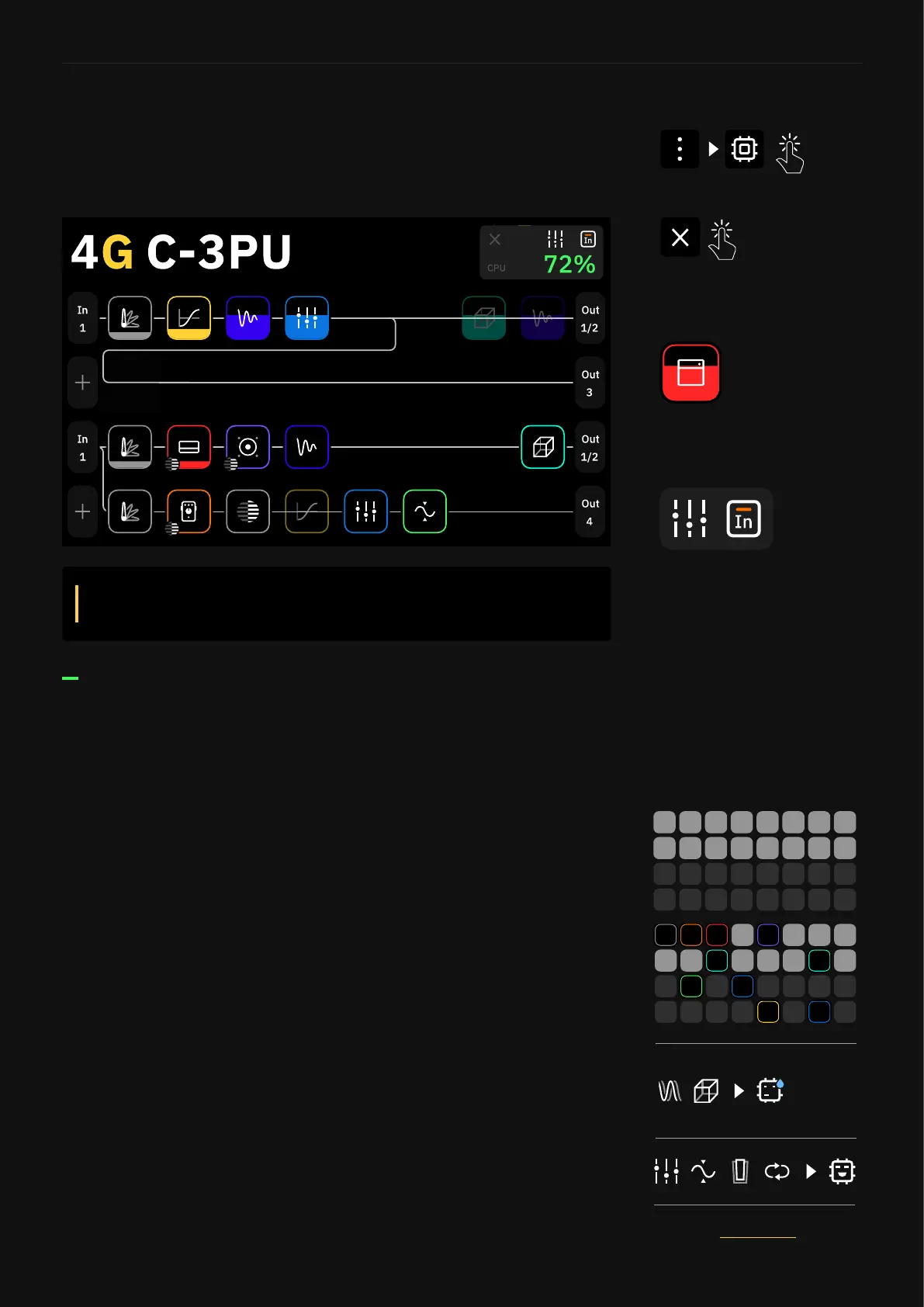
The CPU Monitor shows you the overall CPU usage of the current
Preset at the top-right corner of the screen. Tap the Grid’s contextual
Menu and select CPU Monitor to open it.
Tap on the cross button to close
the CPU Monitor.
Each block lls up to represent
its influence on the CPU usage.
Quad Cortex is a DSP (Digital Signal Processing) unit. Different virtual
device blocks require more DSP power than others. To get the most
out of Quad Cortex, it is important to take into consideration:
Optimizing performance
• The number of device blocks in a Preset has a great impact on
CPU usage.
• Rows 1-2 and Rows 3-4 on The Grid utilise different processor
cores. If all of your device blocks are placed in Rows 1 and 2,
you’re only using half of Quad Cortex’s power. For resource-hungry
Presets, try splitting your blocks across all four rows.
• The maximum load is up to 90%. Beyond that, the audio and
operating system performance may be compromised.
• Time effects like Reverbs or Delays have the highest CPU usage.
EQ, Compressor, Wah, and FX Loop blocks have the lowest CPU
usage.
• Some devices may use more DSP than others in the same category.
This is especially true with amp devices.
• Use Scene Mode to change parameters in devices instead of
copying devices and changing their parameters.
Check the Scene Mode section
for more details.
The Global EQ as well as the
Input Gates are automatically
disabled when a CPU-expensive
Preset is loaded.



 To Next Page