81Computer Integration
If Quad Cortex is selected as the main audio device on your
computer, you will hear the computer audio through Quad Cortex
Outputs 1/2 and Headphone Output. This feature lets you jam
along with YouTube™, Spotify®, Apple Music®, or your DAW tracks
with low latency monitoring.
Recording Quad Cortex’s processed signal, dry input, or specic
rows is also possible. In either case, you will hear your signal from
Quad Cortex before it’s routed through the DAW, which is great for
low latency monitoring.
You can use multiple inputs and outputs by tapping the Input and
Output blocks on both sides of The Grid. USB Inputs and USB
Outputs are also available. This feature allows getting different
routings without connecting any additional cables to the unit.
Hardware & DAW Monitoring
Quad Cortex functions as a USB 2.0, 24-bit, 48kHz (xed), low-
latency audio interface for Windows® and Mac® computers. It features
8 inputs & 8 outputs compatible with all major DAWs.
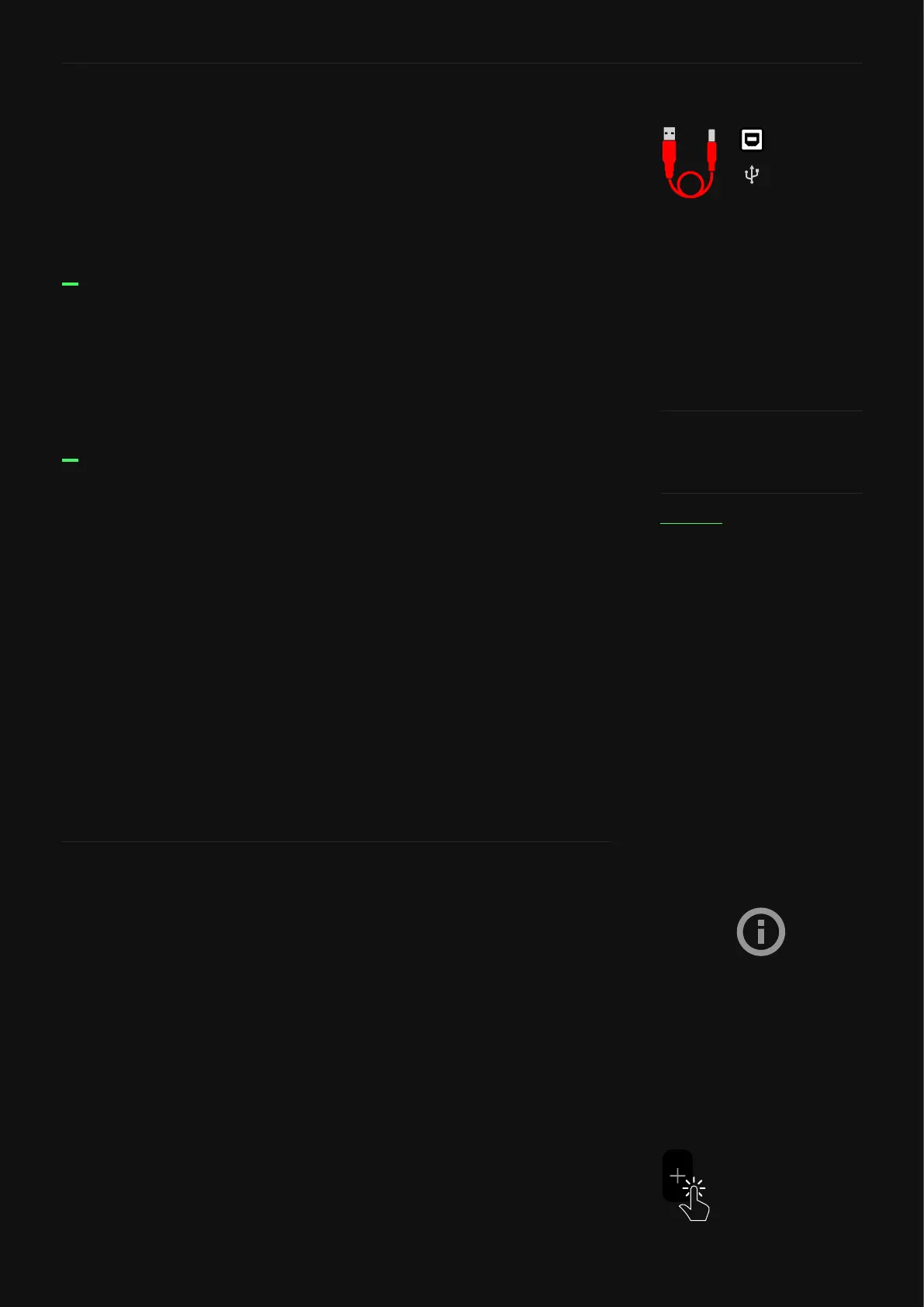
Use the USB Type-B cable included in the box to connect your Quad
Cortex to your computer.
The Quad Cortex driver will be installed in the following path location
by default:
C:\Program Files\NeuralDSP\USB Audio Device Driver
USB Audio
• After connecting Quad Cortex to your Mac®, you are able to use
it as a device for sound input and output.
• Go to “System Preferences”, “Sound”, and set Quad Cortex to be
the Output and Input device.
• Use Master Volume Knob to set your output volume.
• Download the driver installer from our website.
• Run the installer. When it completes, reboot both your computer
and Quad Cortex.
• Go to Control Panel > Hardware and Sound > Sound, and make
sure your Quad Cortex is set as the default device in both
Playback and Recording tabs.
• Right-click the Quad Cortex, select Properties > Advanced
options, and ensure that the Sample Rate is set to 48000 Hz.
Repeat this process for both Playback and Recording tabs.
macOS® setup
Windows® setup
Download the Quad Cortex driver
installer for Windows®.
For advanced settings, open the
Audio MIDI Setup app from the
Applications folder.
USB devices may stop
functioning correctly or turn
completely unresponsive when
they are attached to the same
USB hub.
Avoid connecting Quad Cortex
to USB hubs or front panel
USB ports of PC cases. Use
motherboard ports (USB 2.0 or
higher) instead.
Monitoring with both Quad
Cortex and a DAW at the same
time could cause phase issues.
In order to avoid any issues, turn
off input monitoring on the audio
track.



 To Next Page