95Cortex Cloud
When you upload a Preset or
Neural Capture to Cortex Cloud,
its privacy status is Private by
default.
To change it so that it is available
to the public, edit it on the Cortex
Cloud.
Drag-and-Drop Items
Uploading Items to Cortex Cloud
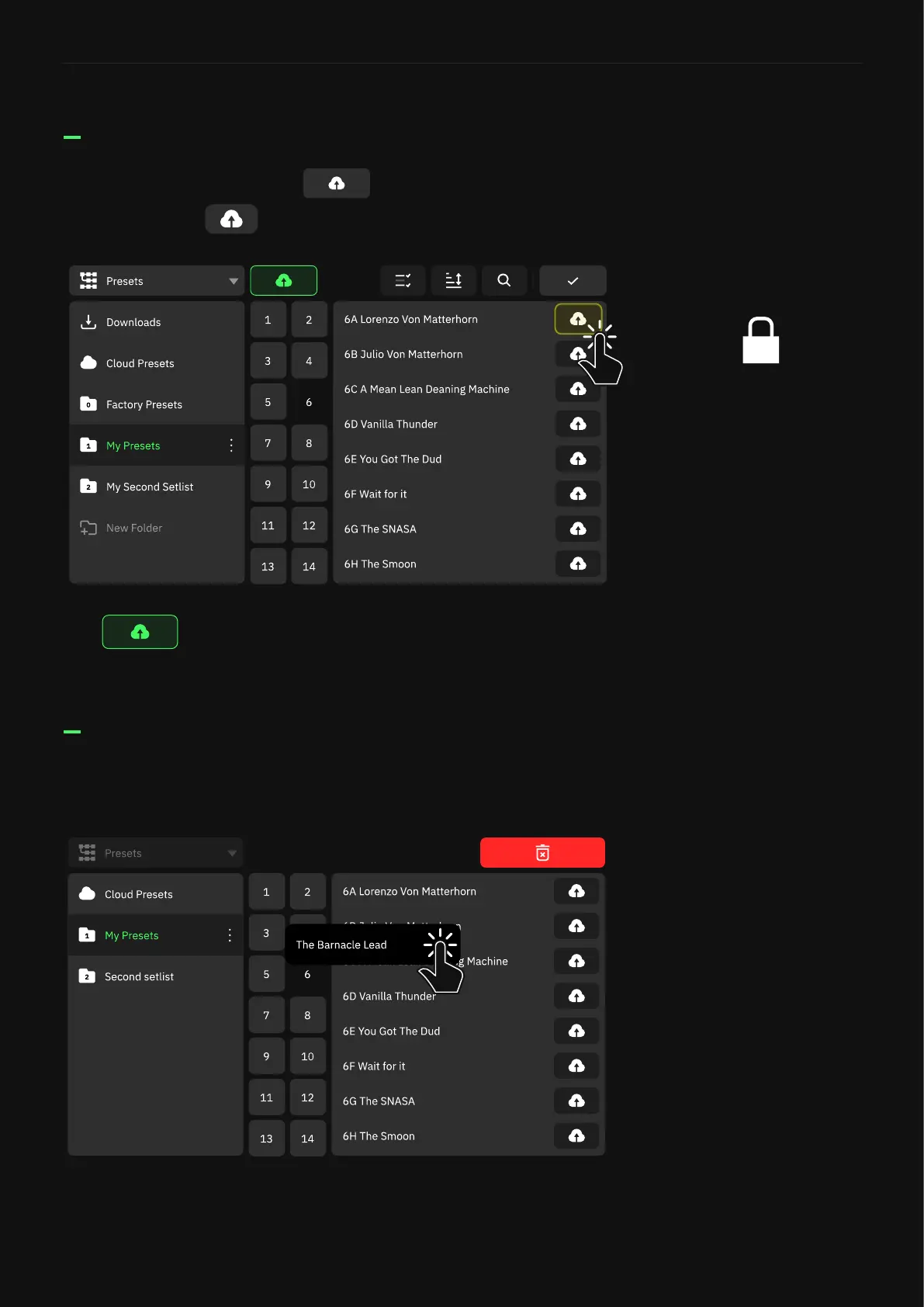
Open the Directory and tap at the top to toggle Upload
Mode. Then, tap next to each item you want to upload.
Upload Mode
Items can also be moved across different folders within the same
category.
Tap again to deactivate Upload Mode.
Drag-and-drop an item to a Cloud folder to upload it. Drop it to the
top-right corner to delete it.



 To Next Page