93Cortex Cloud
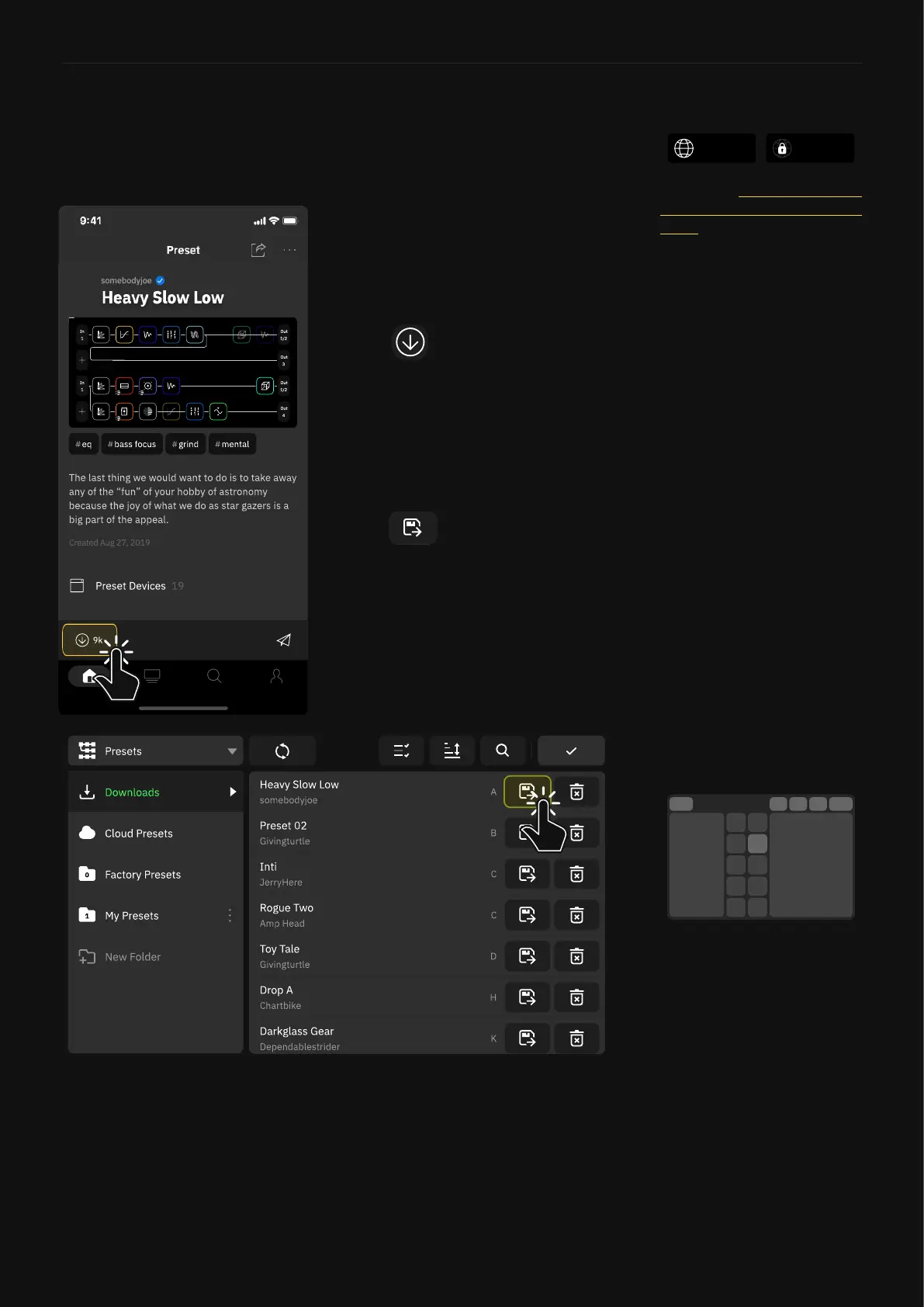
Downloading items from users
1. On Cortex Mobile, nd an
item you’d like to download.
2. Tap
3. Connect to Wi-Fi on your
Quad Cortex.
4. Go to the Directory.
5. Navigate to any Downloads
folder.
6. Tap to store the item(s)
on your Quad Cortex.
Presets and Neural Captures that are public can be downloaded
byany user.
Items in download queue will be downloaded as soon as you open
a Downloads folder on your Quad Cortex connected to WiFi. Once
items have downloaded, they will be stored in your Downloads
folder until they are either moved to a Setlist or deleted.
Public Private
Check the Making Presets or
Neural Captures available to the
public section for more details.
Presets can be auditioned
directly from the Downloads
folder. Tap a Preset to load it
onto the Grid.



 To Next Page