15Getting Started
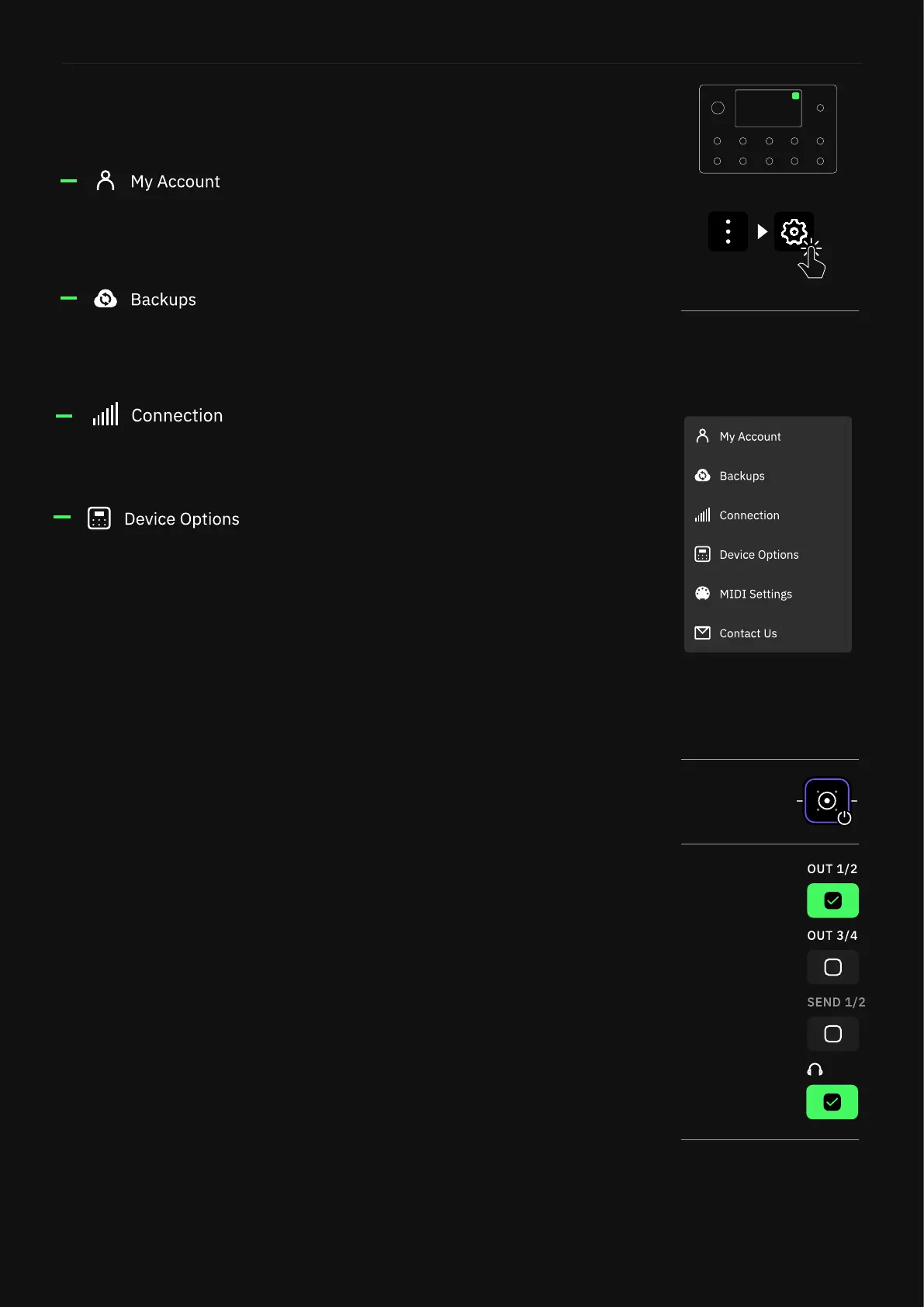
You can nd the settings via the Grid’s contextual menu.
• Device Updates: Here you can update your Quad Cortex to the
latest version of CorOS. The installation requires restarting Quad
Cortex to complete.
• Disk Space: Available storage space.
• Diagnostics: DSP diagnostics and usage statistics.
• Power Button Sensitivity: Disable or congure the amount of
pressure needed to trigger the power button (off, low, medium,
and high).
• Brightness: Use the top-right footswitches to set the desired
brightness level for the screen and LED lights. Touchscreen
controls are also allowed.
• Global Bypass: Globally bypass Cabs, IR Loaders, or Neural
Captures of cabs on any row.
• Master Volume Knob Assignment: Select which outputs the
Master Volume Knob will control.
• Scene Bypass State Behavior: Controls whether changes to the
bypass state of a block in Scene Mode are automatically saved to
the active Scene.
• Stomp Mode Bypass Assignment: A global setting for whether
footswitches are automatically assigned to blocks’ bypass
settings. If you enable AUTO-ASSIGN, blocks will be assigned to
footswitches in the order they are added to The Grid.
• Swap Tempo and Tuner Access: Enable to access the Tempo
settings by holding the bottom-right footswitch and access the
Tuner by double-tapping the bottom-right footswitch.
• Dynamic Latency Compensation: Disabling Dynamic Latency
compensation may help if phasing occurs when bypassing a
device.
Settings Menu
Here you can link your Quad Cortex with your Neural DSP
account. You must be logged into your Neural DSP account to
sync your library, and share or download items from other users.
This feature allows you to create up to ve cloud backups of
the settings and data on your Quad Cortex, including Presets,
Neural Captures, and Impulse Responses.
Connect to Wi-Fi in order to access Cortex Cloud and share
content. Quad Cortex operates on the 2.4GHz band.
Global Bypass
Master Volume
Knob assignment



 To Next Page