14Getting Started
Power & Locking Functions
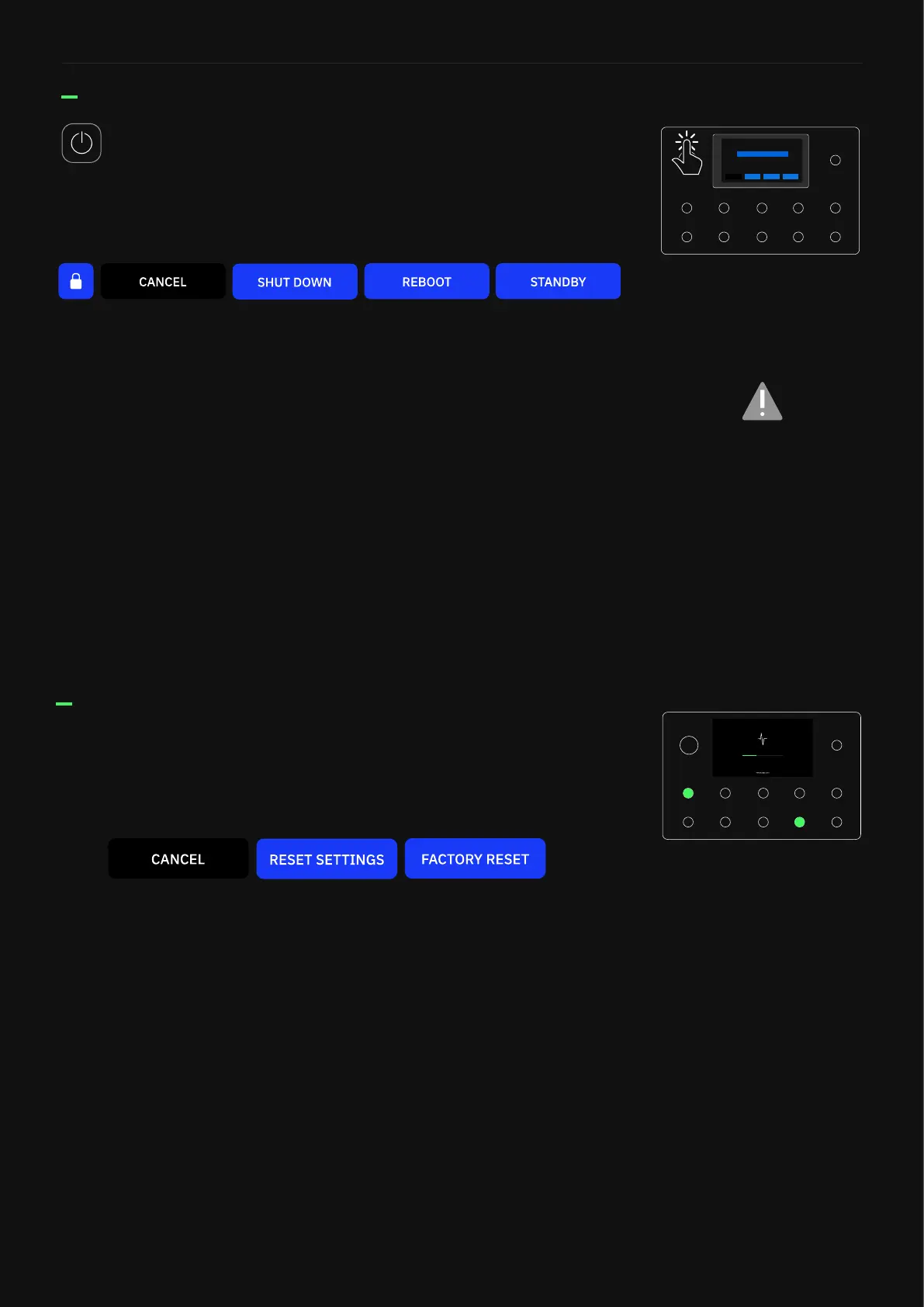
Press the Power Button to access the Power & Locking functions
screen:
• LOCK: Both touchscreen and Master Volume Knob will be
locked. While locked, a lock indicator displays at the top-right
of the screen. To unlock, press-and-hold the power button. If
the Master Volume Knob is moved while locked, the volume will
not change until the knob is rst turned to reach the value set
when the knob was locked.
• CANCEL: Tap to close the Power Functions window.
• SHUT DOWN: Quad Cortex will shut down. If you want to turn
Quad Cortex on again, press the power button.
• REBOOT: Quad Cortex will reboot. Note that any unsaved chan-
ges will be lost if you change the power state.
• STANDBY: All audio outputs will disable and the screen will turn
off. Press the power button to wake Quad Cortex and re-enable
audio outputs.
Recovery Mode
• CANCEL: Tap to close the Recovery Options window. Quad Cor-
tex will boot up.
• RESET SETTINGS: Tap to restore Quad Cortex to its default set-
tings. User data (Preset, Captures, etc) will not be removed.
• FACTORY RESET: Tap to remove all user data. Quad Cortex will
be restored to factory settings.
Press the A and H footswitches during the rst 6 seconds of the
splash screen while booting to intiate Recovery Mode.
Ensure you power off the Quad
Cortex via the Power & Locking
functions screen.
It is not recommended to
remove the power cable from
the Quad Cortex to power it off.



 To Next Page