23Presets
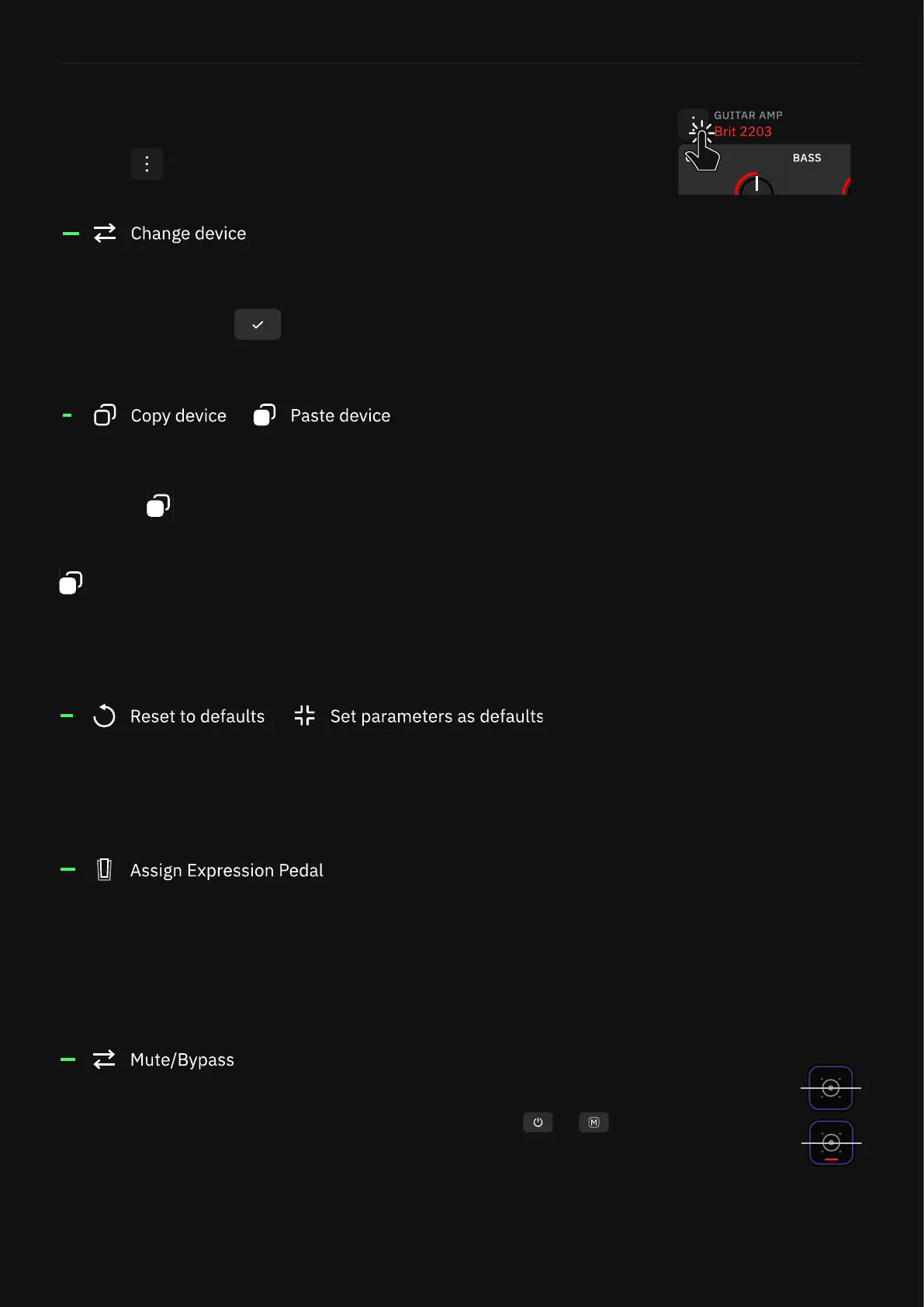
When a device block menu is open, you can tap the contextual menu
button to access additional features:
Opens the Virtual Devices Library. Once you tap a device, it changes
immediately so you can audition it without leaving the Virtual
Devices Library. Tap to close the menu.
Copies the selected device and its current settings to the Clipboard.
Blocks can be pasted by tapping The Grid to add a new device, then
tapping Paste Device from Clipboard. The Clipboard also
allows you to copy and paste blocks between Presets.
Paste Device replaces the selected device with the one stored
on the Clipboard.
Returns the device controls to their default values or sets current
control values as default, accordingly.
Allows you to choose which parameters can be controlled by an
expression pedal. Select the expression pedal you want to use
before reaching the “Assign Expression Pedal” menu.
Device Blocks Contextual Menu
Determines if the current device block is Bypassed or Muted when
it’s deactivated. The Bypass button will change to either or
depending on the function selected.
Bypassed
Muted



 To Next Page