1.3.
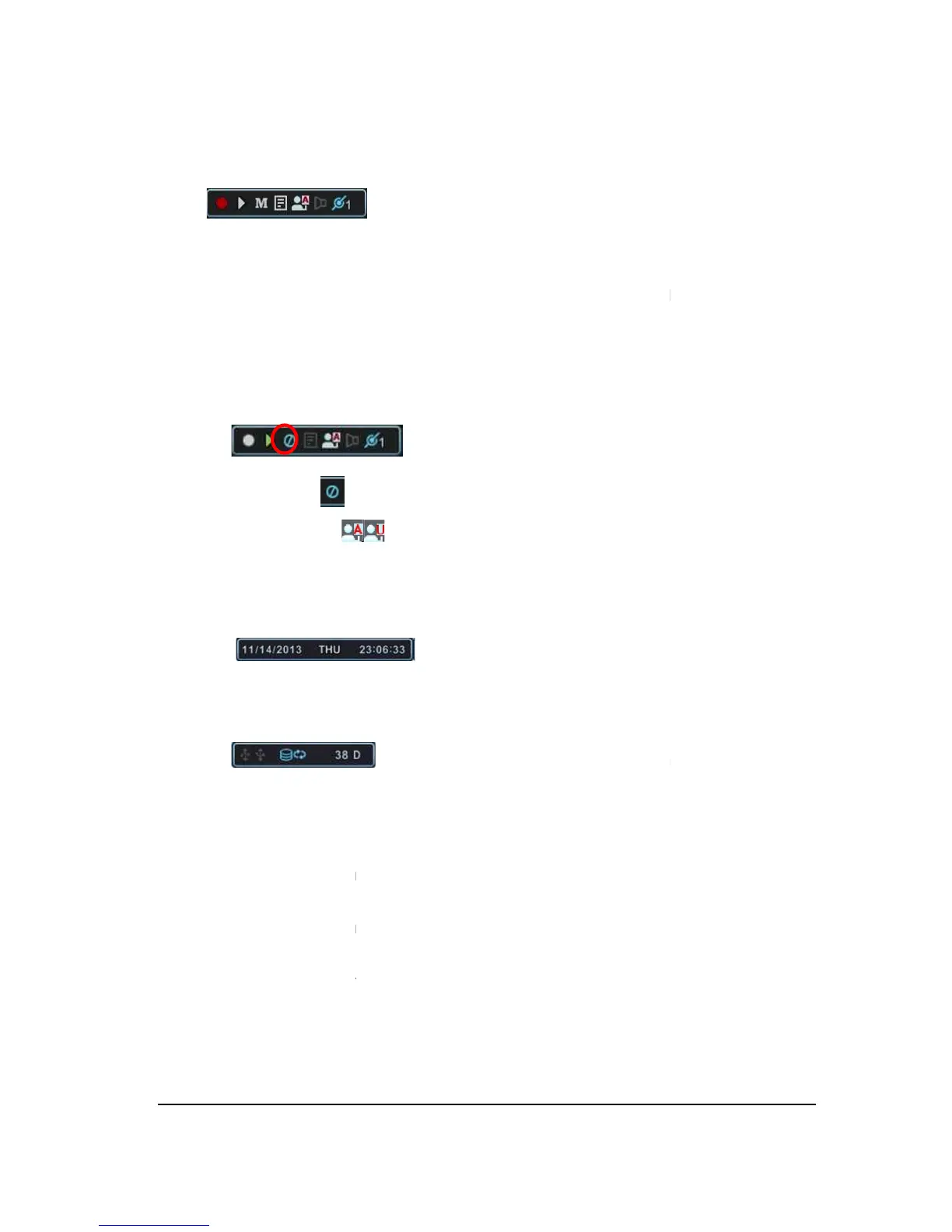
Status Bar
(1) Indicate
Start and Stop.
(2) Indicate
Start and Stop.
(3) Indicate Menu
. Click this ICON to toggle popup the menu and clear.
. Click this ICON to toggle popup the LOG menu.
(5) Indicate Login (
(6) Indicate Audio
Data is stored the selected time during playback and turn to blue
remaining HDD capacity is less than 5GB, this blue “Recycling” icon will be
shown up.
(10) Indicate an
USB Device is connected on Front panel.
color while it’s doing backup.
USB Device is connected on Rear panel.
color while it’s doing backup.
Show you the remaining recording time of the DVR. If
is less than 5GB, this blue “Recycling” icon will be shown up.
ecording. Click this ICON to toggle Record
Status. Green is Playback
. Click this ICON to toggle Playback
. Click this ICON to toggle popup the menu and clear.
. Click this ICON to toggle popup the LOG menu.
s changed like below picture.
Menu and LOG.
) or Locking status.
Data is stored the selected time during playback and turn to blue
, which is connected to Net
: Displays Month, Year, Time and Date.
: Show you the remaining recording time of the DVR. If
remaining HDD capacity is less than 5GB, this blue “Recycling” icon will be
USB Device is connected on Front panel.
color while it’s doing backup.
Click this ICON to toggle Back up Start and Stop.
USB Device is connected on Rear panel.
color while it’s doing backup.
Click this ICON to toggle Back up Start and Stop.
Show you the remaining recording time of the DVR. If
is less than 5GB, this blue “Recycling” icon will be shown up.
ecording. Click this ICON to toggle Record
. Click this ICON to toggle Playback
. Click this ICON to toggle popup the menu and clear.
. Click this ICON to toggle popup the LOG menu.
s changed like below picture.
Data is stored the selected time during playback and turn to blue
: Displays Month, Year, Time and Date.
: Show you the remaining recording time of the DVR. If
remaining HDD capacity is less than 5GB, this blue “Recycling” icon will be
Click this ICON to toggle Back up Start and Stop.
Click this ICON to toggle Back up Start and Stop.


 To Next Page