32 EV2 Series DVR
3. RECORD
3.1. Record General
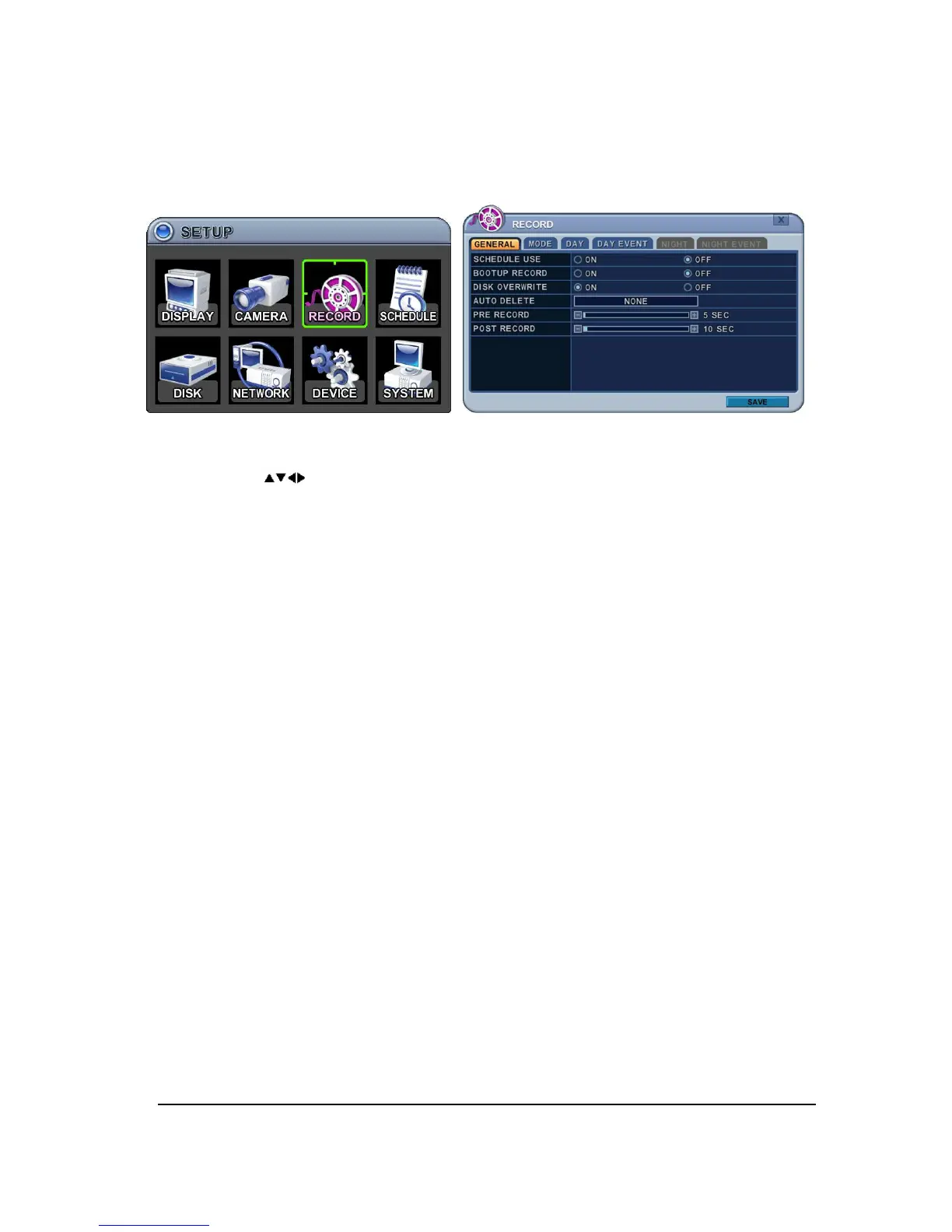
1. The menus are displayed with options on the left-hand column and settings in the
right hand column. A cursor (highlighted menu) can be moved using the Direction
buttons [ ] .
2. Change below options using [DEC/INC] buttons.
1) Schedule Use: This enables or disables Night Zone. By default “OFF”.
2) Boot up Record: It starts to recording without pressing [REC] button when it
set “ON”.
3) Disk Overwrite: Select the record policy of the hard disk drive.
- ON: By default, the hard disk drive will overwrite from the beginning when it
becomes full.
- OFF: It stops recording after HDD is full.
5) Auto Delete: Allows you to configure when the DVR automatically deletes all
data from HDD. It lefts the data for below duration from current time.
[NONE 12HOURS 1DAY~ 6DAYS 1WEEK ~ 4WEEKS-> 30 DAYS]
6) Pre-Record: Determines the duration of the DVR stores video recorded prior to
the beginning of Event Recoding.
[5SEC ~ 300 SEC]. By default 5 sec.
7)
Post- Record: Determines the duration of the DVR continues record after Event
detection. [5SEC ~ 300 SEC]. By default 5 sec.
<
Note>
(1) Alarm/Motion Duration will be extended if there is another Alarm/motion
detection while Event recording.
(2) When recording, the Pre-Record and Post-Record will not be activated.
3. Select SAVE to save changes and press [ENTER] button to exit the menu.
To exit the menu without making changes, press [ESC] button.


 To Next Page