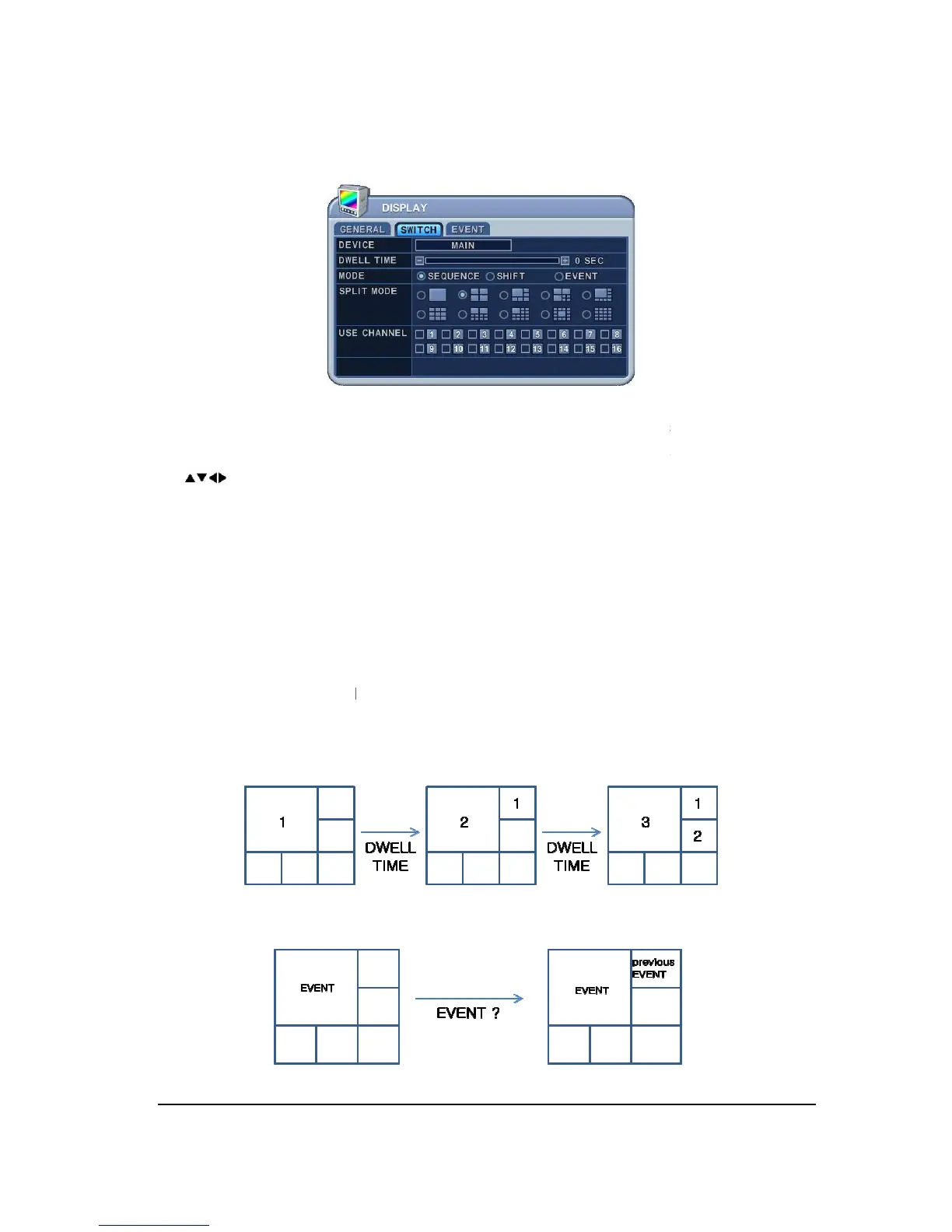
1.2. SWITCH Setup (Monitor Configure)
The menus are displayed with options on the left
hand column. A cursor (highlighted menu) can be moved using the D
[ ] .
2. Settings
1) Device: Each Moni
tor may be configured in different way.
Dwell Time: Select the interval that each camera or Multi screen mode is displayed
Select the appropriate monitor dis
will be activated while it’s in Switch Mode.
: To display particular camera in full screen or in multi mode when
1.2. SWITCH Setup (Monitor Configure)
The menus are displayed with options on the left
hand column and settings in the right
hand column. A cursor (highlighted menu) can be moved using the D
tor may be configured in different way.
Dwell Time: Select the interval that each camera or Multi screen mode is displayed
Select the appropriate monitor dis
will be activated while it’s in Switch Mode.
be displayed after dwell time.
: To display particular camera in full screen or in multi mode when
hand column and settings in the right
hand column. A cursor (highlighted menu) can be moved using the D
Dwell Time: Select the interval that each camera or Multi screen mode is displayed
: To display particular camera in full screen or in multi mode when


 To Next Page