for each camera channel. For PTZ
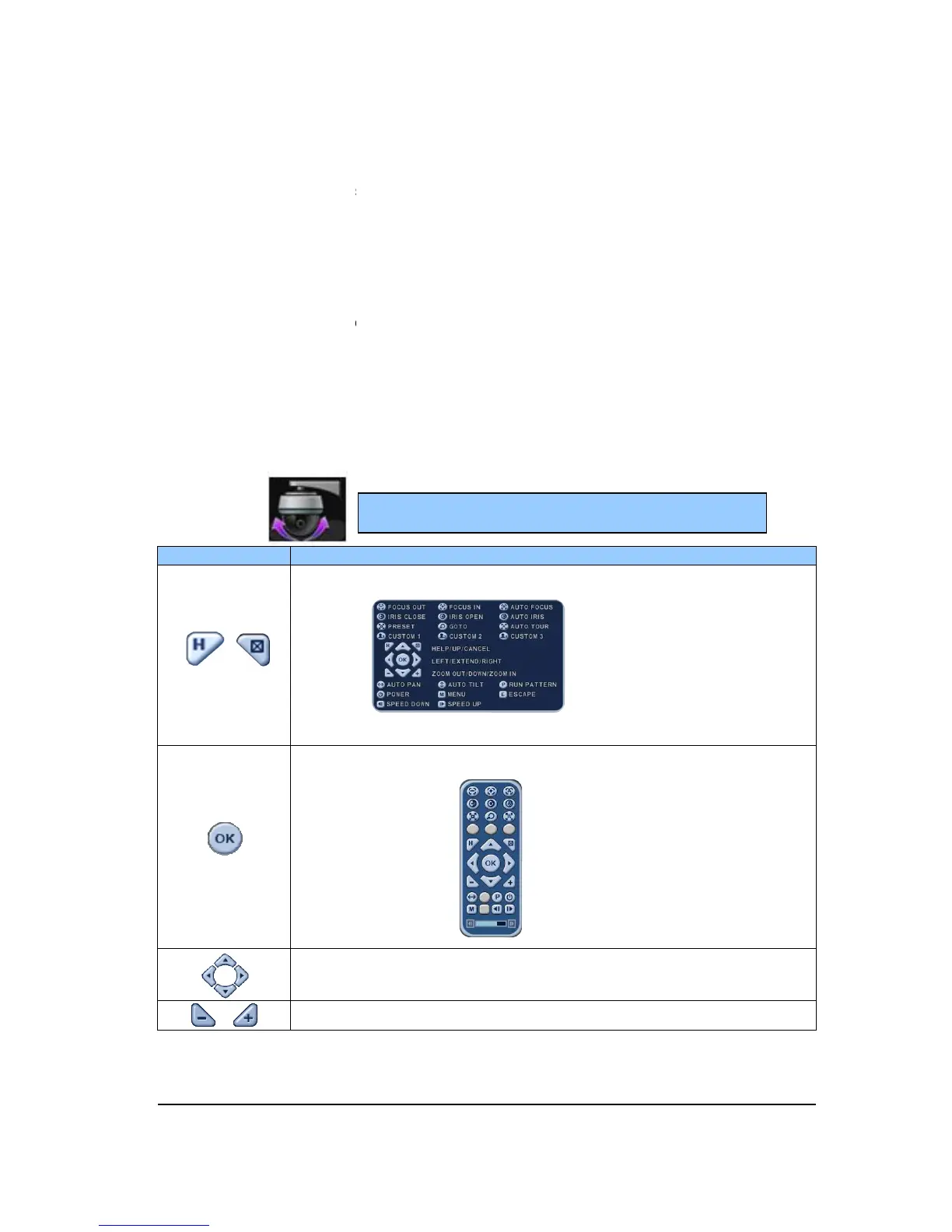
The layout of the PTZ interface conforms to the layout of the front of the DVR or the remote
ntroller. Menu button is the guide anchor position for all other buttons. When in PTZ
interface mode, all buttons used for the PTZ related operation.
To activate the Pan/Tilt Control, select the full screen display of the camera you wish
to control.
2)
Then press the [
Press this button to display
Press this button to cancel “PAN/TITL” Operation.
PTZ camera control interface will be extended to use whole function. Press
this button again to make short
for each camera channel. For PTZ
The layout of the PTZ interface conforms to the layout of the front of the DVR or the remote
ntroller. Menu button is the guide anchor position for all other buttons. When in PTZ
interface mode, all buttons used for the PTZ related operation.
To activate the Pan/Tilt Control, select the full screen display of the camera you wish
button. Shortcut Menu box pops up, as shown below.
Press this button to display
button to cancel Help Menu.
Press this button to cancel “PAN/TITL” Operation.
PTZ camera control interface will be extended to use whole function. Press
this button again to make short
<Note > Please Refer to Help Menu
The layout of the PTZ interface conforms to the layout of the front of the DVR or the remote
ntroller. Menu button is the guide anchor position for all other buttons. When in PTZ
To activate the Pan/Tilt Control, select the full screen display of the camera you wish
button. Shortcut Menu box pops up, as shown below.
PTZ camera control interface will be extended to use whole function. Press


 To Next Page