Log on the DVR at admin level or user with configure level.
with configure feature is limited to access [DISK and System Menu].
On the front panel or remote control, press
wherever on monitor, Virtual remote control will be appeared.
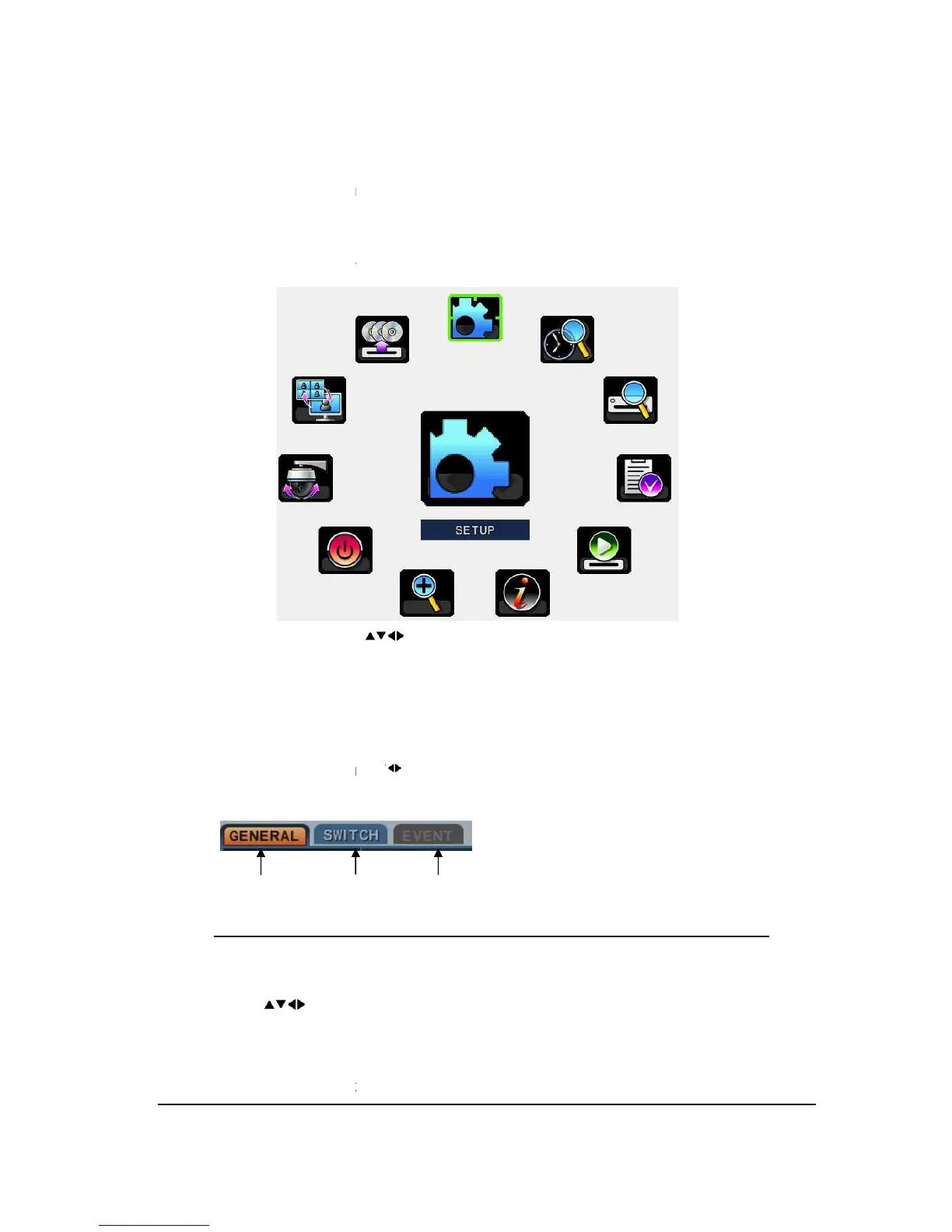
menu. Items selected in the menu are represented
highlighted
4. Press [ENTER
] button to select the menu and display Sub
Use Left/ Right buttons [
* It is automatically saved changes when you move between TAP menus.
The menus are displayed with options on the left
right hand column. A cursor (hi
buttons [ ] .
7. Press [-, +]
button to change the value or select options.
button to exit a menu with saving changes.
to exit a menu without changes.
Log on the DVR at admin level or user with configure level.
with configure feature is limited to access [DISK and System Menu].
On the front panel or remote control, press
wherever on monitor, Virtual remote control will be appeared.
menu. Using the mouse, click the
menu. Items selected in the menu are represented
on the center as big size and
] button to select the menu and display Sub
Use Left/ Right buttons [
Selected items changed into
* It is automatically saved changes when you move between TAP menus.
The menus are displayed with options on the left
hand column and settings in the
right hand column. A cursor (hi
ghlighted menu) can be moved using the D
button to change the value or select options.
button to exit a menu with saving changes.
to exit a menu without changes.
with configure feature is limited to access [DISK and System Menu].
menu. Using the mouse, click the
on the center as big size and
Selected items changed into
* It is automatically saved changes when you move between TAP menus.
hand column and settings in the
ghlighted menu) can be moved using the D


 To Next Page