40
MENUS
Net
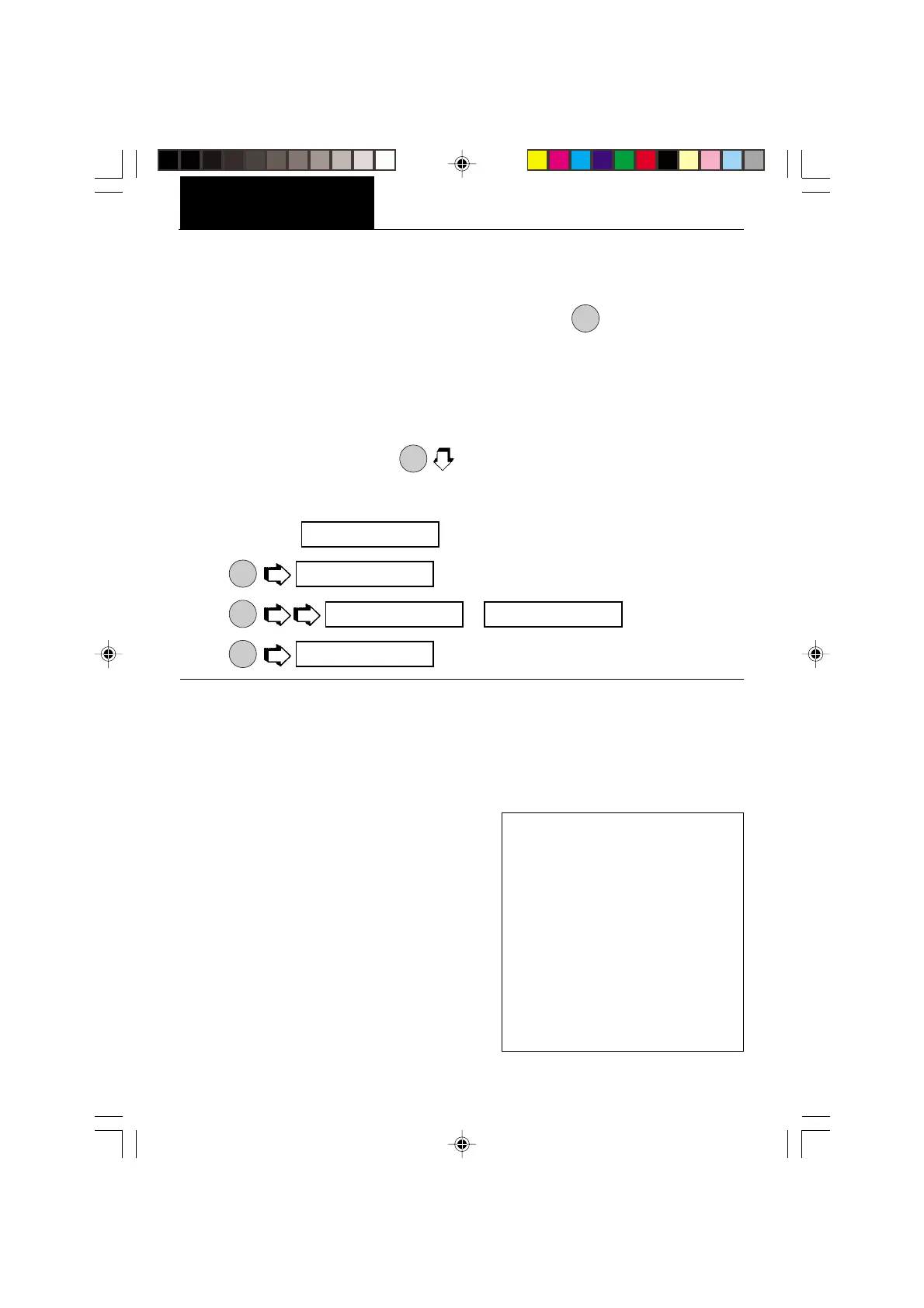
Weight shown on the display can be referred to as a zero value (gross value) or tare value
(net value). When enabled the display value also has GROSS/NET Indicator turned ON, this
feature will allow you to obtain a zero value by a long press on
ON
TARE
. A short press is a tare.
Net Weight - the weight of a material or sample after deducting the weight of its packaging
or container with which it had previously been weighed.
Gross Weight - the weight of object or sample (Net Weight) including container or
packaging.
NOTE: When in a weighing mode,
MODE
switches between Gross weight and Net weight.
The Net function can be set either ON or OFF.
1. Access the
menu under the Setup Options menu.
2.
ON
TARE
.
3.
MODE
or .
4.
ON
TARE
.
SCIENTIFIC NOTATION
Number
Between
Conv. 0.1 and Power Man-
Factor 1.999999 of 10 tissa Exp.
123.4 = .1234 x 1000 = .1234 x 10
3
12.34 = .1234 x 100 = .1234 x 10
2
1.234 = .1234 x 10 = .1234 x 10
1
.1234 = .1234 x 1 = .1234 x 10
0
.01234 = .1234 x .1 = .1234 x 10
-1
.001234 = .1234 x .01 = .1234 x 10
-2
.000123 = .123 x .001 = .123 x 10
-3
Custom Unit or Volume Selection
Custom Unit is enabled when Unit 3 under Unit Selection is selected. When you need to
display weight measurements in a weighing unit other than those provided standard with the
balance, this feature can be used to create your own custom weighing unit. It permits you
to enter a conversion factor which the balance will use to convert grams to the desired unit
of measure.
Conversion Weight Weight
Factor x in = in
grams custom unit
Conversion factors are expressed in scien-
tific notation and entered into the balance in
three parts:
• a number between 0.1 and 1.999999
called the mantissa
• a power of 10 called the exponent
• a least significant digit (LSD)
meT
oN
oN off
meT



 To Next Page