2.5
2
Introduction
MICROPHONE INPUT
Inputsfor dynamic microphones.
-Use the MIC/MUSIC pot to adjust the balance
between the microphone's volume and that of the
backingtrack.
-Use the MIC EFX pot to adjust the volume of the
microphone'seffects.
-To adjust the Reverb sends (i.e. the amount of
microphone signal to send to the Reverb)
repeatedly press the EQ/EFX key until the MIC
Reverb menu is displayed, then select the SEND
parameterand adjust its level.
-Carry out the same procedure to adjust Echo
sendin the MIC Echo menu.
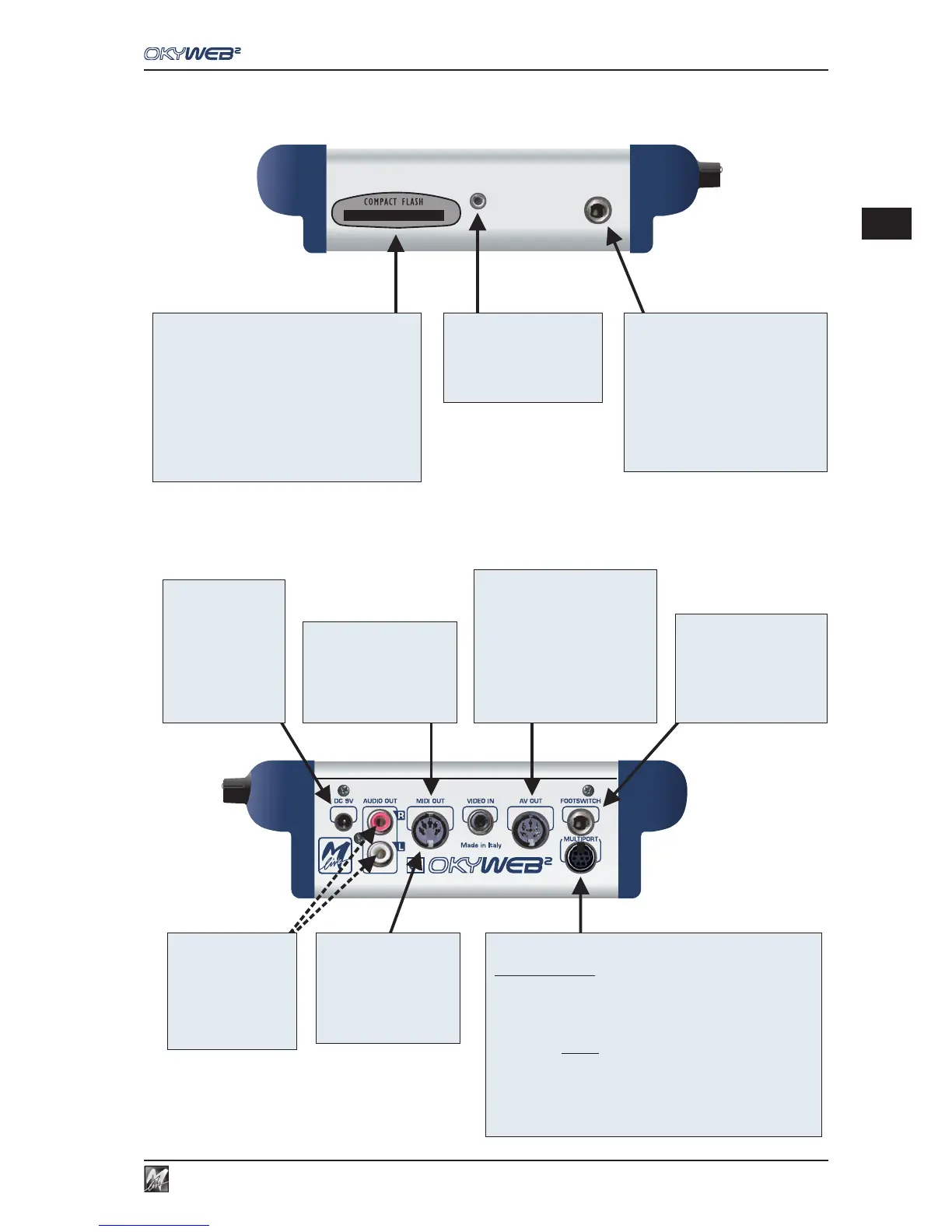
COMPACT FLASH
Slot for rewritable Compact Flash memory cards, able to hold a very
largenumber of backing tracks ready for use.
TheCompact Flash cards must be appropriately formatted.
To carry out formatting procedure, connect OkyWeb2 to your
computerand use the appropriate function of the softwareprovided.
ATTENTION: don't remove Compact Flash cards during formatting,
backingtrack transfer,index updating, etc.
Alternatively, you can use OkyFlash (available in various “sizes”),
alreadyformatted, tested and guaranteed by M-Live.
OkyWeb2 is compatible with specifications
and has been successfully tested with a vast number of Compact
Flash cards manufactured by various companies.
Nevertheless, M-Live declines all responsibility for any faulty
operation or loss of data with Compact Flash cards other than those
soldwith the M-Live brand.
<CF> CompactFlash
TM
PHONES
Stereoheadphone output.
Allows to listen to the same signal as is
fedout on the L-R audio outputs.
This is useful when it's not possible to
use external amplification, or when
(with PA systems) it's necessary to
monitorthe sound without “delays”.
VIDEO IN
Videoinput.
Allows to connect a video camera,
video recorder or any other video
source and use its images as a
backgroundfor OkyWeb2.
Using this mode, the function of
syllable highlighting of the lyrics is
disabled.
AUDIO OUT L-R
Stereoaudio output.
Allowsto send the signal
(backing tracks + microphone)
to any audio amplification
system: audio mixer, Hi-Fi
system, amplified loudspeaker
enclosures, home theater or
surroundsystem, recorder,etc.
- Use the VOLUMEpot to adjust
thevolume.
AV OUT
Audio/ Videooutput.
Allowsto connect a television (or acompatible
unitwith the same type of signal)todisplaythe
lyrics of the backing tracks and OkyWeb2
controlsystem.
The lyrics of the backing tracks are shown
with “in time” syllable highlighting, i.e. in sync
withthe song's melody.
-Usethe Option key, select Video Options and
press Enter for access to Video settings and
enablethe required options.
-Using the AV/SCART cable supplied, you
cansend the audio signal to your TV too.
DC 9V
Powersupply socket.
Connect the power
supply/adaptorsupplied here.
Attention: only use the unit
supplied along with the
equipment, or a replacement
unit with identical technical
specifications. Different
characteristics can cause
damage to your OkyWeb2, or
jeopardize its correct
operation.
FOOTSWITCH
Footswitchsocket.
Control can be programmed
(Play/Pause, Efx On/Off, Mic On/Off,
Next Song, etc.) and allows to enable
the required functions even if your
handsare full.
-Use the Option key, select General
Options and press Enter for access
tothe footswitch settings.
MIDI OUT
MIDIoutput.
Allows to send MIDI events
produced by OkyWeb2 to other
MIDIunits.
For example, ifyou don't have a TV
screen, you can connect this
output to an M-Live WORD BOX
to display the backing tracks' lyrics
andchords.
MULTIPORT
MULTIPORT/MIDI cable
MULTIPORT/USB cable
Multi-functionport.
Usingthe cables provided, allows this port to beusedinvariousways:
- : using the
OkyWeb2 can also be used as an expander.
In fact, connecting a keyboard or external sequencer,
it'spossible to play OkyWeb2's onboard instruments.
- Use the Option key, select MIDI Options and press
Enter for access to the MIDI IN port settings.
A useful option allows to send the MIDI events to
.
- : using the
youcan connect OkyWeb2to your PC via USB.
- Using the software provided, you can transfer
music files from your PC (Internet or Hard Disk) to
the OkyWeb2 Compact Flash card or vice versa,
update the OkyWeb2 operating system, play the
backing tracks stored on your PC, using OkyWeb2
directly as a player (rather than the player and the
PC'saudio card), etc.
MIDI IN + MIDI THRU port
USB Port
Ch1÷16 or Ch17÷32


 To Next Page