The Previous Track (3 ) / Next Track (6 ) buttons skip a track of a CD or
a list in the given direction on every short push. Keep these buttons pressed
for fast forward or rewind within the track.
While playing a list of songs (artist, album, playlist, ...) you may choose any
other song and press the Previous Track (3 ) button. The current song will
be played to its end and then the newly chosen one is started. Pressing the
Play/Pause button (5 ) instead, it stops the current song and starts immedi-
ately the newly chosen.
Each button shows its activity with a pulsing white light.
1.4.4 Record (7)
The Record button (7) is used for different functions depending on the chosen
menu item. In all cases music is transferred from one place to another.
Menu: Audio CD or tracks - CD or tracks will be imported into the music
center.
Menu: Import - Audio fi les inside the “Import” folder will be imported into the
music center.
Menu: Artists/Albums/Songs/Lists - The songs of the artist, the album, or the
list will be burned on a CD-R.
Menu: Analogue Recording - Signals at the Audio In port are digitised and
will be imported into the music center.
1.4.5 Eject CD (8)
The playback of a CD is stopped and it is ejected. You can then remove it.
1.4.6 Display (9)
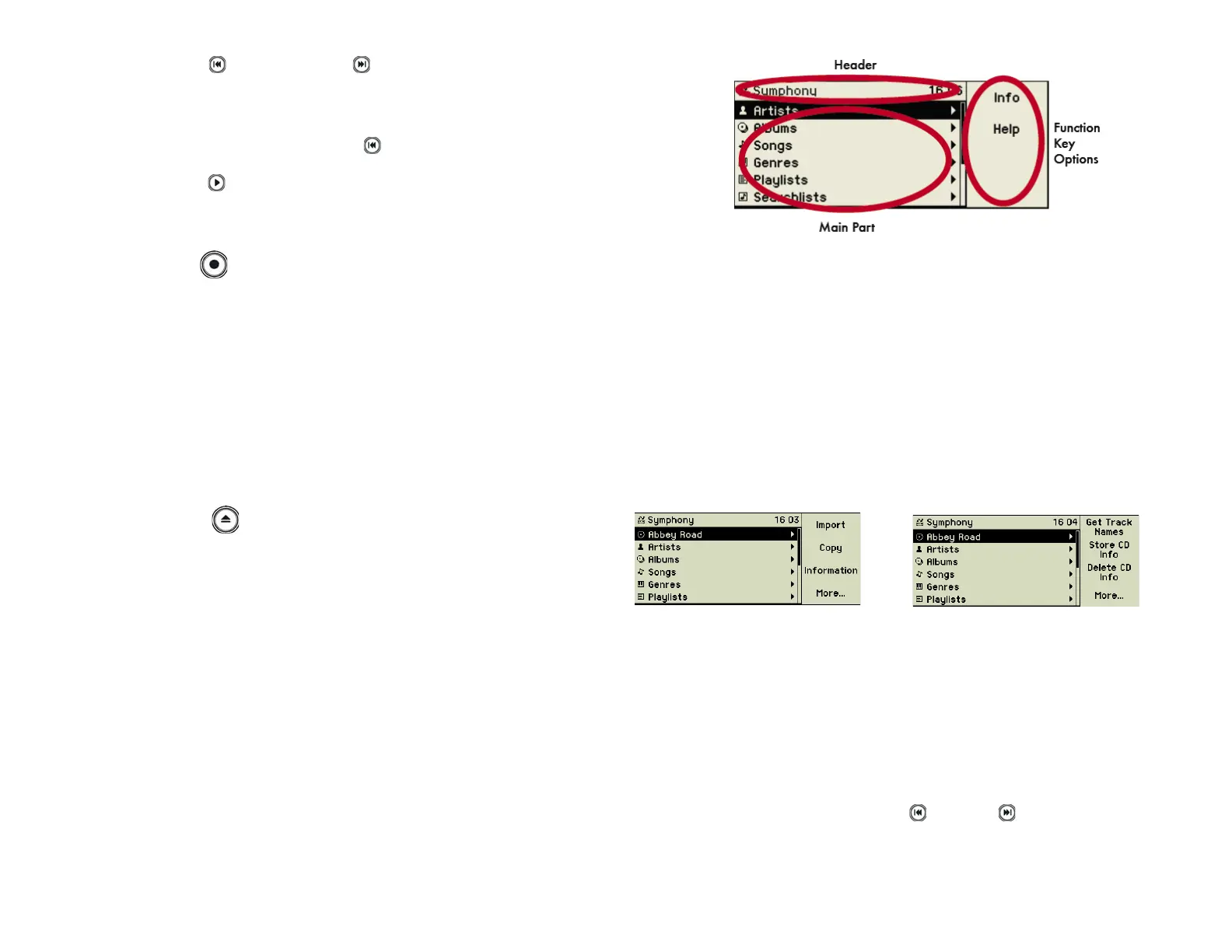
The display shows the current state of the music center and enables its usage
besides the buttons. It is divided into three parts: Header, main area, and the
current assignment of the function keys.
The header shows the name of your device, the current time, and by various
icons the current activities of the music center The main area shows the menu
options which are navigated by the Turn&Select wheel (11) or information on
the currently played, imported, or burned song. On the right the options of
the four function keys are displayed.
After fi ve minutes of inactivity the screen saver is started. Touching the wheel
or a control key brings the display contents back.
1.4.7 Function keys (10)
Pressing a function key executes the displayed action. Not all keys are used
always. If the current situation has more than four options, function key 4
shows “More...” and enables you to toggle between the option sets.
1.4.8 Turn&Select wheel (11)
This genius gadget consists of two parts, the inner wheel and the outer ring.
They are independently turnable. The inner wheel moves the menu selection
up and down, and the outer ring chooses a menu option when turned right.
Turning the outer ring left, one menu level up is reached again. This descrip-
tion sounds a lot more complicated than really doing it! After a few minutes
you got used to this easy way of navigating through menus and will never
think about it again.
While songs are playing turning the inner wheel starts a fast forward or re-
wind like pressing the control keys 3 ( ) and 6 ( ) for long.
F4
5


 To Next Page