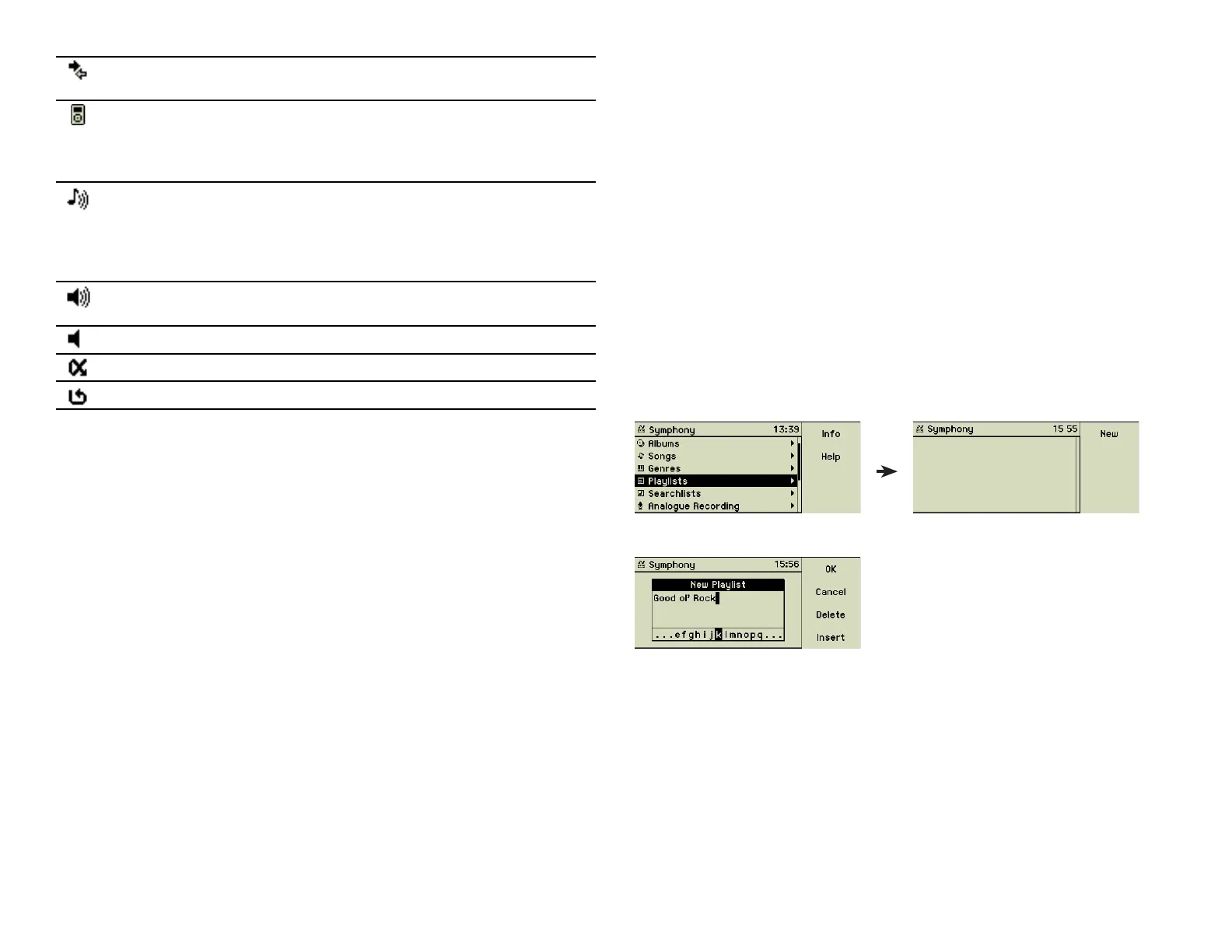
Animated The music center accesses the network, e.g. an iTunes
server.
Steady The iPod icon is shown in place of the music centerʼs
icon: an iPod is connected to the music center and has
been selected. The main menu is now referring to the
music library of the iPod.
Steady The iTunes icon is shown in place of the music centerʼs
icon: an iTunes server is connected to the music center
over the network and has been selected. The main
menu is now referring to the music library of the iTunes
server.
Animated A music track is currently played back, the output
volume is turned on.
Steady Mute is activated.
Steady Random mode is activated.
Steady Repeat mode is activated.
3 ADVANCED FUNCTIONS
This chapter discusses advanced options of the music center and shows their
benefi ts using step-by-step explanations.
3.1 Playlists
The music center maintains playlists for you. You create a list with a name of
your choice and assign songs, albums, or artists to this list. With a playlist, you
choose which songs to play and the order in which to play them.
You can create as many playlists as you want, include as many songs as you
want in each playlist, and rearrange the songs in each playlist until the order
is just right. You might have one playlist for exercising, one for a rainy Mon-
day, another that contains the music for dozing off in the night, and so on.
3.1.1 Create a new playlist
Adding a new playlist
Choose the main menu option Playlists.
Press function key 1 “New” and enter the name of your fi rst playlist.
Use the inner wheel of the Turn&Select wheel (11) to select a character from
the alphabetic list at the bottom and choose it by turning the outer ring of the
Turn&Select wheel (11) shortly to the right. Create the complete title using this
technique. Function key 3 “Delete” and function key 4 “Insert” help correcting
typos. When fi nished press function key 1 “OK” and the new, empty playlist
is created.
Note: If you have a computer you can also create a playlist via the web
interface ( see page 32);
12


 To Next Page