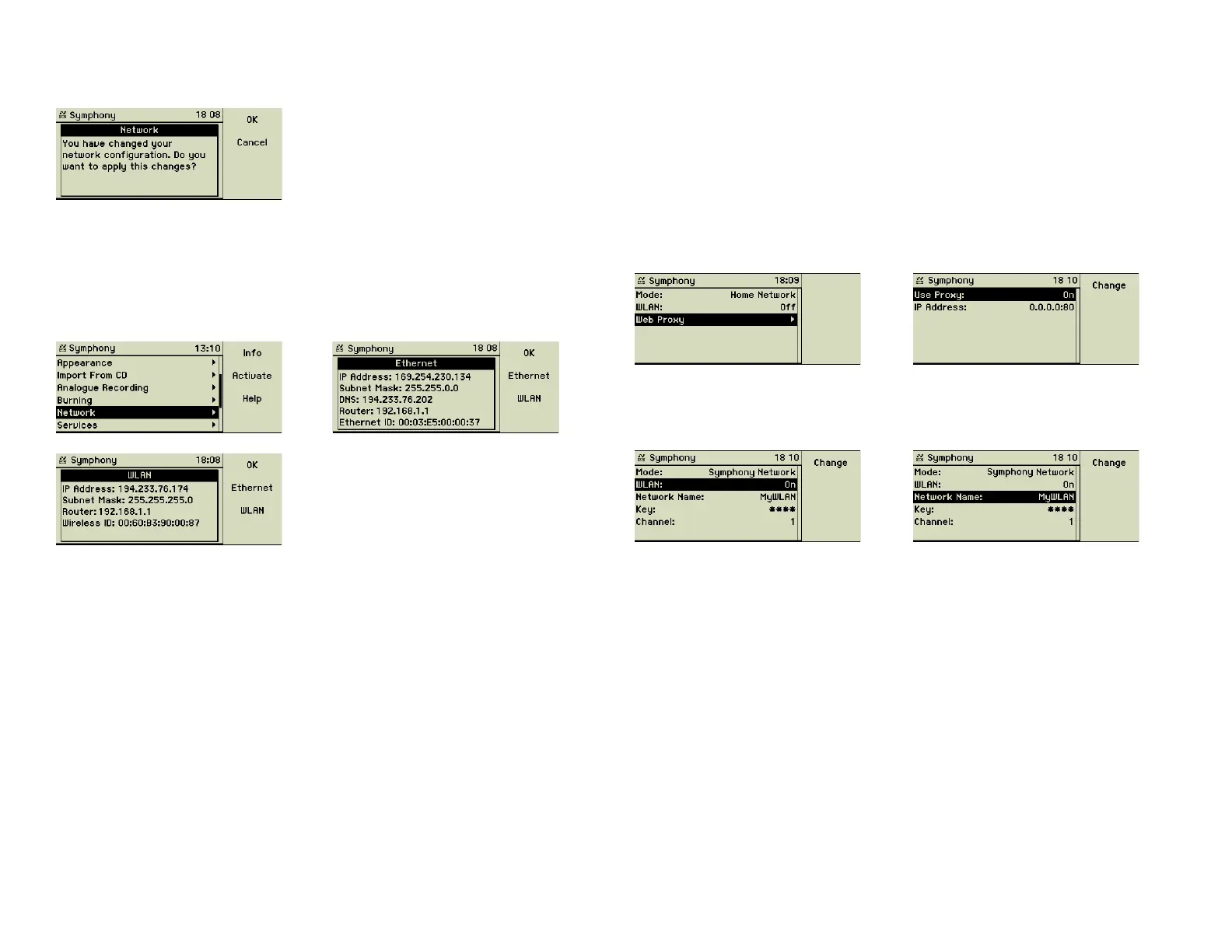
After every change of the network confi guration you must confi rm them to get
them activated.
This allows you an easy fallback to the currently working confi guration, if you
are not sure what you have done.
7.3 IP addressing
The currently used IP addresses can be displayed any time using function key
1 “Info”.
F1 F3
IP address, subnet mask, router address, and name server address can be
manually entered only in Expert Mode. Using the Home Network mode the
music center acts as a DHCP client and searches the connected network for a
provider of these data.
If the music center is confi gured as “Symphony/Musica Network” it assumes
being the central server of a private network (acc. RFC 1918). It provides
a DHCP service and distributes IP addresses to connected devices out of
192.168.1.0/24 range.
7.4 Network connection
In Export Mode two modes can be chosen here.
“Network Connection = Ethernet”: The manually defi ned IP address is used
for both Ethernet and WLAN and all ports are connected by port switching.
Concerning the WLAN the music center is an Access Point.
“Network Connection = WLAN”: The manually defi ned IP address is used
for WLAN only, acting as a simple client. The Ethernet ports are using a Zero
Confi g System and are connected by routing to the WLAN port.
7.5 Web Proxy
If your music center is using a Proxy server to connect to the Internet, you can
confi gure its address in Expert Mode.
7.6 WLAN
For all modes the WLAN function can be enabled/disabled separately.
• Symphony/Musica Network: The music center acts as WLAN Access
Point. Network Name, Key and Channel can be set as you like. The
chosen settings must be used by the other computers on logging into
the music center.
• Home Network: The music center acts as WLAN client. Network
Name and Key must set to the corresponding values of the available
Access Point. Using these settings the music center logs on to it.
35


 To Next Page