• Expert Mode:
- Network Connection = Ethernet
The music center acts as WLAN Access Point. Network Name, Key
and Channel can be set as you like. The chosen settings must be
used by the other computers on logging into the music center.
- Network Connection = WLAN
The music center acts as WLAN client. Network Name and Key must
set to the corresponding values of the available Access Point. Using
this settings the music center logs on to it.
Network name and Key
If the music center is confi gured as “Home Network” please enter network
name and key of your existing network.
If the music center is confi gured as “Symphony/Musica Network” you have
to name the network by yourself and create a key for its protection. Other
devices have to use these data for accessing your wireless network.
For an easy crossplatform access we recommend that you do not use spaces
or special characters for the network name.
To protect its wireless LAN access the music center supports keys in hexadeci-
mal notation (00 .. FF) with 64 resp. 128 bit WEP encryption. 24 bits of the
encryption are used as initialisation vector, so sometimes these methods are
called 40 bit resp. 104 bit encryption.
F1
Key examples:
• using 64 (40) bit encryption: 3F:F2:35:4A:A4
• using 128 (104) bit encryption: 42:EE:FD:49:EF:8E:6C:4C:2E:32:99:
BD:39
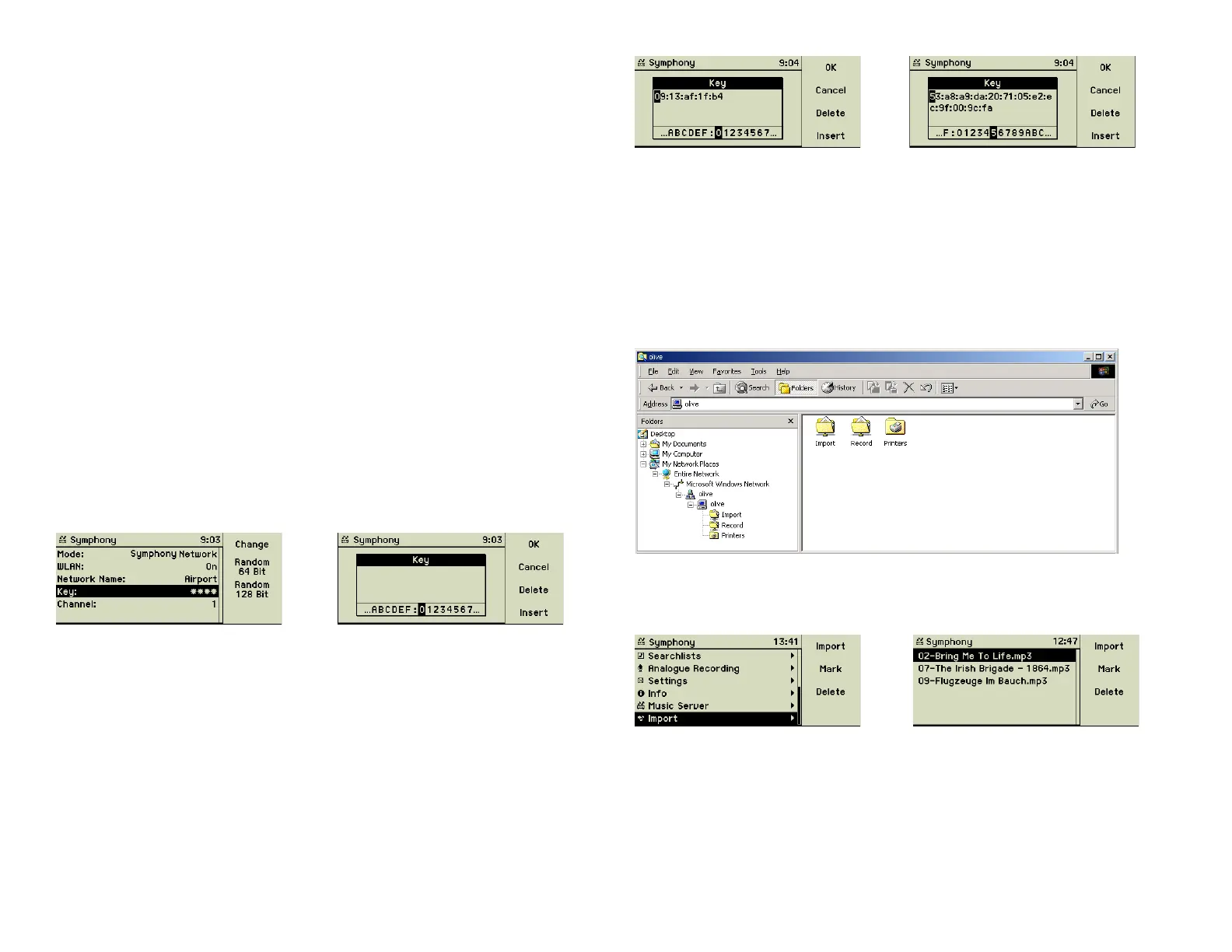
To get only valid WEP keys the music center provides a special edit fi eld. Only
valid characters and digits are available.
Additionally a random key generator let you create 64 and 128 bit keys au-
tomatically. Press function key 2 “Random 64 Bit” or function key 3 “Random
128 Bit”. The edit window opens and proposes a key. Using the Turn&Select
wheel you may change it as you like.
resp.
Please do NOT use one of the example keys printed here! Create your own
and use the random key generator.
7.7 Copying music from a PC to your music center
By default the music center is confi gured as a Windows fi le server (SMB serv-
er) and publishes the volume “Import”. Computer name is the name of the
music center and it is registered in the workgroup “Olive”. No password is
necessary. This fi le server option can be used by any Windows- and
Mac OSX - PC.
If you copy MP3, AIFF, WAV, FLAC, AAC, or Ogg Vorbis music fi les or even
complete folders with music fi les to this folder, they are stored there and can
be imported into the music center using the main menu option “Import”
Pressing function key 1 “Import” starts the import of the selected songs or
folders into the music library of the music center. There are no checks for
duplicates or supported fi le formats. Depending on number and size of these
fi les this may last some minutes. Afterwards the imported music fi les are de-
leted automatically from the “Import” folder.
36


 To Next Page