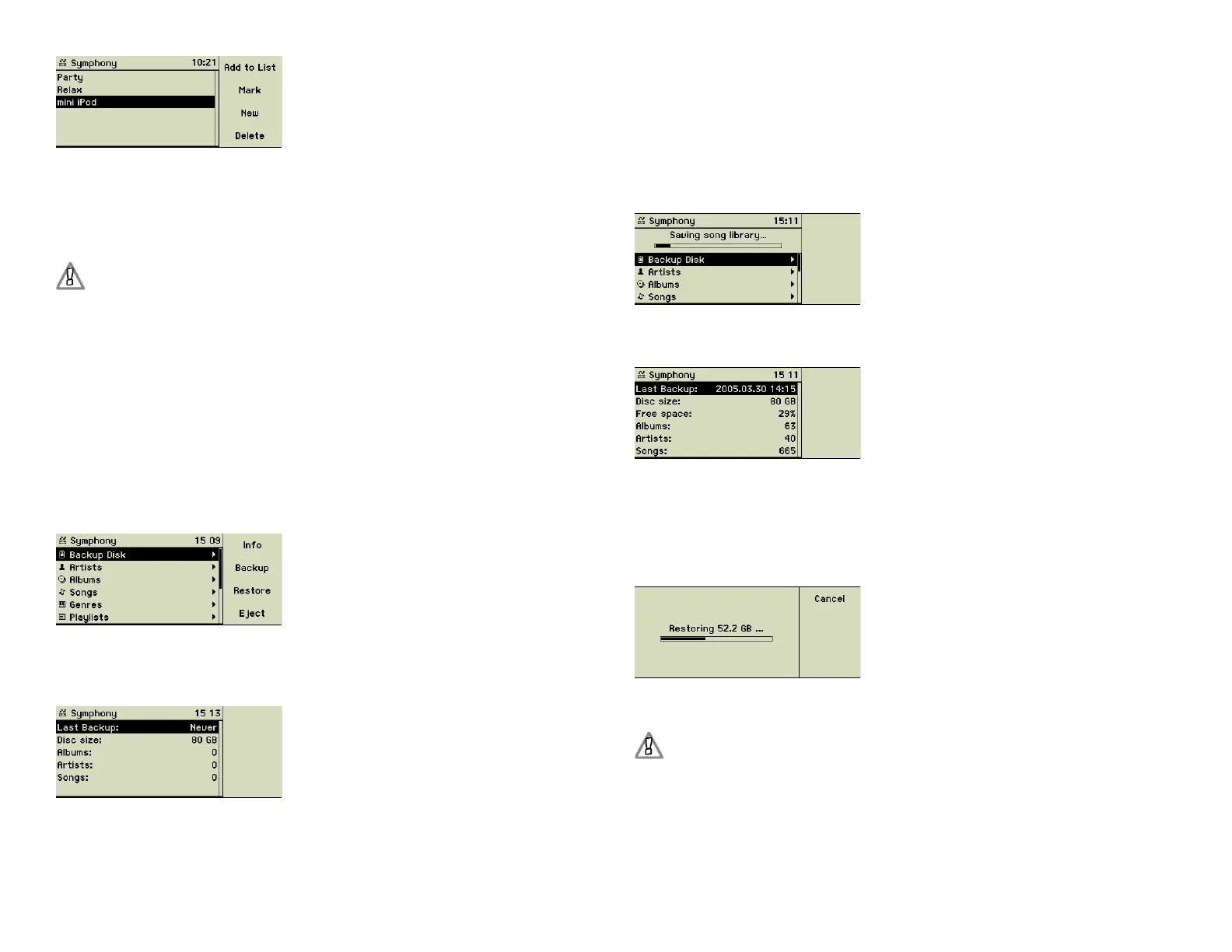
In addition to your own playlists the name of the MP3 player itself is displayed
as a “playlist” here. Select this special playlist and press function key 1 “Add
to List” to transfer the songs to the external player.
Eject your MP3 player
You must press the function key 2 “Eject” on the music center, before
unplugging the device! Otherwise data loss on your MP3 player or
the music center may occur.
3.7 Backup your music collection
While the music center is manufactured to outstanding quality it is a man-
made device and no one can guarantee an error-free operating all the time.
To prepare for a worst-case scenario we highly recommend backing up the
imported data to an external device.
Connect an external Olive hard disk to one of the USB ports (22) on the back
of the music center and save all or a selection of your songs to this backup de-
vice. The external Olive hard disk needs no external power supply, but must
be switched on using its switch on the back.
The Olive hard disk is shown in the main menu as Backup Disk and you got
the options Info, Backup, Restore, and Eject. Pressing the function key 1 “Info”
gives you detailled information about your backup disk.
Backup
Choose Backup to copy all songs and its meta data to the backup disk. Over-
writing of existing songs must be confi rmed.
During the backup all function keys are locked. No music CDs can be im-
ported and the analog recording is disabled. You may playback tracks and
listen to the music. A complete backup of a music center disk may last about
fi ve to six hours.
When the backup process is completed you can check the amount of trans-
ferred data by pressing the function key 1 “Info”.
Restore
Use the option Restore to transfer data back from the backup disk to the music
center. During the restore process all other functions are disabled and it may
last about the same time as the backup process.
Disconnecting the backup disk
You must press the function key 4 “Eject” on the music center, before
unplugging the backup disk!
22


 To Next Page