• Recovery (F2): Only the operating system is restored. Music and
data are not touched. If this option fails, or shows error messages,
or in any other respect did not complete smoothly, you have
to choose Option 1 for recovering.
• Reboot (F3): Cancel all this recovery stuff and restart the music
center in its normal way.
• Power off (F4): The music center is switched off.
6. Press the appropriate function key and the chosen process starts,
showing status messages during its progress.
7. On successful completion the music center shows a message on the
display and can be restarted in its normal way.
8.3 Software update
To gain from the technological progress and the development of the music
center software you may update the internal software of the music center us-
ing a CD of the manufacturer or via the Internet.
8.3.1 Software update via Internet
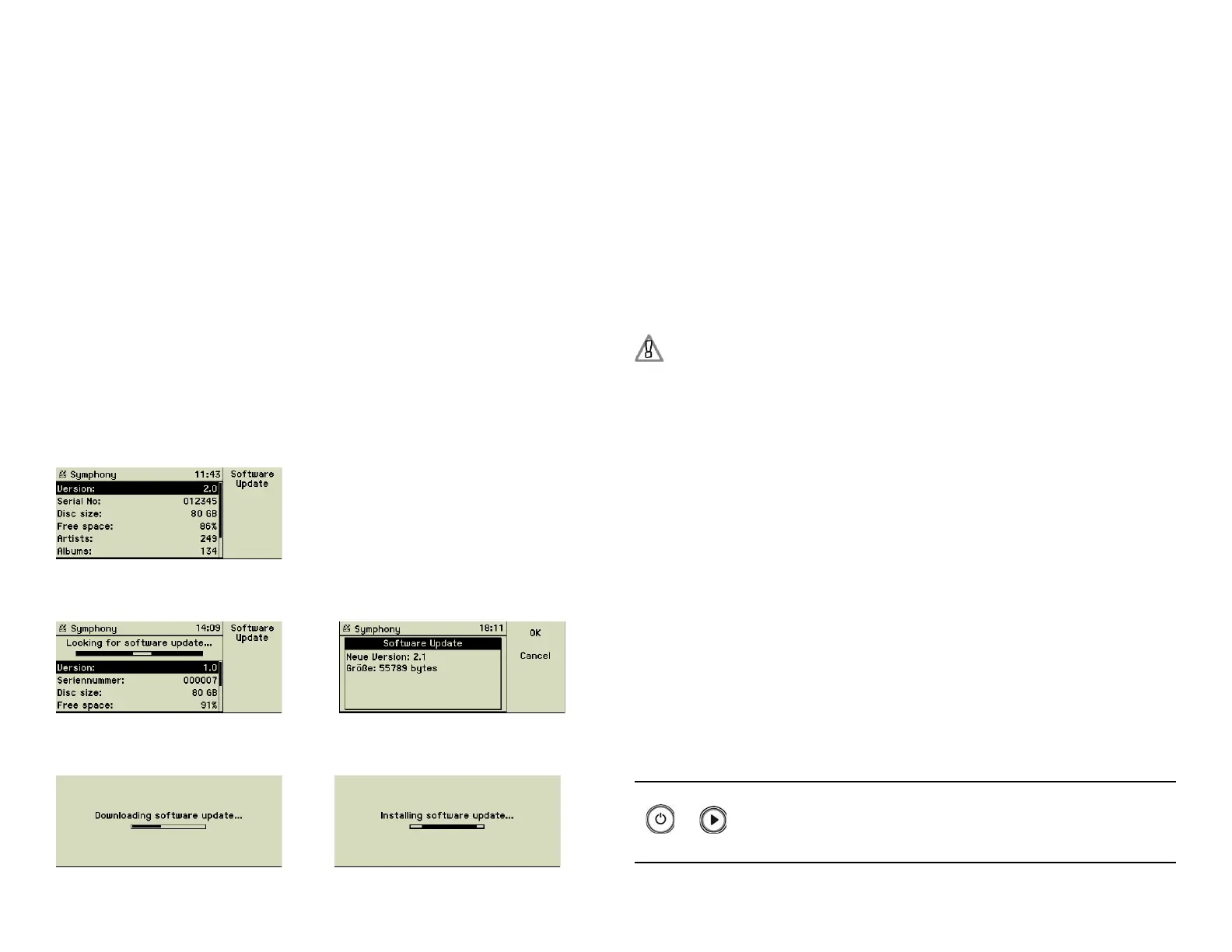
Choose the main menu option “Info” and “Version”.
If you press function key 1 “Software Update” the music center starts to search
for recent software updates on the manufacturerʼs web site.
If an update has been found, it is displayed together with its size. Pressing
function key 1 “OK” again starts the updating.
After successfully updating the software the music center has to be restarted.
This happens automatically after displaying a short notice. Then all the new
features are available.
8.3.2 Software update using a CD
If your music center is not connected to the Internet, you can download a CD
image containing the update software from the music center update page on
the Internet (www.olive.us).
1. To download the CD image click the link on the update page.
2. Unzip the fi le using appropriate software (WinZIP, Stuffi t Expander,
etc.).
3. Burn the ISO image to a CD-R by choosing the “ISO image” option
of your burn software.
Do not unpack the ISO image fi le or put the image fi le itself as a
single fi le on the CD-R. This would render your update CD useless!
Using this selfmade CD the system software of the music center can be
updated.
1. Switch off the music center by pressing the On/Off button (1) for
about 2-3 seconds until the “curtain” starts closing, then release it.
2. Switch the music center on by pressing the On/Off switch (1) while
holding down the Play button (5) until the music centerʼs display
shows three CD icons and the startup screen icon.
3. Insert the CD into the slot. Please note that the music center waits
only about 10 seconds for a CD.
Then the music center starts using the operating system of the CD
and the update procedure is launched automatically.
4. On successful completion the music center shows a message on the
display and has to be restarted in its normal way. While restarting,
the CD is then ejected.
8.4 Useful key combinations
Some buttons of the music center front panel can be used together for special
purposes. Your music center must be switched off for these functions.
+
Icons of three CDs and the music center logo are displayed.
You may insert a recovery, or update CD. Please note that the
music center waits only about 10 seconds for a CD. Then the
music center starts using the operating system of the CD.
38


 To Next Page