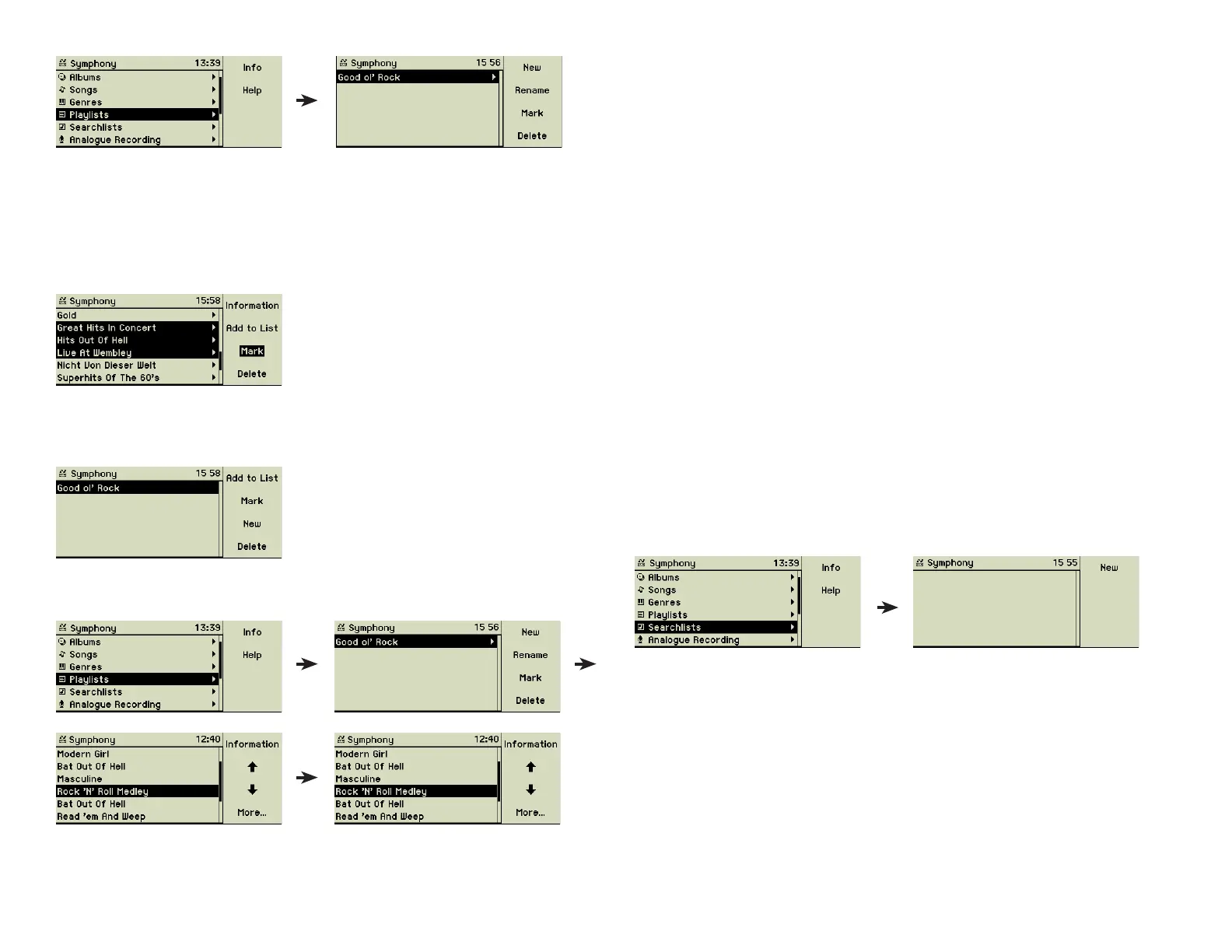
You can use the function keys 2 “Up” and 3 “Down” to rearrange the position
of songs inside a playlist. Function key 4 “More...” reveals the second part of
the options, including deleting and adding songs.
3.1.2 Renaming or deleting an existing playlist
You may rename or delete an existing playlist any time by selecting it from the
list and using the appropriate function keys.
3.1.3 Playback of a playlist
To play a playlist, just choose it from the menu option Playlists and press the
Play button (5). If the play mode is set to Repeat or Random the songs of
the playlist are played in random order resp. the songs of the playlists are
repeated forever. See section 4.3 «Play mode» on page 23 for additional
information on these options.
3.2 Searchlists (Smart playlists)
Searchlists are special playlists, which do not consists of a fi xed set of songs,
artists, or albums, but defi ne their contents dynamically by search criteria you
defi ned. If you add songs to your music center the searchlists are updated
automatically to represent always the dynamic set you defi ned.
3.2.1 Create a new searchlist
Adding a new searchlist
Choose the main menu option Searchlists.
Press function key 1 “New” and enter the name of your fi rst searchlist.
Adding songs to a playlist
Choose from the main menu options Artists, Albums, or Songs the tracks you
want to add to your new playlist. To select multiple entries mark the fi rst one
using function key 3 “Mark” and turn the inner wheel to extend the selection
to the last entry you want to include.
When your selection is complete press function key 2 “Add to List”. You will
see the list of all your playlists. For your convenience the last used list is pre-
selected as the target.
Choose the playlist you want your songs assign to, and press function key 1
“Add to List”. Now all your selected songs are part of this playlist.
13


 To Next Page