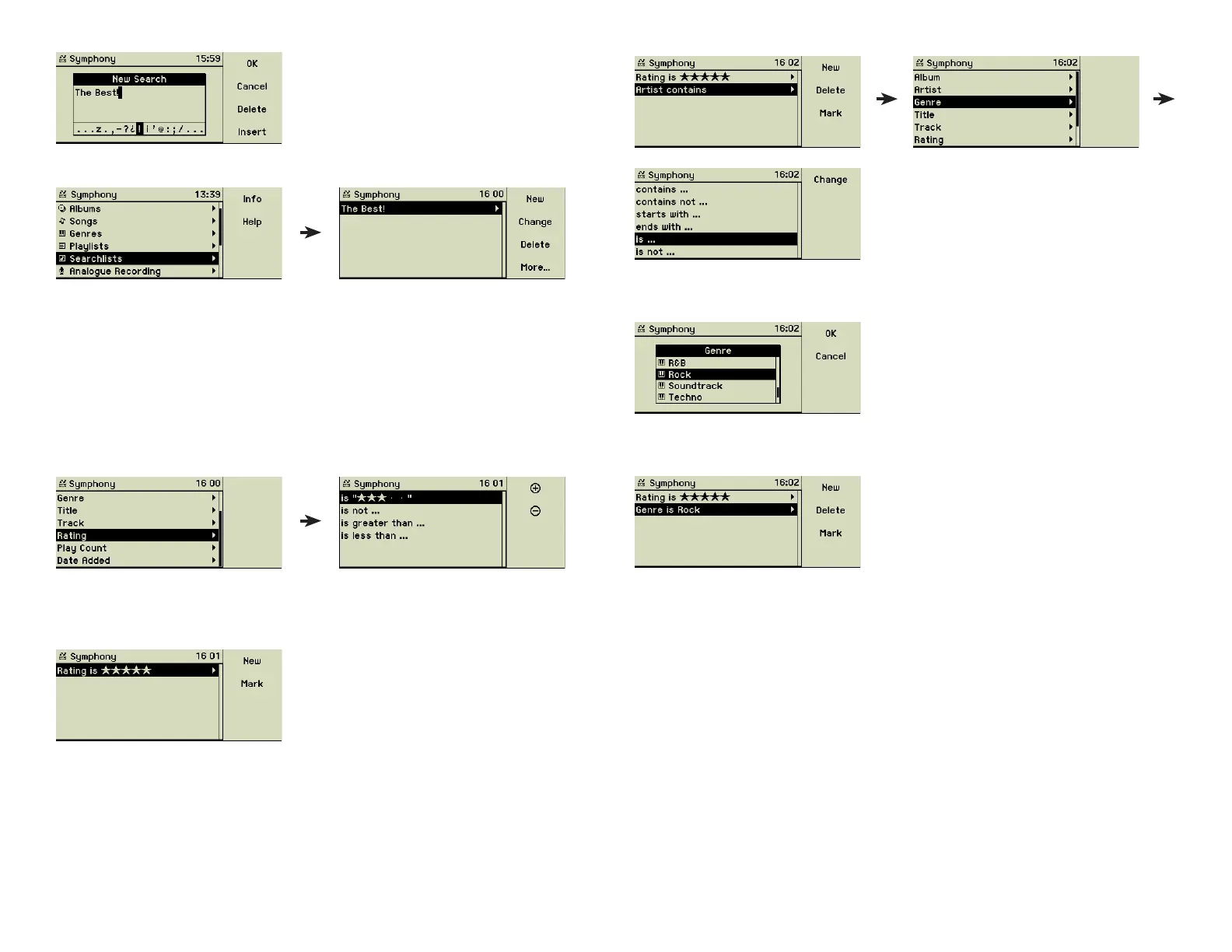
Use function key 1 “Change” to let the list of genres appear. The list shows all
available genres including those without assigned songs.
Choose one and confi rm it pressing function key 1 “OK”. Now the search
criteria of our searchlists are completed.
Both search criteria are defi ned now. Turn the outer ring (11) of the Turn&Select
wheel once to the left to get back to the list of searchlists.
Whenever you are looking at the contents of this searchlist, you see only Rock
songs with the Five-Star ranking. In the course of the years you may change
the meta data of songs according to your changing personal preferences, this
list will always show your most valued songs.
Press function key 1 “OK” and the new, empty searchlist is created.
Adding search criteria
Choose the main menu option Searchlists, then your newly created list “The
Best!” and press the function key 2 “Change” to defi ne the fi rst search criteria.
Turning the inner wheel (11) right, you are presented with the list of all meta
data and all this fi elds are available for composing search criteria.
To achieve a list of the best and only the best songs the fi eld Rating of the
meta data has to be used. Only songs, albums, and artists with a fi ve star top
ranking are allowed.
Use function key 1 “+” to enter the number of stars. When the fi ve stars have
been entered, turn the outer ring (11) of the Turn&Select wheel twice to the
left, to get back two levels.
Now the fi rst search condition is defi ned but we want also limit this special
playlist to only one genre of music. Again press function key 1 “New” and a
second criteria appears, showing “Artist contains” by default. Follow the right
arrow to the list of meta data fi elds, choose Genre and further to the right to
the conditions.
14



 To Next Page