5-58
Operation on the Machine > Using Document Boxes
3
[Save] > [Close]
The display returns to the default Document Box screen.
Deleting Custom Box
1
Display the screen.
[Home] ( ) key > [Custom Box] > [Detail/Edit]
2
Delete the custom box.
Select the box > [Delete] > [Yes]
Storing Documents to a Custom Box
Custom box stores the print data which is sent from a PC. For the operation of the printing from the PC, refer to the
following:
Printing System Driver User Guide
User Box Name
Box Password
Permission
Auto File Deletion
Overwrite Setting
Delete after Printed
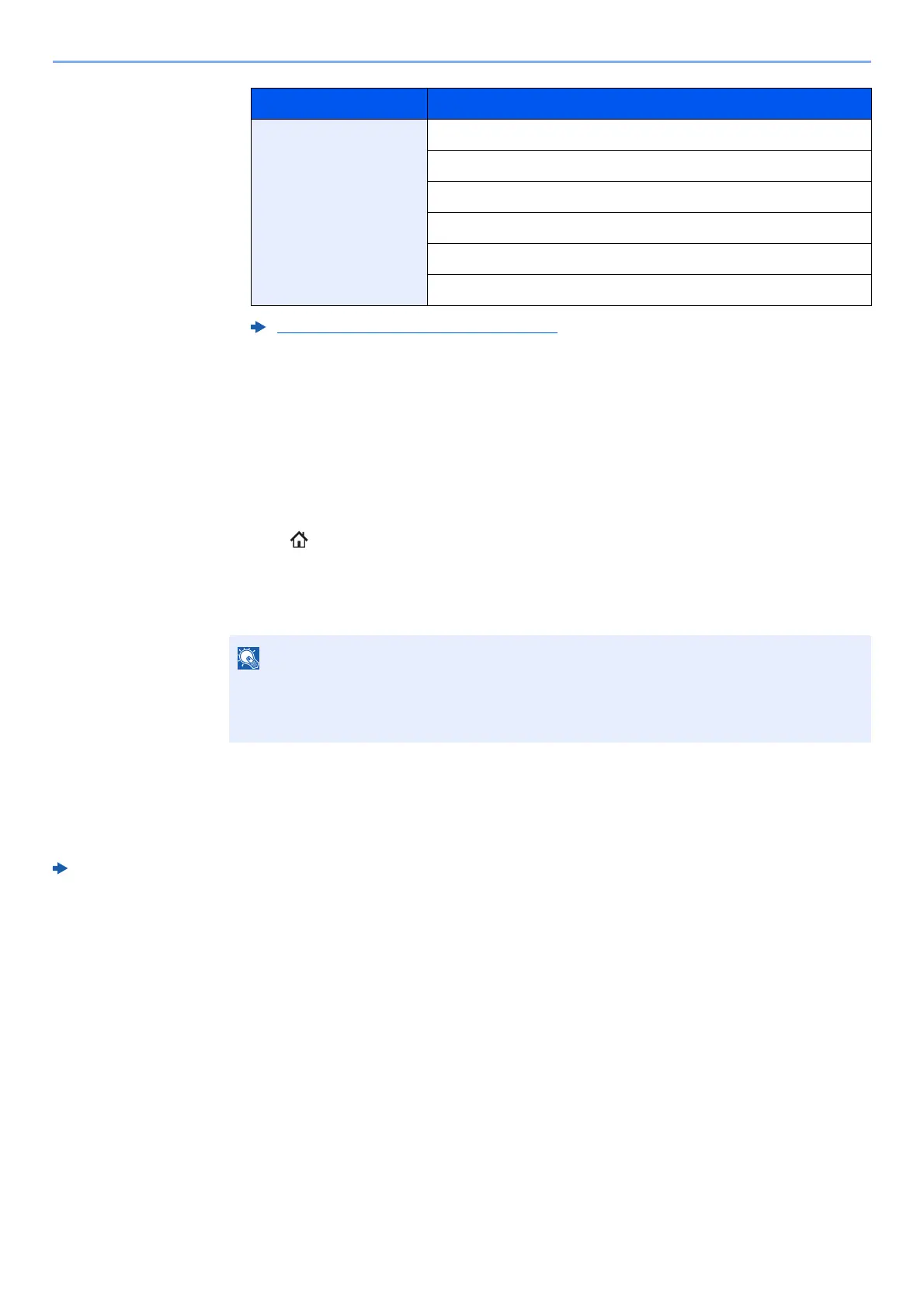
Creating a New Custom Box (page 5-56)
• When you have logged in as a user, you can only delete a box whose owner is set to that
user.
• When you have logged in as administrator, you can edit all boxes.
Privileges Settings that can be changed








 To Next Page