9-48
User Authentication and Accounting (User Login, Job Accounting) > Configuring Job Accounting
Print Accounting Report
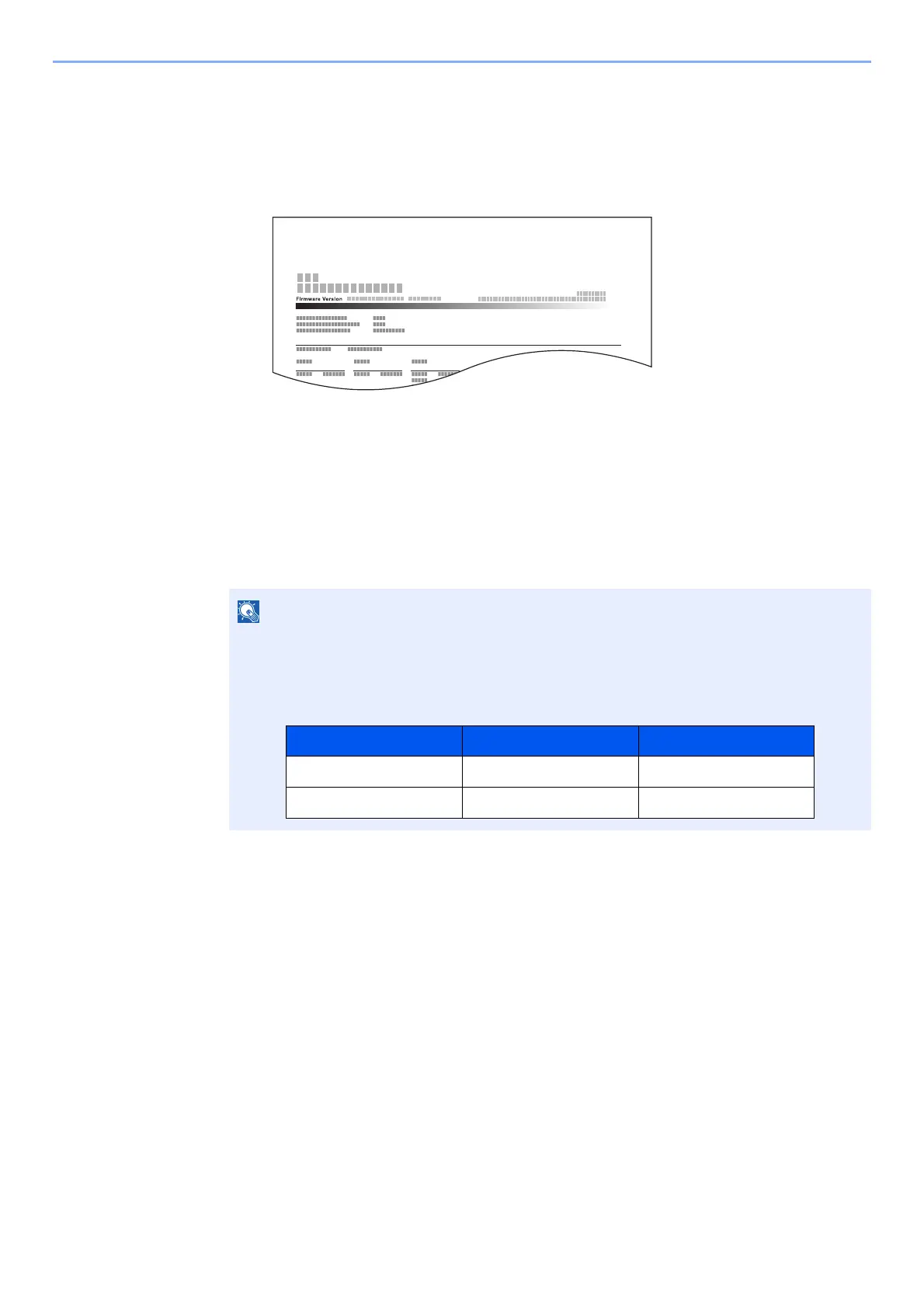
The total pages counted of all relevant accounts can be printed as an accounting report.
Reports have different formats depending on how the count of copiers and printers is administered.
When "Individual" is selected for Managing the Copy/Printer Count.
Use the procedure below to print a job accounting report.
1
Prepare paper.
Check that A4 or Letter paper is loaded in the cassette.
2
Display the screen.
[System Menu/Counter] key > [User Login/Job Accounting] > [Job Accounting Settings]
3
Print the report.
[Print Accounting Report] > [Yes]
Accounting report is printed.
If the login user name entry screen appears during operations, enter a login user name and
password, and select [Login]. For this, you need to login as an administrator or as a user
with privileges to carry out this setting.
The factory default login user name and login password are set as shown below.
Model Name Login User Name Login Password
d-COPIA 5001MF
d-COPIA 6001MF








 To Next Page