DP23-AOU/DP28-AOU
27
5
White Balance on ROI
Adjusting the white balance before acquiring the image allows you
to acquire the image in appropriate colors.
This product is equipped with the function to adjust the white
balance automatically. This function is enabled in the initial setting.
However, the white balance may not be adjusted automatically
depending on the type of light source or the specimen.
In such a case, use the white balance on ROI.
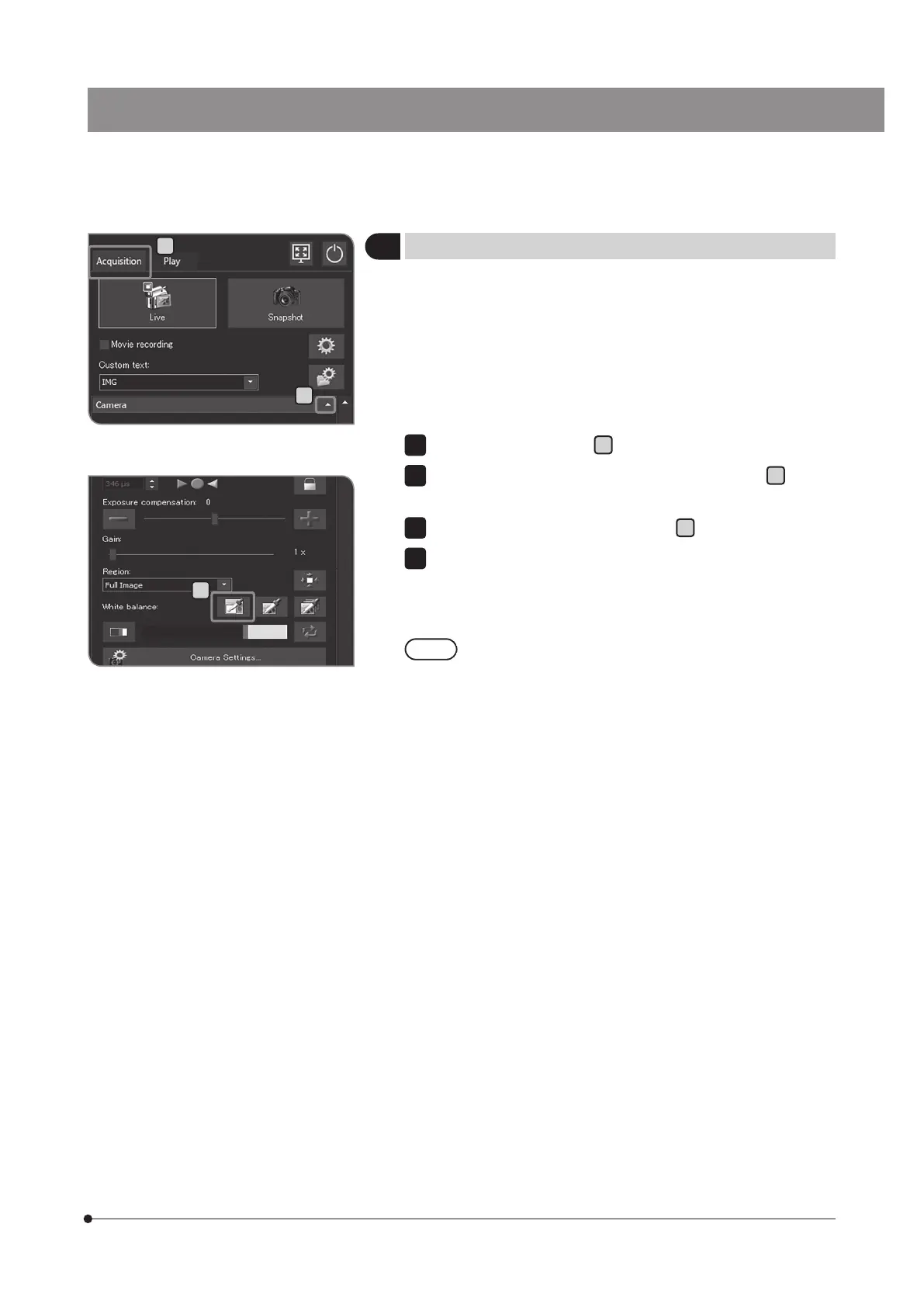
Select the [Acquisition] tab
A
.
If the setting items of [Camera] are not displayed, press
B
to open
them.
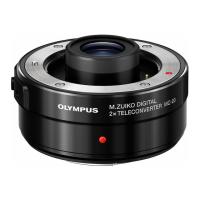
Press the [White Balance on ROI] button
C
.
Specify the white area in the live image.
If you start dragging, the red area is displayed.
When you finish dragging, the region is identified and the white
balance is enabled.
· If you fail in setting the white balance, the message appears.
Check the message and press the [OK] button to delete the
message. Then, perform the white balance again.
· If the white area in the live image is not specified or the
exposure is not appropriate (too bright or too dark), you may fail
in setting the white balance.
· In addition to [White Balance on ROI], there are [One Touch
White Balance] and [Automatic White Balance]. For details, see
"Setting the white balance (WB) mode (p.33)”.
1
2
3
4
C
B
A


 To Next Page