52
B
C
G
J
D
E
H
F
I
A
6
Setting the information stamp view
You can add the information stamp view on the live image and the
acquired image.
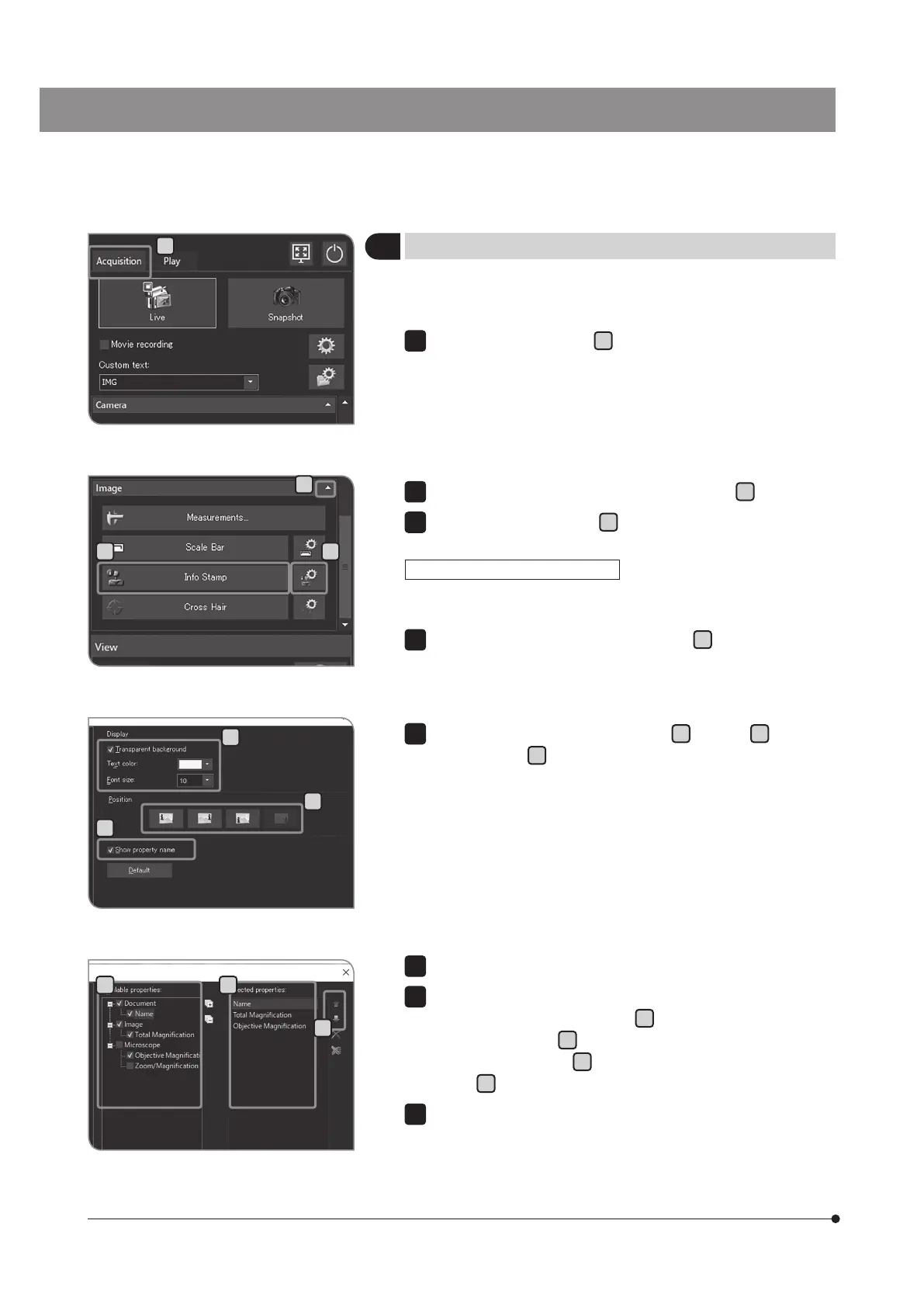
Select the [Acquisition] tab
A
.
1
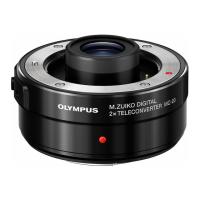
If the setting items of [Image] are not displayed, press
B
to open them.
Press the [Info Stamp] button
C
to show or hide the information stamp.
You can change the size or position of the information stamp, and the
information to be included on the displayed screen.
Press the [Show Info Stamp Options] button
D
. The [Options] dialog
box opens, and [Info Stamp] > [General] is displayed.
2
3
Changing the information stamp view
1
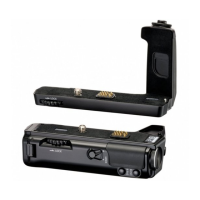
Select [Info Stamp] > [Properties].
When you select the properties (information) to be displayed in the
stamp in the [Available properties]
H
, the properties are displayed in
[Selected properties]
I
.
Select the properties in
I
, and press the [Move Up] or [Move Down]
button
J
to change the order to display in the stamp.
Press the [OK] button to close the [Options] dialog box.
3
4
5
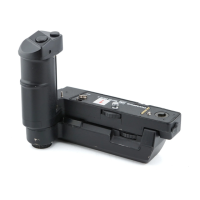
Change the required settings in [Display]
E
, [Position]
F
, and [Show
property name]
G
.
2


 To Next Page