86
3
Setting date, time and time zone
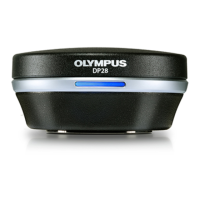
You can set the date, time and time zone of DP2-AOU. .
The acquisition date and time are recorded on the acquired image.
When you view the acquired images saved in the recording media in
NTFS format such as USB-HDD (external hard disk for connecting USB),
etc. on PC, the acquisition date and time may not be displayed correctly.
If you set the time zone of DP2-AOU same as the time zone of PC,
the acquisition date and time are displayed correctly.
A
C
B
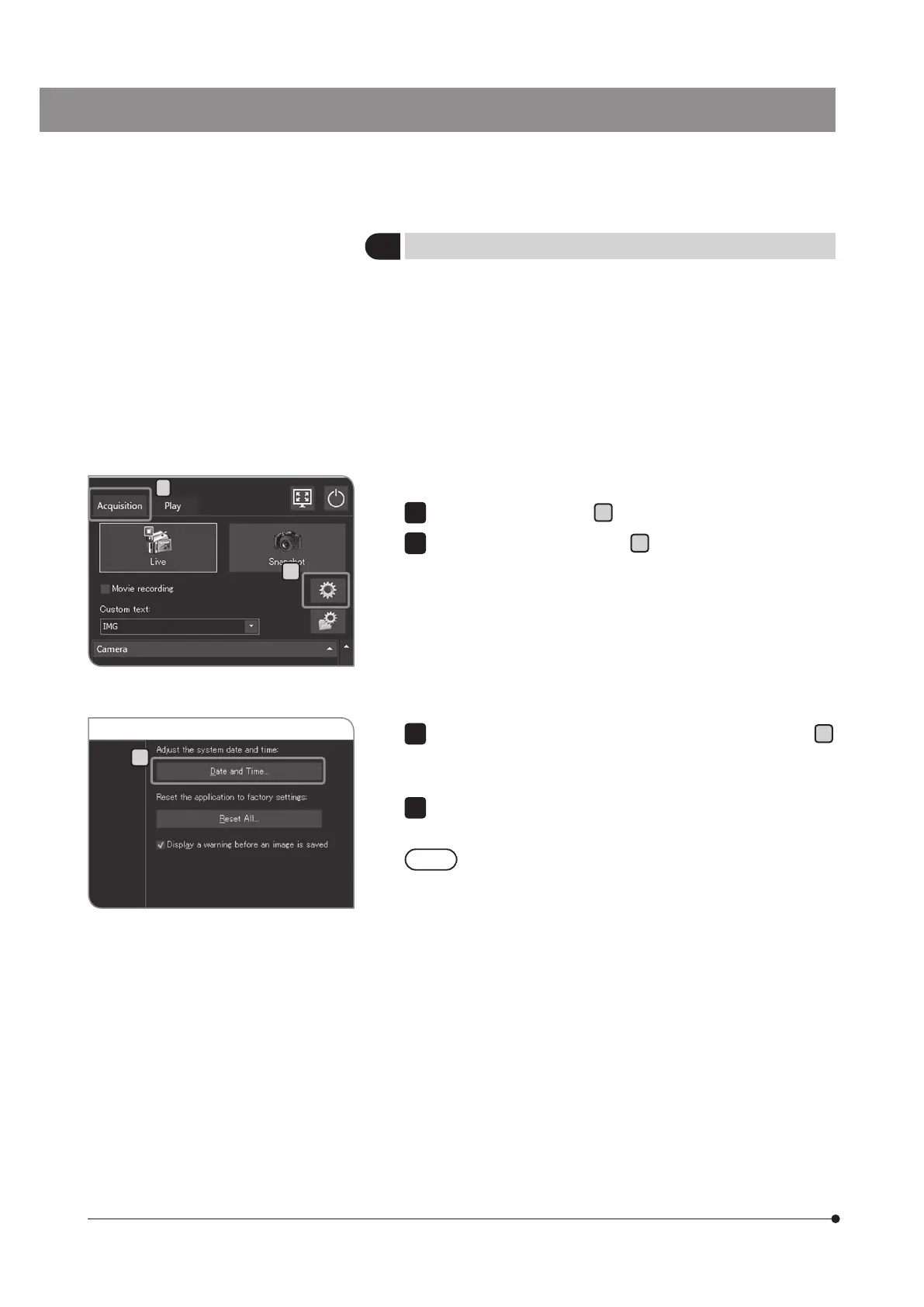
Select the [Acquisition] tab
A
.
Press the [System Settings] button
B
to open the [Options] dialog box.
1
Select [System] > [General], and press the [Date and Time] button
C
.
When the [Date and Time] dialog box appears, set the date, time and
time zone, and press the [OK] button.
When the message asking you whether to restart the system appears,
press the [Yes] button.
When the settings are changed, DP2-AOU restarts
automatically. Do not turn OFF the main switch or unplug
the AC adapter until the restart completes.
3
4


 To Next Page