32
3
Setting the still image format
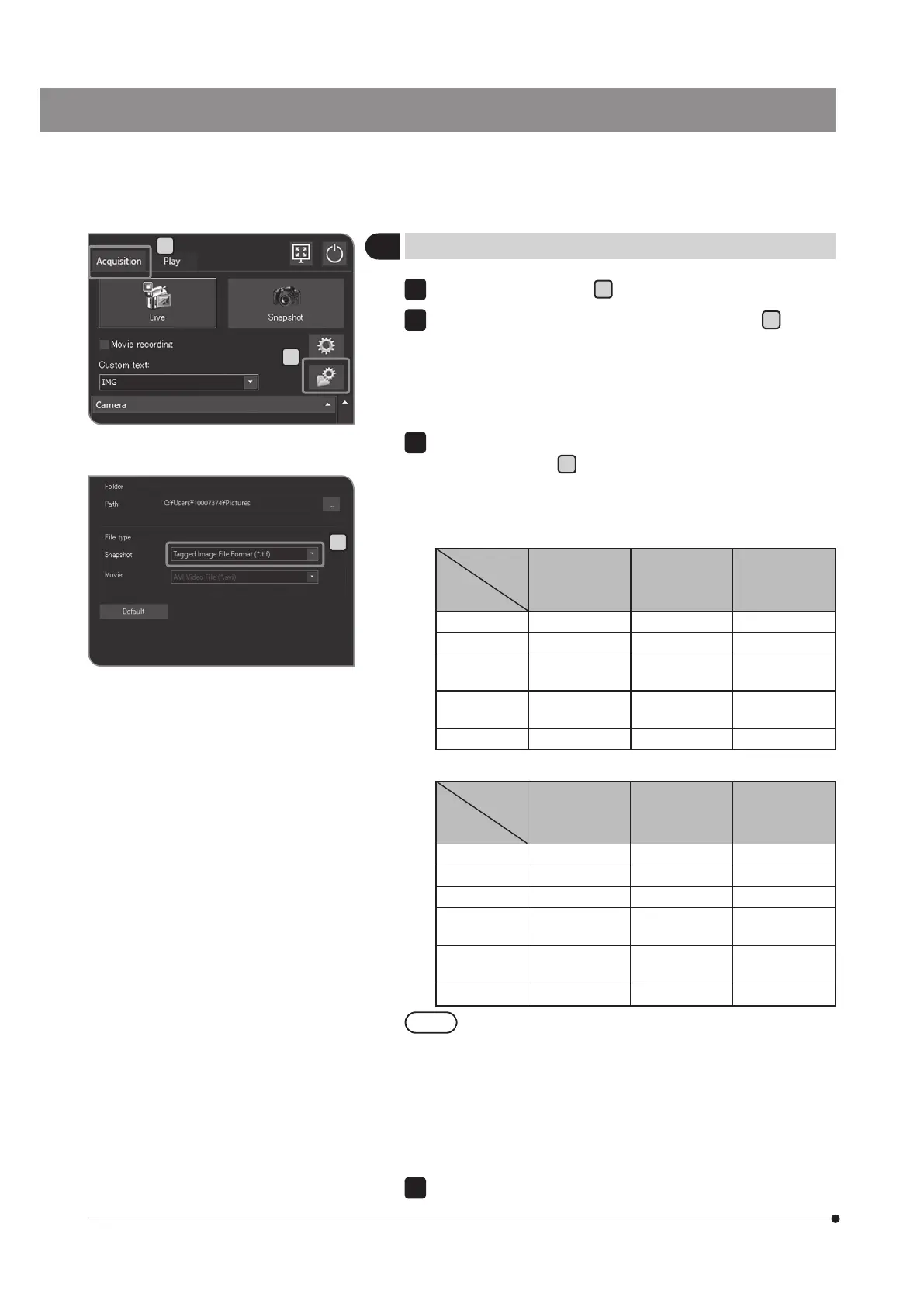
Select the [Acquisition] tab
A
.
Press the [File Naming and Saving Options] button
B
to open
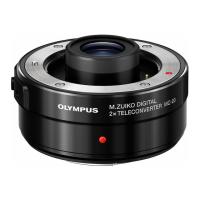
[Acquisition Settings] dialog box.
1
2
C
B
Select [Image file] > [Save], and select the following file formats from
the list of [Snapshot]
C
.
The file size for the file format per resolution is listed in the table
shown below.
DP23-CU:
File format
Resolution
TIFF
(Unit: MB)
(Approximate
Value)
JPEG-LOW
(Unit: MB)
(Approximate
Value)
JPEG-HIGH
(Unit: MB)
(Approximate
Value)
3088 x 2076 19.2 1.8 0.9
2072 x 2072 12.9 1.3 0.6
1544 x 1038
(high speed)
5 0.8 0.4
1544 x 1038
(high sensitivity)
5 0.7 0.4
1920 x 1080 6.2 0.8 0.4
DP28-CU:
File format
Resolution
TIFF
(Unit: MB)
(Approximate
Value)
JPEG-LOW
(Unit: MB)
(Approximate
Value)
JPEG-HIGH
(Unit: MB)
(Approximate
Value)
4104 x 2174 26.3 2.8 1.3
3840 x 2160 24.6 2.6 1.2
2168 x 2168 13.9 1.6 0.8
2052 x 1086
(high speed)
6.7 1.1 0.5
2052 x 1086
(high sensitivity)
6.7 0.9 0.5
1920 x 1080 6.2 1 0.5
· Compression rate
TIFF: Uncompressed
JPEG-LOW: Low compression
JPEG-HIGH: High compression
· The image quality becomes higher in the order from JPEG-
HIGH, JPEG-LOW to TIFF (TIFF is the highest).
· The file size of JPEG-LOW or JPEG-HIGH is a guide. It differs
depending on specimens to be observed.
Press the [OK] button to close the [Acquisition Settings] dialog box.
3
4
A


 To Next Page