DP23-AOU/DP28-AOU
33
4
Setting the white balance (WB) mode
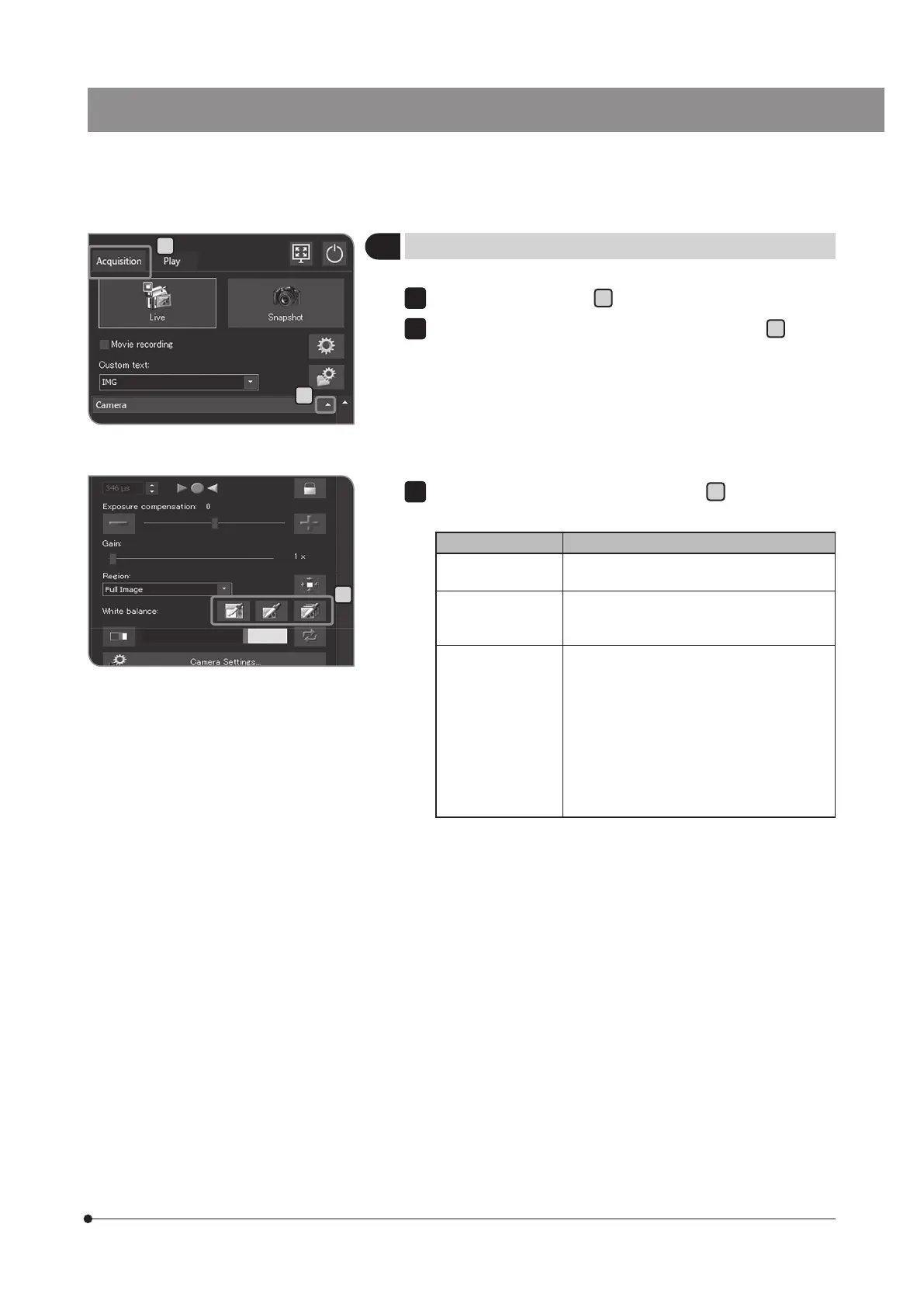
Select the [Acquisition] tab
A
.
If the setting items of [Camera] are not displayed, press
B
to open
them.
1
2
C
B
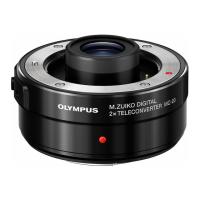
Press the following buttons in [White balance]
C
to select the white
balance mode.
Button Function
White Balance on
ROI
The white balance is adjusted so that the
selected areas become white.
One Touch White
Balance
The white balance of the entire image is
adjusted. It is not necessary to select the
area.
Automatic White
Balance
The white areas in the live image are
identified and the white balance is
adjusted automatically. If the brightness of
the illumination light changes, the white
balance is adjusted automatically. However,
depending on the specimen type or
brightness, if there are only few white areas
in the live image, the white balance is not
applied appropriately and, therefore, the
appropriate tint may not be obtained.
3
A


 To Next Page