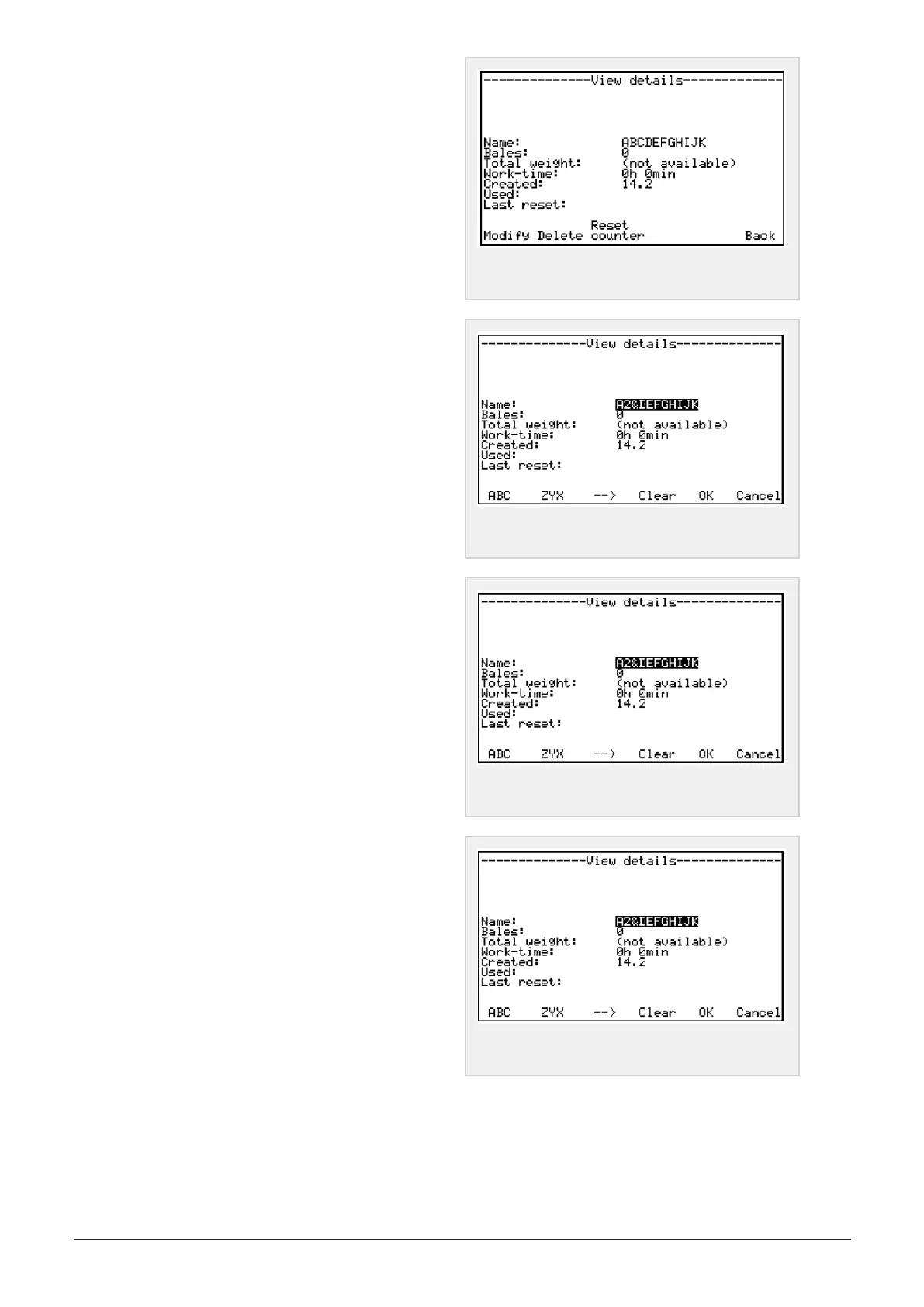
View stored information
Switch between counters by pressing buttons under
arrows in display.
Press select button to choose a counter to look into.
The chosen line should now be marked with a *
behind the counter number in display.
Then press details button to view stored information
registered on the customer. (Number of
bales and time spent)
Figure 6.13 :
Counter page 2
Change text, or add a new customer/job
Choose the counter to be changed, Press details but-
ton, then modify button.
ABC - Skip through alphabet from the start and back-
wards and then numbers.
ZYX– Skip through numbers and alphabet from the
end and forwards.
Figure 6.14 :
Counter page 3
Change or write letters and numbers:
Press ABC or ZYX button until requested letter is in
cursor.
Then press arrow button to move to next letter or
make a space.
Erase a letter, press clear button
Confirm changes, press OK button
Figure 6.15 :
Counter page 3
Reset: Counter
NOTE: Make sure the correct counter you’d like to
reset, is chosen. (Picture, counter 2)
Press reset counter. Confirm or invalidate by press-
ing: Yes or No
Erase counter: customer or job:
Press delete. Then confirm or invalidate by pressing
Yes or No.
Figure 6.16 :
Counter page 4
6 CONTROL SYSTEM 48



 To Next Page