Time
Enter menu screen; user settings.
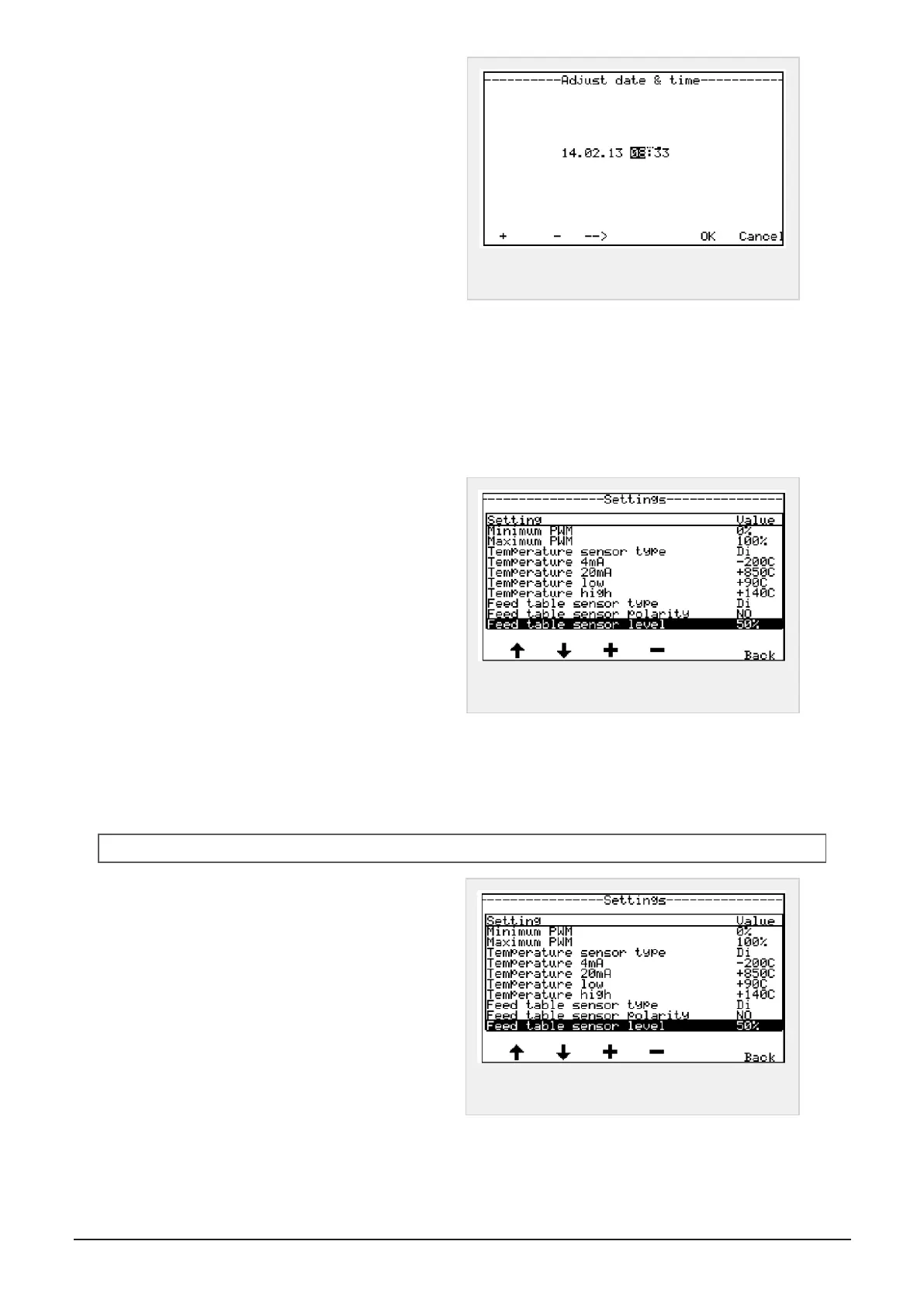
Select Clock on the right side of screen to enter
menu; Adjust date & time
Move cursor along the line by pressing button under
the arrow shown in display. Move the cursor to the
value you’d like to change
Increase/Decrease value, press + or -
Confirm new time by pressing OK
Figure 6.17 :
Adjust time and date
Press cancel - back button to return to menu; Settings and counters
Press menu button to get new main menu. Press user settings button to enter menu; User settings.
6.1.5 User settings
Control unit: Information line showing which program
and edition. MP 2000 v5.0 G
Changing brightness in display
By pressing buttons below Brightness in display, you
can adjust to requested intensity with + or -
Changing contrast in display
By pressing buttons below Contrast in display, you
can adjust to requested intensity with + or -
Changing background
Choose between bright letters on dark background, or
dark letters on bright background. By pressing but-
tons under polarity, you can change background with
POS or NEG.
Calibration:
To calibrate scale for bale on table, if installed.
Choose Scale button. (Not in use)
Figure 6.18 :
Menu advanced settings 1
6.1.6 Advanced settings
NOTE: These settings must be performed by trained personnel only.
To get access to more parameters in menu settings:
Enter menu Settings as shown in picture 1 on pre-
vious side.
Press upper and lower buttons on left side sim-
ultaneously. New parameters will now appear in dis-
play.
See picture 1 and 2 to the right, to see advanced
parameters to be changed.
Figure 6.19 :
Menu advanced settings 1
6 CONTROL SYSTEM 49



 To Next Page