SECTION 3: OSCOR MANUAL OPERATION
REI OSC-5000E 36
Integration Spectrum Display
Most RF signals utilize a modulation technique that results in the frequency spectrum of
the signal modulating significantly in real-time. This is obvious when looking at a FM
modulated signal with a high-speed analog spectrum analyzer. Furthermore, FM signals
provide an excellent opportunity to hide a “snuggle bug” in the sides or skirts of the
signal as described previously in this manual (see page 29 Receiver Bandwidths). While
most snuggled transmitters can be easily viewed using the narrow bandwidths, the
OSCOR software provides an improved way of viewing these signals by integrating the
frequency display to minimize the interference from the modulation. The Integration
Spectrum Display is a real-time frequency display function that is not stored in the
OSCOR memory. Anytime the frequency display is altered in any way from using the
EXPAND/NARROW keys or the UP/DOWN keys, the integration data is completely reset.
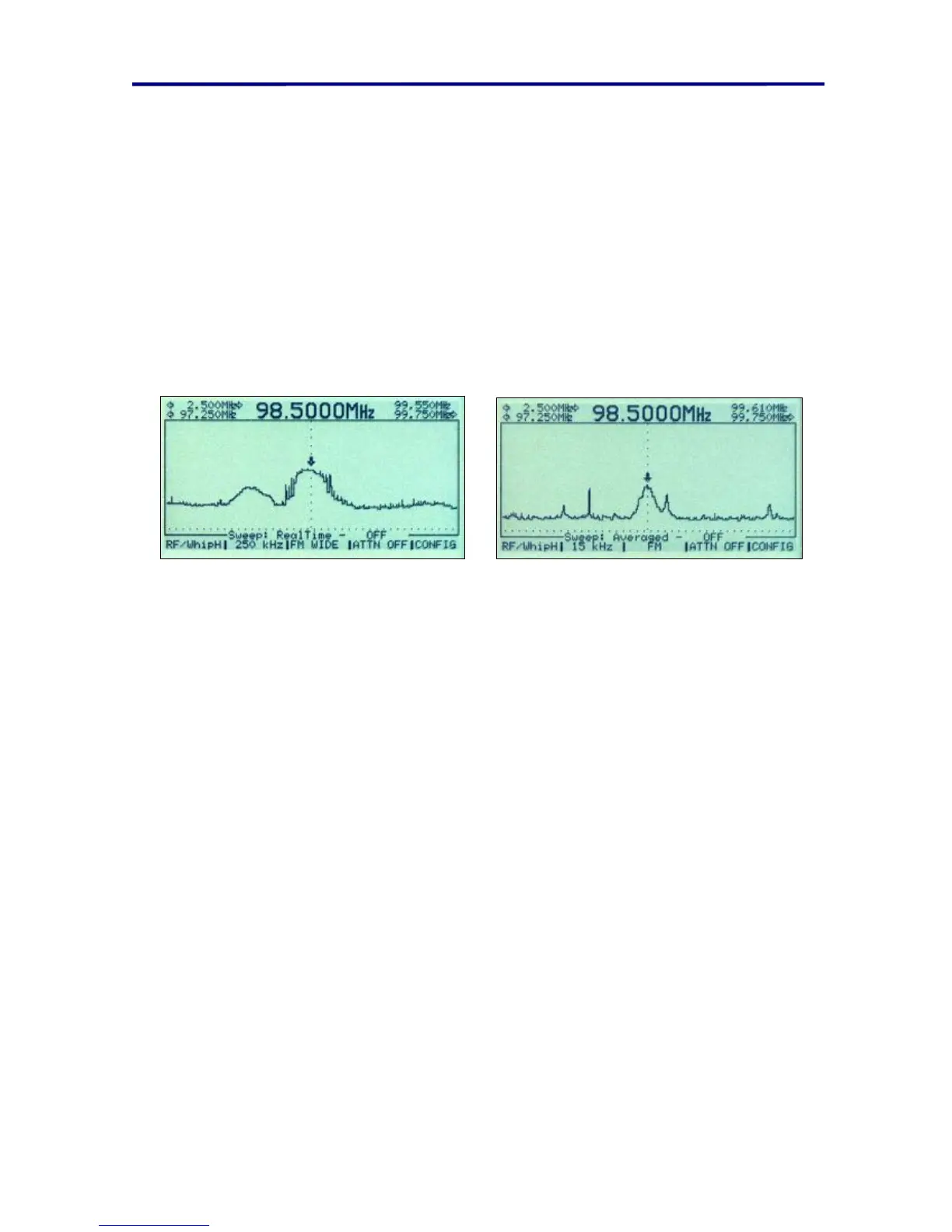
FIGURE 21 AVERAGED SPECTRUM DISPLAY EXAMPLE
In the above Figure the Radio station 98.5 is hiding a narrow-band snuggled transmitter.
By using the 15KHz bandwidth and the Average Display, the snuggled transmitter can
easily be seen just to the right of the normal radio station frequency. The wideband
modulation of the radio station is “averaged” out so that the narrow band transmitter can
be displayed.
To Display the Average spectrum data:
1. Ensure that the OSCOR is in the Sweep Mode.
2. Press the MENU button (labeled CONFIG).
3. Press the F1 button repeatedly until the label reads “TRACE 1 Averaged” or press
the F2 button repeatedly until the label reads “TRACE 2 AVERAGED”.
NOTE: The Integration spectrum data is also automatically reset when the frequency
display is altered.
Difference Trace Display
The OSCOR provides the ability to compare two different sets of trace data. The possible
difference combinations may be displayed from the Real-Time, Friendly, Peak, and
Averaged spectrum traces.
To Display a Difference Trace:
1. Ensure that the OSCOR is in the Sweep Mode.
2. Press the MENU button (labeled CONFIG).
3. Press F1 to select Trace 1.


 To Next Page