RT-3100 5-Port Single-WAN Gigabit Router User Guide
VPN
Use VPN to access the network remotely. On the VPN tile, configure a Virtual Private Network
using either OpenVPN or PPTP servers.
Configure OpenVPN
OpenVPN lets you set up a single VPN profile for each user that needs remote access to the
network. Your router supports OpenVPN for secure point-to-point connections.
To set up OpenVPN:
1.
First, enable OpenVPN.
2.
Next, create one user profile for each computer that needs to access the network
remotely through VPN.
3.
Download the profile to each computer. Once the profile is installed, VPN will be ready
for use.
Enable the OpenVPN Server
In order to use OpenVPN, it must be enabled on the router.
To enable OpenVPN:
1. Go to the Advanced tab > VPN.
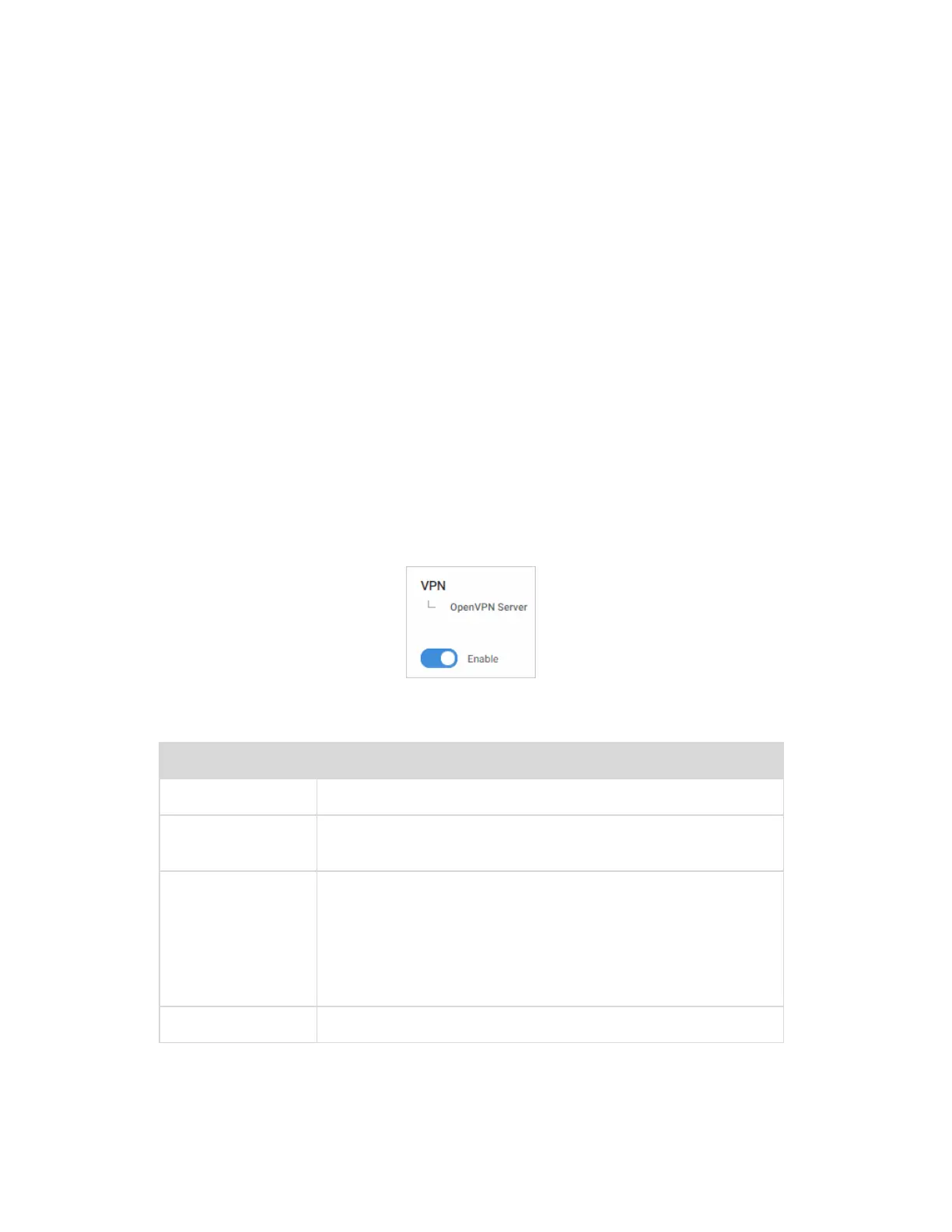
2. On the OpenVPN Server tab, click Enable.
3.
Complete the fields below.
Field Explanation
Enable/disable
Turn OpenVPN Server on/off.
OpenVPN
Server
Enter IP address for OpenVPN Server. Normally the WAN IP
address of the router.
OpenVPN IP
Subnet
Enter the IP Subnet used by the OpenVPN connected
clients. The OpenVPN clients will connect using their own
dedicated IP subnet. This IP subnet cannot overlap with any
of the local LAN or VLAN networks on the router. This is
why the default is set to 10.8.0.0. This should be in IP Subnet
notation (with 0 at the end of the address).
Subnet Mask
Enter the IP subnet mask. (Usually prepopulated).
4. Click Apply (at the top of the page).
65


 To Next Page