RT-3100 5-Port Single-WAN Gigabit Router User Guide
l
Hostname – Enter a descriptive name for the device.
l
IP Address – Enter the device’s IP Address.
l
MAC Address – Enter the device’s MAC Address.
3. Click Apply to complete the reservation.
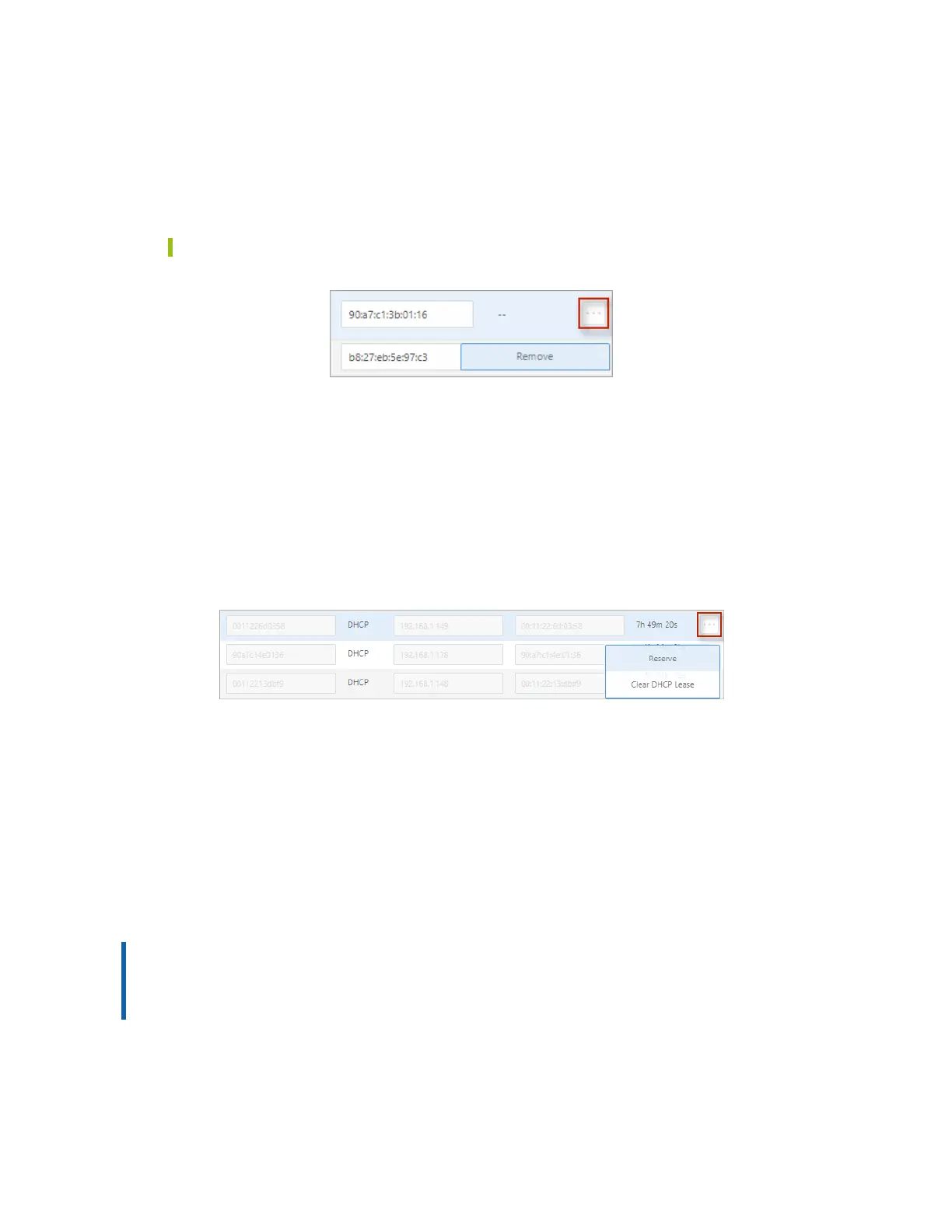
Tip: To remove the reservation, click the … More icon and select Remove.
Manage DHCP entries
Reserve or clear a DHCP lease
The DHCP Reservation tab lists all devices on the network that have obtained an IP address via
DHCP.
To reserve a device’s current DHCP assigned IP Address or to clear the DHCP lease from the
router:
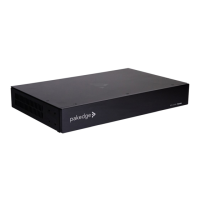
1. Go to the Advanced tab > DHCP Reservation and find the device you wish to
manage. Then click the … More icon.
2. Using the options, either Reserve or Clear the DHCP Lease.
l
Reserve: To have DHCP always assign the same IP address to the selected machine,
click Reserve.
l
Clear DHCP Lease: To have the server immediately assign a new IP address to the
selected machine, click Clear DHCP Lease.
3. Click Apply to complete the action.
Remove reservations
You can remove all DCHP Leases at once, or just the lease for a single device.
Important! Because DHCP persists on individual devices, if you clear a DHCP lease on the
router (using the DHCP Reservation page), it clears from the router and not the device. To
clear the device you must either (1) reboot the device or (2) disconnect and reconnect the
device to the network (to get a new IP address).
33


 To Next Page