Directions For Use
EN 21DVDR70 & DVDR75/0x1 3.
32
E
Onscreen information
You can check or change many of the functions and settings of your DVD recorder via the
system menu bar. The menu bar cannot be displayed during recording.
Symbols in the menu bar
Press SYSTEM-MENU to open and close the menu bar (main menu). Use D and C to select
the relevant function. Use CH- B to confirm the function and go either to another menu or
execute the function directly.
Some functions may not be available, depending on the disc inserted.
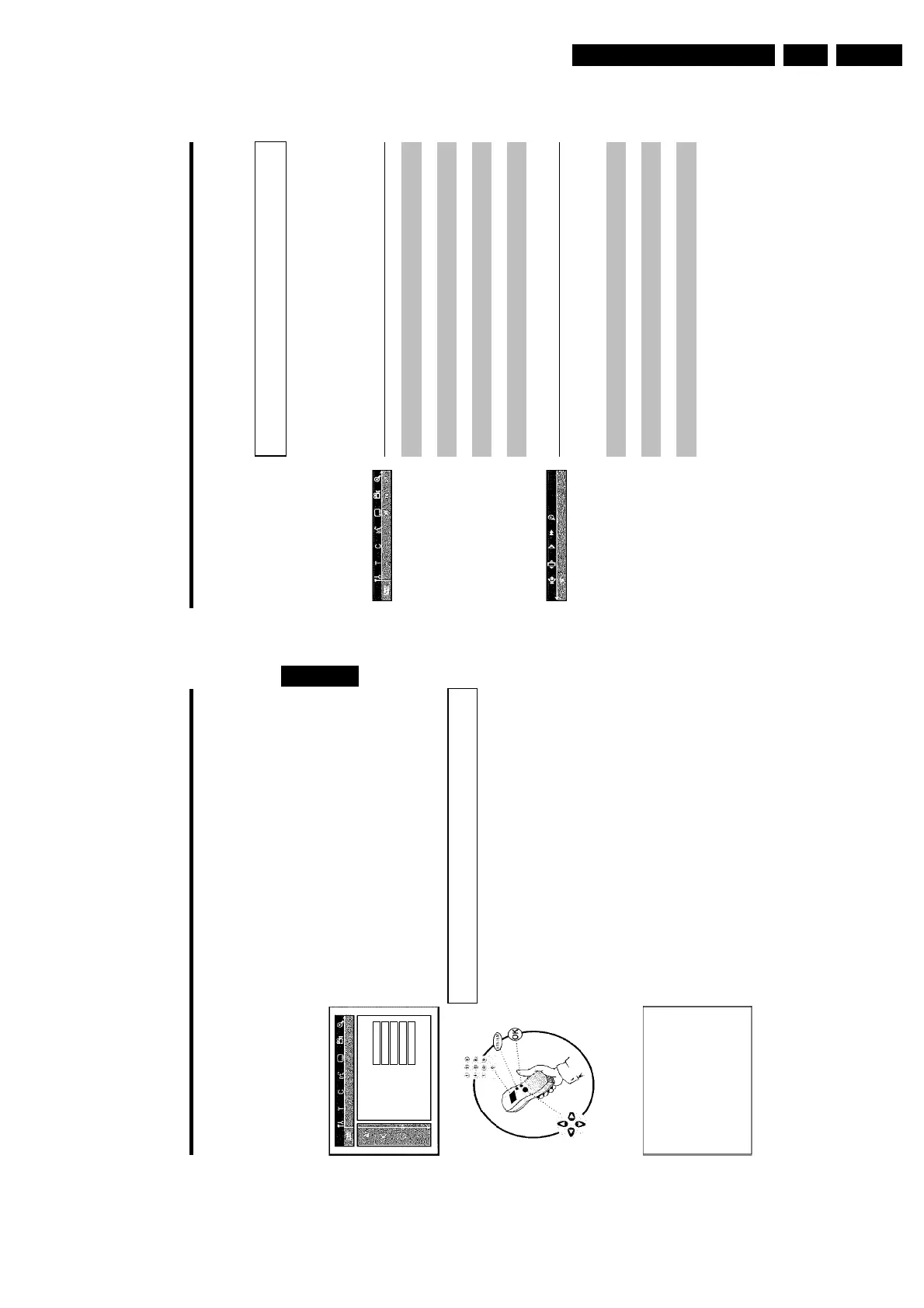
Menu bar 1
A
User preferences
B
Title/track
C
Chapter/index
D
Audio language
E
Subtitle language
F
Camera angle
G
Zoom
Menu bar 2
While menu bar 1 is being displayed you can go to menu bar 2 by pressing C again.
H
Sound
I
Frame advance
J
Slow motion
K
Fast forward
L
Search by time
On-screen information
31
1 Switch on the TV set. If required, select the programme number for
the DVD recorder.
2 Switch on the DVD recorder using STANDBY/ON m .
3 Press SYSTEM-MENU on the remote control. The menu bar
appears.
4 Select '
A
' symbol with D or C .
Language
Audio Language English
Recording audio Language 1
Subtitle English
Menu English
Country Other
5 Select line 'Language' with CH- B or CH+ A . and confirm with
the C button.
6 Select line 'Recording audio' and confirm with C .
7 Select 'Language 1'or'Language 2' with CH- B or CH+ A and
confirm with OK .
8 To end, press SYSTEM-MENU .
Setting the time and date
If the display shows an incorrect time or '--:--', the time and date must be reset manually.
If a TV channel which transmits TXT/PDC (teletext/PDC) is stored under programme number
'P01', the time and date will automatically be taken from the TXT/PDC information.
1 Press SYSTEM-MENU on the remote control. The menu bar
appears.
2 Select '
A
' symbol with D or C .
3 Select 'Installation' using CH- B or CH+ A and confirm with C .
4 Select 'Time/Date' using CH- B or CH+ A and confirm with C .
Installation
Time/Date
Time 20:00
Year 2003
Month 01
Date 01
To exit press
SYSTEM MENU
5 Check if the time in 'Time' is correct. If required, change the time
with the number buttons 0..9 on your remote control.
6 Check 'Year', 'Month' and 'Date' in the same way. To move between
the fields, use CH- B or CH+ A .
7 Check the displayed settings and confirm with OK .
'Stored' will appear briefly on the screen.
8 To end, press SYSTEM-MENU .
ENGLISH
Installing your DVD recorder











 To Next Page