Directions For Use
EN 34 DVDR70 & DVDR75/0x13.
58
Editing recording titles (name)
Some TV stations transmit the title (name) of a programme. In this case, the name will be
included automatically (e.g. 'ROCKY'). Otherwise, the only the programme number (programme
name) and the time are stored as the name of the recording. The name of the recording can
only be changed after the recording has been completed.
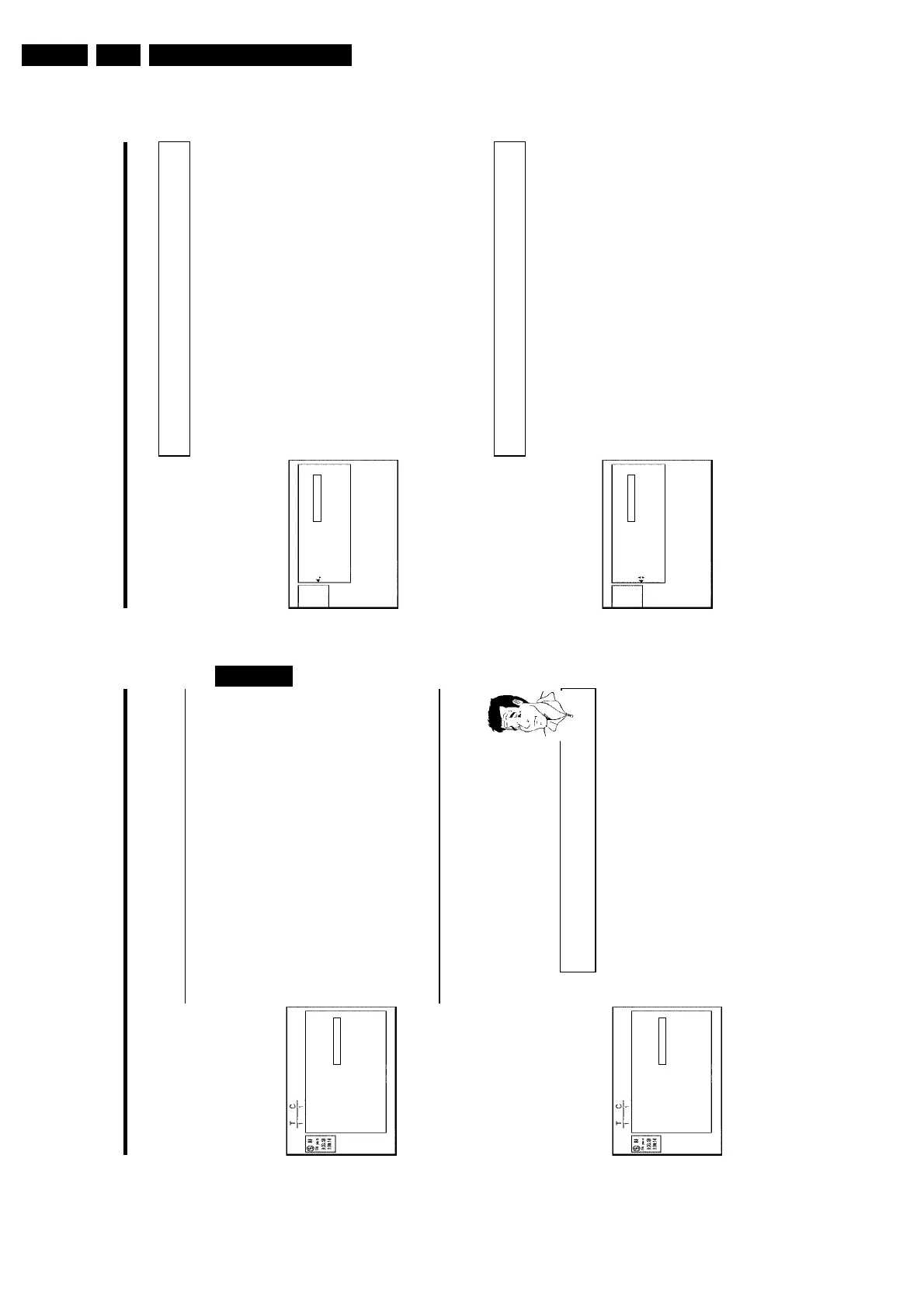
1 Press the STOP h button or during playback press DISC-MENU .
Settings for title Charly 1
Name Charly 1
Play full title
Erase this title
2 Using CH+ A or CH- B select the title whose name you want to
edit and confirm with C . The menu for editing names appears.
3 Select 'Name' using CH+ A or CH- B and confirm with C .
4 Using C or D select the position where the letter/number/icon is to
be changed/re-entered.
5 Change the icon using CH+ A or CH- B . You can switch between
upper and lowercase using SELECT . You can delete the character
using CLEAR .
6 Repeat
4 and 5 until you have made the changes you want.
7 Save the new name with OK .'Storing name' appears on the TV
screen for confirmation.
8 To end, press D .
Playing the entire title
If you have hidden certain sections (chapters) of a title, this setting lets you watch the entire title
including the hidden sections. To do this, proceed as follows:
1 Press the STOP h button or during playback press DISC-MENU .
Settings for title Charly 1
Name Charly 1
Play full title Press OK
Erase this title
2 Using CH+ A or CH- B select the title you want to play all of and
confirm with C . The title editing menu will appear.
3 Select 'Play full title' using CH+ A or CH- B and confirm with
OK .
4 Playback starts automatically. The title is played in its entirety -
including the hidden chapters.
Managing the disc contents
57
Changing the index picture
Normally the first picture of a recording is used as the index picture. You can however choose
any picture from the recording as the index picture.
1 During playback, search for location of the new index picture. Press
the PAUSE 9 button.
Favorite Scene Selection
Insert marker Press OK
Current chapter visible
Delete marker
Delete all markers
New index picture
Divide title
Press FSS to exit
2 Press the FSS & button. The 'Favorite Scene Selection' menu
appears on the TV screen.
3 Select line 'New index picture' and confirm with OK .
4 Start the change with OK .'Updating menu' appears on the TV
screen.
Once the revision has been completed successfully the DVD recorder reverts to the index
overview.
Splitting titles
You can split a title into several sections (titles) of any size. Each of these sections (titles) is
identified by its own index.
Note: This split cannot be undone.
Can I split titles on DVD+R discs?
As recordings on DVD+R discs cannot be overwritten, it is not possible to
split titles.
?
Favorite Scene Selection
Insert marker Press OK
Current chapter visible
Delete marker
Delete all markers
New index picture
Divide title
Press FSS to exit
1 While the relevant title is playing, press FSS & on the remote
control. The 'Favorite Scene Selection' menu appears on the TV
screen.
2 Select 'Divide title' and confirm with the OK button.
3 If you are sure, press OK to start the process. 'Dividing title'
appears on the TV screen.
4 Wait until the new title is displayed with an index picture in the index
picture overview.
The process of splitting the title is now complete.
ENGLISH
Managing the disc contents











 To Next Page