Directions For Use
EN 35DVDR70 & DVDR75/0x1 3.
60
Changing the disc name
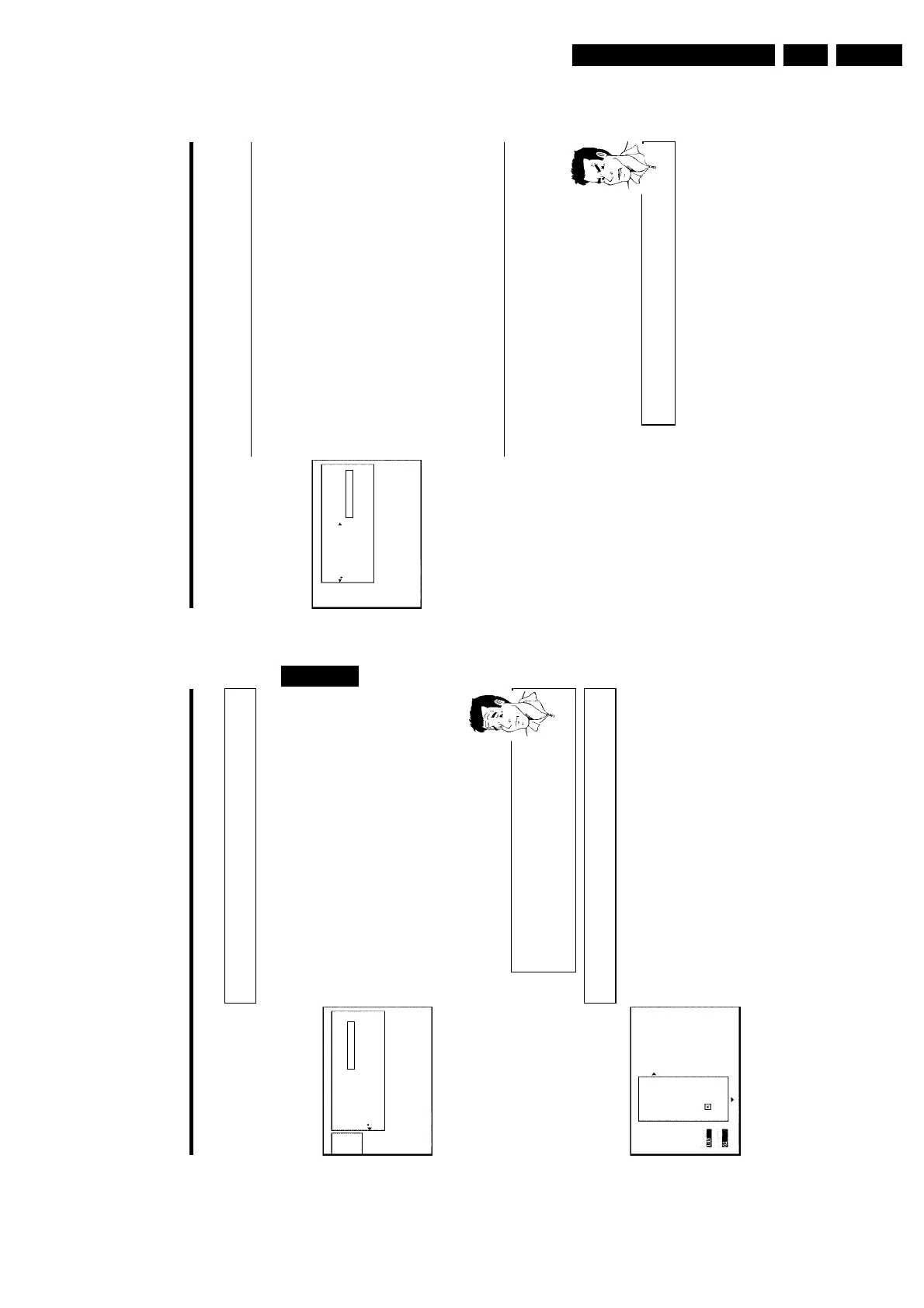
1 In the 'Disc info display' press C . The 'Settings for' menu appears
on the TV screen.
Settings for Philips1
Disc name Philips1
Protection Unprotected
Erase disc
2 Select 'Disc name' using CH+ A or CH- B and confirm with C .
3 Using C or D select the position where the letter/number/icon is to
be changed/re-entered.
4 Change the icon using CH+ A or CH- B . You can switch between
upper and lowercase using SELECT . You can delete the character
using CLEAR .
5 Repeat
3 and 4 until you have made the changes you want.
6 Save the new title with OK .'Storing name' appears on the TV
screen for confirmation.
7 To end, press D .
Finishing editing
If one or more titles have been edited a DVD player may still display the original titles. You can
prepare your disc in such a way that a DVD player will be able to play the edited version.
1 In the 'Disc info display' press C . The 'Settings for' menu appears
on the TV screen.
2 Select 'Make edits compatible' using CH+ A or CH- B and
confirm with OK .
a 'Make edits compatible' does not appear
b Your disc is already compatible. There is no need for conversion.
To end, press SYSTEM-MENU .
Problem
3 The screen displays 'This will take' to show how long the process
will last.
4 To confirm press OK .'Working' appears on the TV screen. A bar
will move from left to right indicating progress.
Managing the disc contents
59
Deleting recordings/titles
You can delete specific recordings from a disc. To do this, proceed as follows:
1 Press the STOP h button or during playback press DISC-MENU .
Settings for title Charly 1
Name Charly 1
Play full title
Erase this title Press OK
2 Using CH+ A or CH- B select the title you want to delete and
confirm with C . The title editing menu will appear.
3 Select 'Erase this title' using CH+ A or CH- B and confirm with
OK .'This will completely erase this title' appears on the TV
screen.. 'Press OK to confirm'.
4 If you want to delete this title, press OK to confirm. Otherwise press
D .
5 'Erasing title' appears on the TV screen.
6 At this point 'Empty title' appears in the 'index picture display'. A
new recording can now be made here.
If the deleted title was very short (less than 1 minute) 'Empty title'
will not appear at this point.
Can titles be deleted from a DVD+R disc?
Titles on DVD+R discs are only marked as deleted. 'Deleted title' will appear
in the display instead of 'Empty title'. During playback the 'deleted' title is
skipped. The space used for this title cannot be used again as the title has not
been physically deleted. Once the disc has been finalised no further changes
can be made.
?
Disc settings
Philips1
00:35:59 used
Fri15/02/2003
PAL
DVD playback
This screen appears beforethe first title and contains general information about the current disc.
You can:
•) change the name of the disc
•) activate or deactivate write protection on the disc
•) Finish editing (make the disc DVD compatible)
•) finalise a DVD+R
•) delete a DVD+RW
To get to this display, proceed as follows:
1 Press the STOP h button or during playback press DISC-MENU .
2 Select the first title with CH+ A or press STOP h .
3 Press the CH+ A button. The disc info display will appear.
ENGLISH
Managing the disc contents











 To Next Page