l
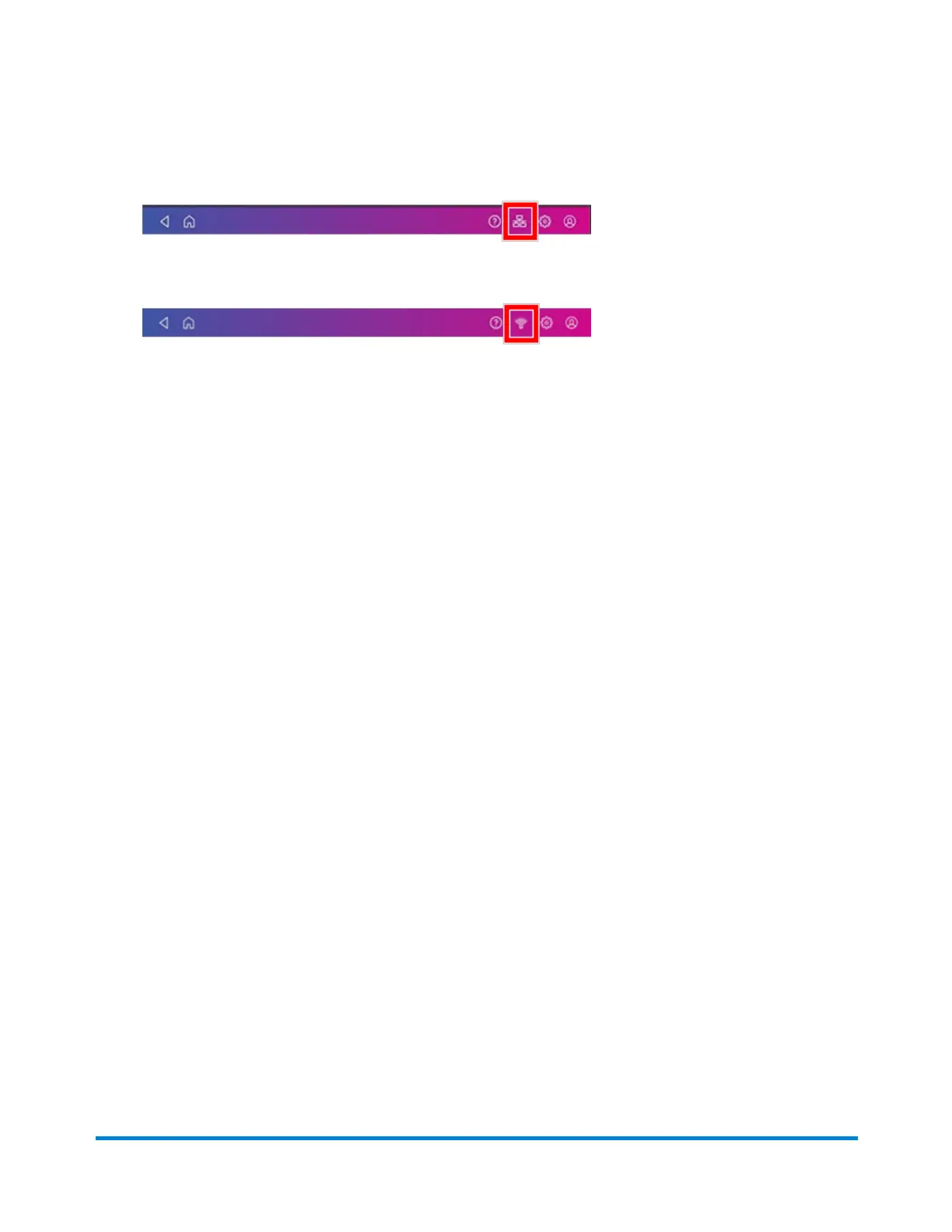
For wired network connections, the following connection image appears in the toolbar:
l
If you have a wireless connection, the following connection image appears in the toolbar:
1. Tap Envelope Printing or Print on Envelopes on the Home screen.
2. Tap Postage Balance.
3. Tap Refill Postage.
4. Enter the amount of postage you wish to add.
5. Tap Refill Mail Postage.
6. Tap View Receipt to view or print a receipt.
7. Tap Done.
8. Your updated postage balance appears on the Envelope Printing or Print on Envelopes screen.
Sending a First-Class Mail envelope
First-Class Mail is an economical way to send mailpieces through the USPS. You can send standard
postcards, letters, and large envelopes and small packages up to 15.99 ounces.
1. Tap Envelope Printing or Print on Envelopes on the Home screen.
2. If you have the accounting feature enabled, tap Account and select an account.
3. Tap Class.
4. Tap Start Over to show a list of all the available classes.
5. Tap First-Class Retail Metered for a First-Class Mail envelope.
6. Tap Letter.
7. Select any special services you wish to use.
8. Tap Apply.
9. Place the envelope on the scale. The weight appears.
10. Place the envelope or envelopes on the feed deck. Depending on the SendPro C model you
have, feed the envelopes manually or tap Start to feed the envelopes.
Printing on envelopes
Pitney Bowes Operator Guide April 2022 123












 To Next Page