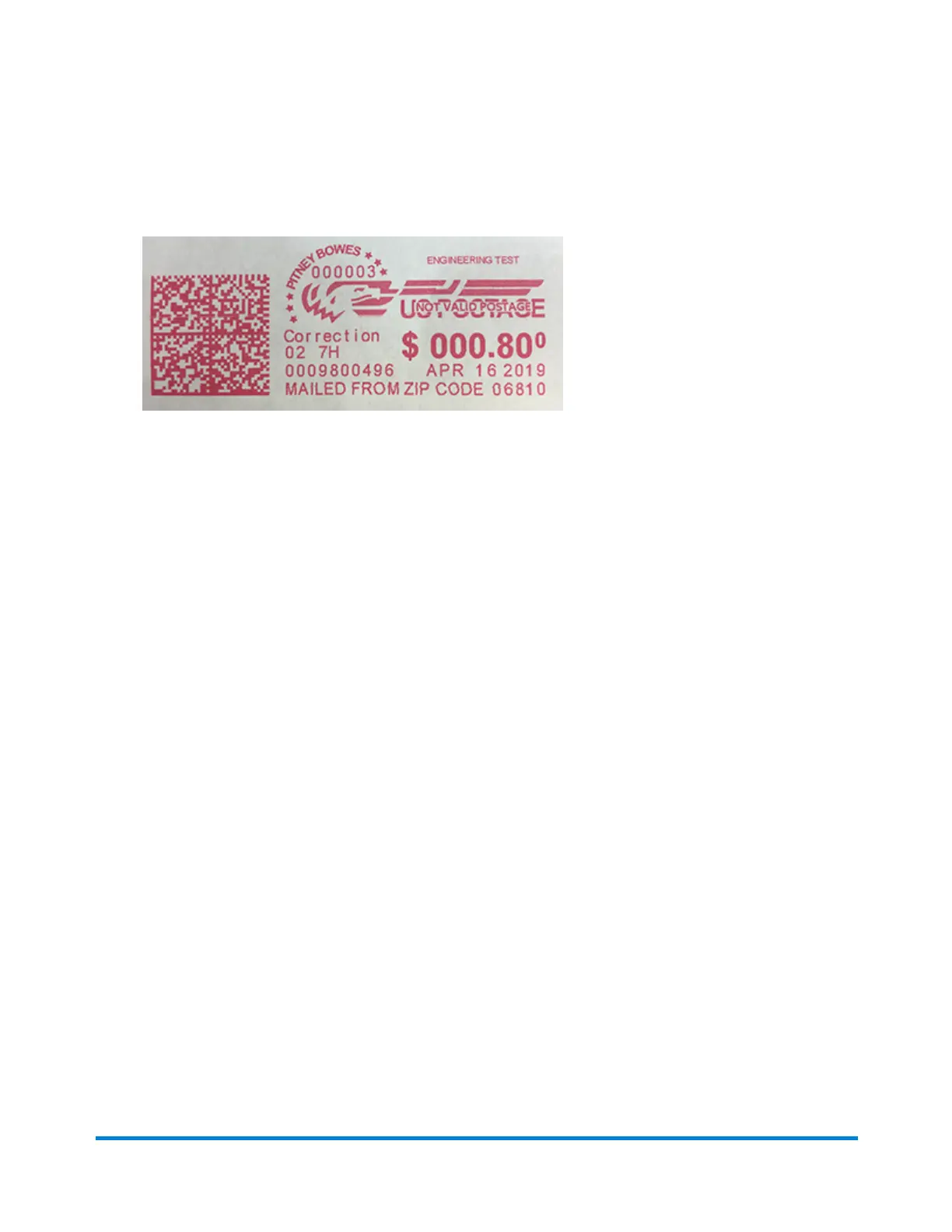
9. Place the envelope or envelopes on the feed deck. Depending on the SendPro C model you
have, feed the envelopes manually or tap Start to feed the envelopes.
The word "Correction" appears on the postage mark:
Re-dating your mail
Watch this video or follow the instructions below to learn how to redate your mail.
If you already printed today’s date and postage on an envelope, but you missed your mail pickup, you
can re-date the mail. You must print a future date on the back of the envelope before you can mail it.
You can only re-date one envelope at a time, even if you are feeding envelopes automatically.
1. Tap Envelope Printing or Print on Envelopes on the Home screen.
2. Scroll down and tap Print Mode.
3. Tap Date Correction.
4. Tap Apply.
5. Tap on the date.
6. Tap Tomorrow or Another Date, depending on the date you need.
7. Tap Apply after you select the new date.
8. Turn the envelope over to the blank side.
9. Place the envelope on the feed deck. Depending on the SendPro C model you have, feed the
envelope manually or tap Start to feed the envelope. The word “Redate” appears on the newly
printed print on the back of the envelope.
Printing on envelopes
Pitney Bowes Operator Guide April 2022 131












 To Next Page