Adding a shipping label cost account
Add shipping Cost Accounts to record shipping label usage by department.
1. Open the Shipping Cost Accounts app:
l
Tap SendPro Apps on the Home screen, then tap Cost Accounts.
2. Tap + in the upper left corner of the shipping Cost Accounts screen.
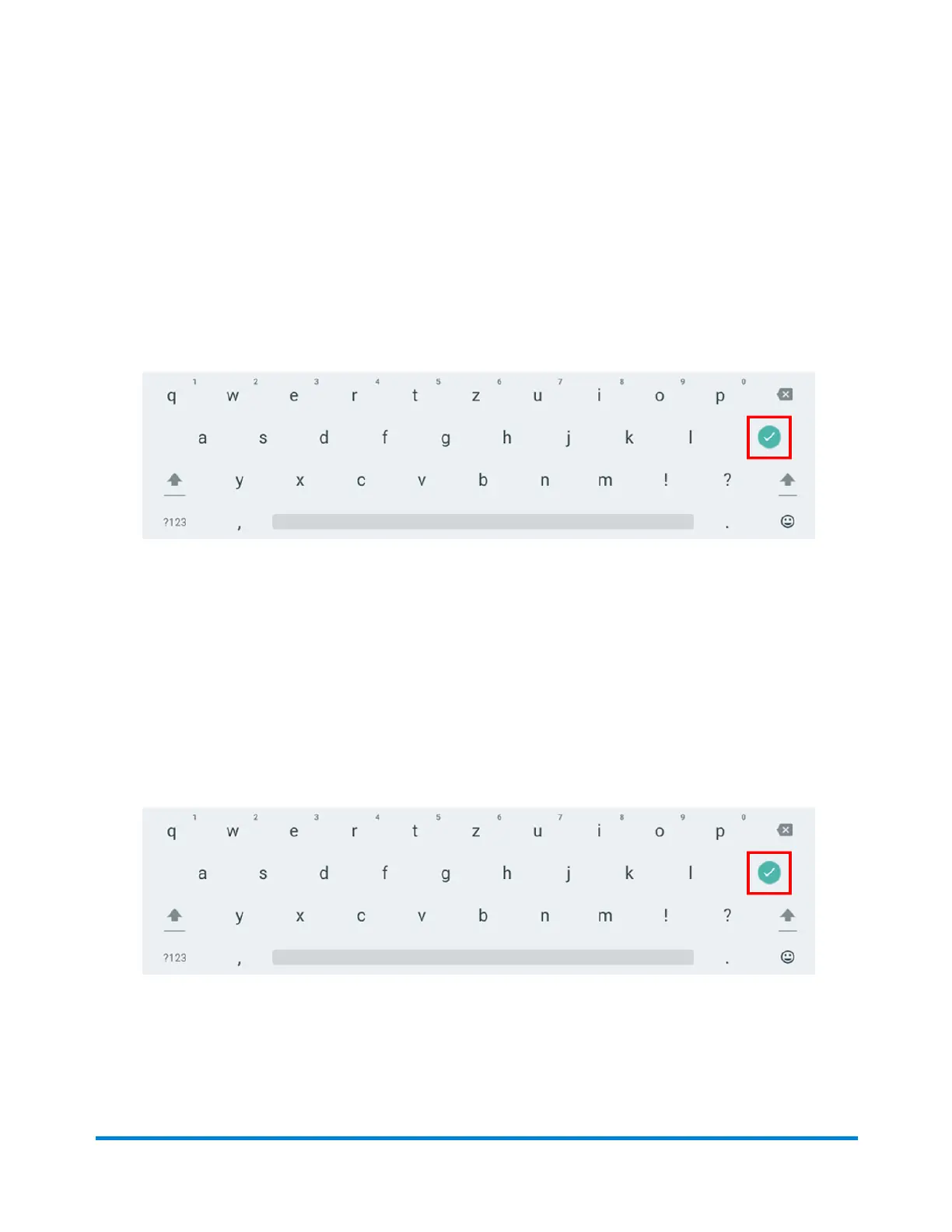
3. Enter the account name, up to 20 characters. Tap Enter when done.
You can use lower case letters, upper case letters, numerals and special characters for the
account name. Acceptable special characters include:
l
- hyphen
l
_ dash
l
' single quote
l
@ at sign
l
. Period
l
and optional description.
4. (Optional) Enter a description of the account up to 200 characters.
5. Tap Enter when done. You can use the same types of characters as for the account name.
6. Tap Active or Inactive. Your selection should be whichever is appropriate for this account.
7. Tap Make this my default Cost Account to make this cost account automatically used for all
shipping labels.
8. Tap Apply.
Quick start guide
Pitney Bowes Operator Guide April 2022 24












 To Next Page