Advance the date to print postage up to thirty days before you need to send it.
1. Tap Envelope Printing or Print on Envelopes on the Home screen.
2. Tap the date. The calendar appears.
3. Tap Tomorrow or Another Date, depending on the date you wish to print.
4. When you see the future date highlighted on the calendar, tap Apply.
5. Place the envelope or envelopes on the feed deck. Depending on the SendPro C model you
have, feed the envelopes manually or tap Start to feed the envelopes.
Important: The date on the postage should match the date when your mail goes to the post office.
Your device automatically advances the printed date on the device stamp (as well as its internally held
date) when the device time reaches 5:00 PM. You cannot change this time.
Printing postage without a date for pre-printed
mailpieces
If you wish to use a pre-printed return envelope, card, or label on which the postage is prepaid, you
must print the postage without a date.
This feature is only available for Meter Reply Mail with First-Class Retail Metered classes that include
Letter, Non-Machinable Letter, Large Envelope, and Postcard.
1. Tap Envelope Printing or Print on Envelopes on the Home screen.
2. Tap First-Class Retail Metered Letter.
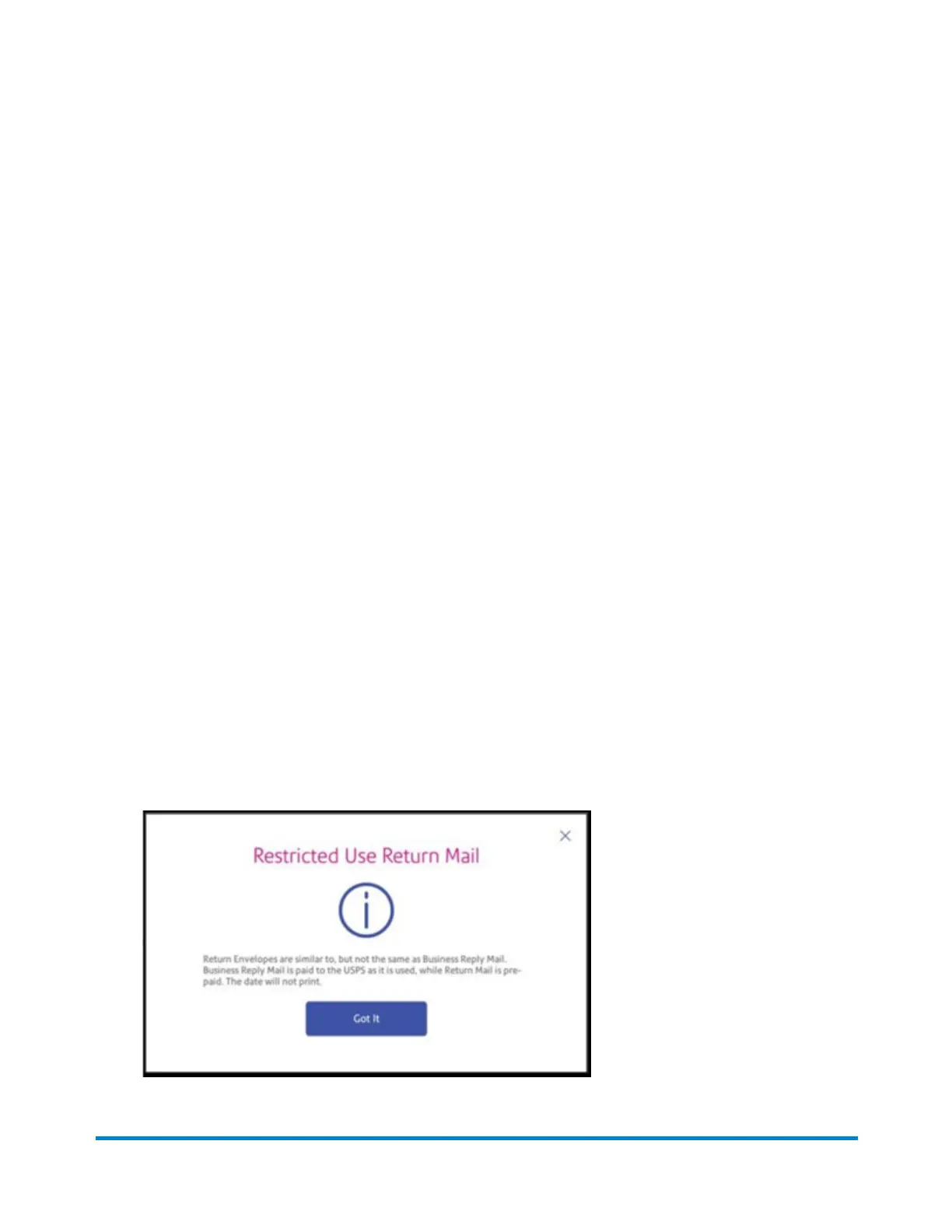
3. On the Class & Extra Services screen, scroll down and tap the Restricted Use Return Mail
box.
Printing on envelopes
Pitney Bowes Operator Guide April 2022 129












 To Next Page